
PRTG Manual: User Interface
In the User Interface settings, you can set, for example, the color mode, the device tree view, or the language of the user interface of your PRTG app for desktop installation.
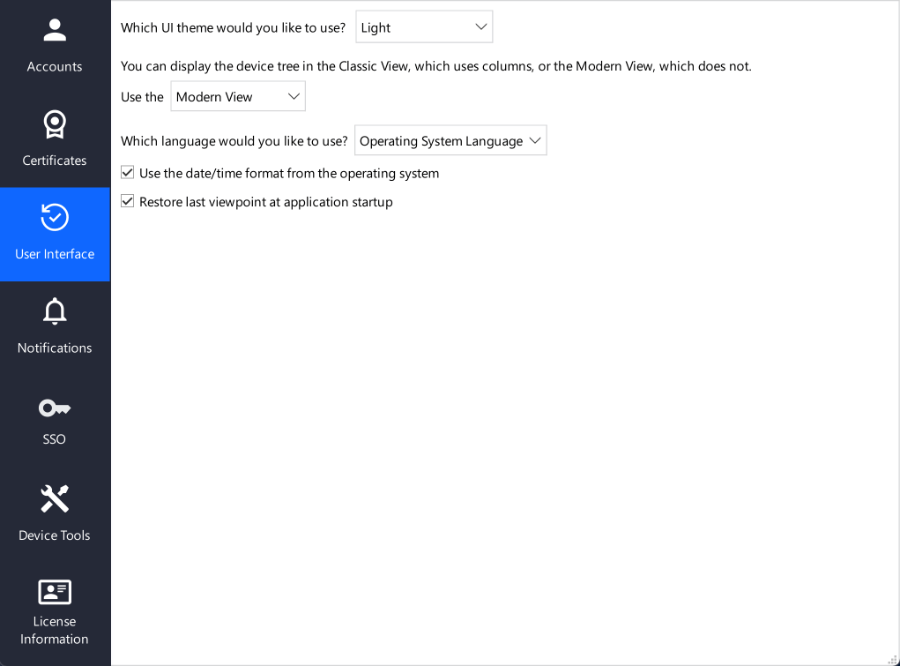
User Interface settings
You can change the settings of the user interface as follows.
Setting |
Description |
|---|---|
UI theme |
Select the color mode of the user interface: ▪Light ▪Dark |
Device tree view |
Select how to display the device tree: ▪Modern View: Display the device tree without columns. 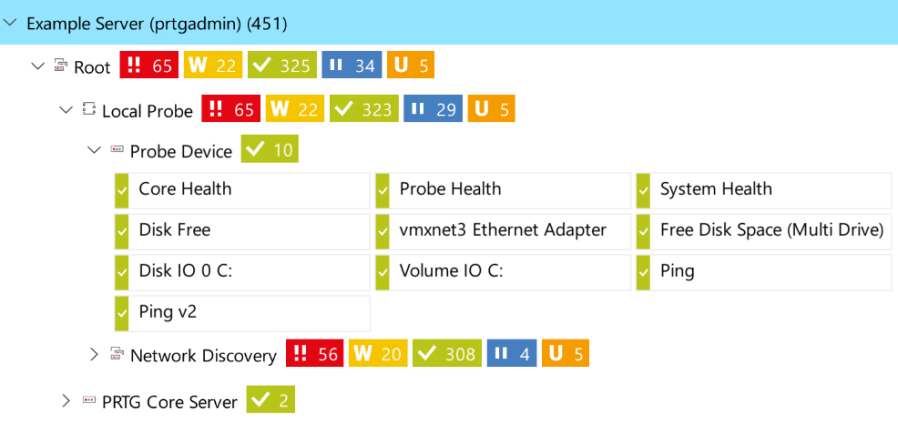 Modern device tree view ▪Classic View: Display the device tree with columns. 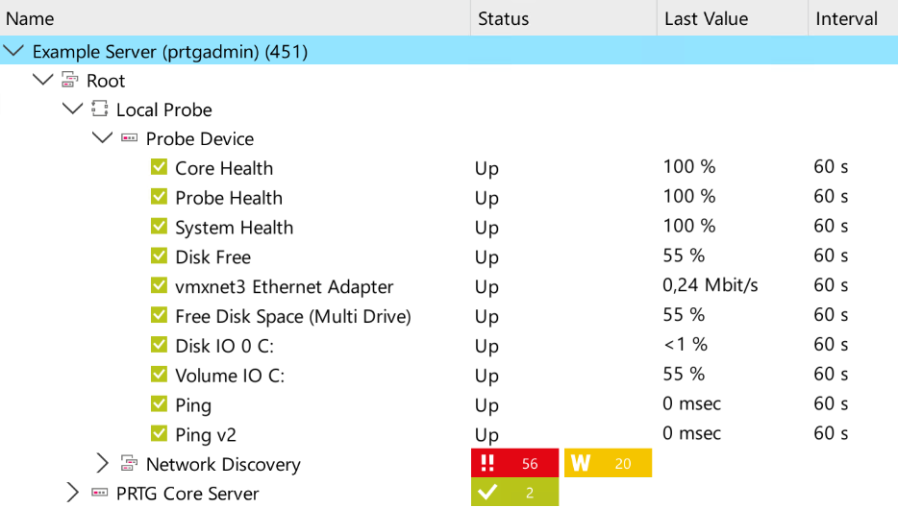 Classic device tree view |
Language |
Select the language of the user interface: ▪Operating System Language ▪Deutsch (German) ▪English
|
Date/time format |
Select whether you want to use the operating system's date/time format independently of your language setting.
|
Last viewpoint |
Select whether you want to open the PRTG app for desktop to the last viewpoint when you start the application.
|

