
PRTG Manual: Template transfer
|

Use the Template Transfer feature to copy custom device templates from one PRTG server to another. You can transfer multiple device templates at once.
 For more information about creating custom device templates, see the PRTG Manual: Create Device Template.
To use the template transfer, you must meet the following requirements:
Setting |
Description |
|---|---|
Port |
The port number that PRTG MultiBoard uses to connect to a PRTG core server. The default port is 44387.
1.Completely close the application via the system tray. Right-click the application icon in your system tray and select Quit. 2.Navigate to the PRTGDesktop folder in your Windows registry. 3.Right-click in the registry window and select New | DWORD (32-bit) Value. 4.Rename the key FileTransferLocalHttpServerPort. 5.Double-click the new key to edit it. 6.In the Base field, select Decimal. 7.In the Value data field, enter the port number you want to use. 8.Click OK to save your changes.
|
Administrative rights |
The user account that you use to access the PRTG web interface must be a user account with administrative rights.
|
PRTG version |
The source system and the target system must run as of PRTG 23.4.91.
|
PRTG MultiBoard File Transfer |
PRTG MultiBoard requires access to the \devicetemplates folder in the PRTG program directories of all PRTG servers you want to use. To grant access, you must enable the PRTG MultiBoard File Transfer. In the PRTG web interface, navigate to Setup | System Administration | Core Server | PRTG MultiBoard Access.
|
Connections |
The target system must accept incoming probe connections.
|

From the main menu, select Extras | Template Transfer to open the template transfer dialog.
In the Select servers step, select the source server and the target server for the template transfer.
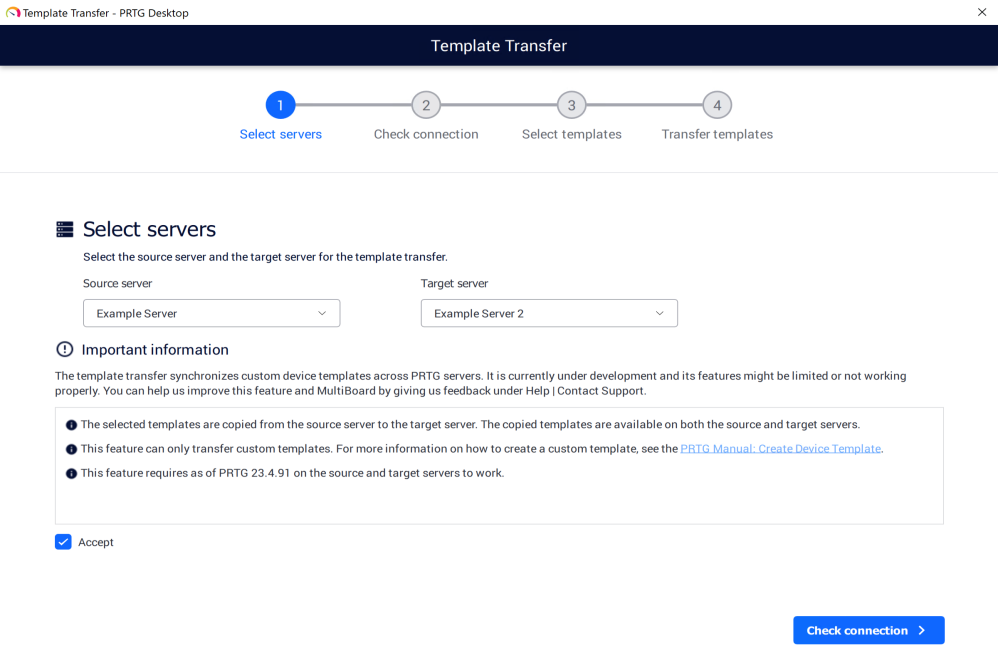
Select the source and targer servers
To select the systems, take the following steps:
1.Click  under Source server to open a dropdown list with the PRTG servers that are available for the template transfer. Servers that do not meet the requirements of the template transfer are grayed out. Select the server that you want to transfer the templates from.
2.Click under Target server to open a dropdown list with the PRTG servers that are available for the template transfer. Servers that do not meet the requirements of the template transfer are grayed out. Select the server that you want to transfer the templates to.
3.Read the requirements under Important information. If you want to proceed with the template transfer, click the checkbox to accept the conditions of the template transfer.
4.Click Check connection to continue.
In the Check connection step, PRTG MultiBoard checks if it can connect to all servers.
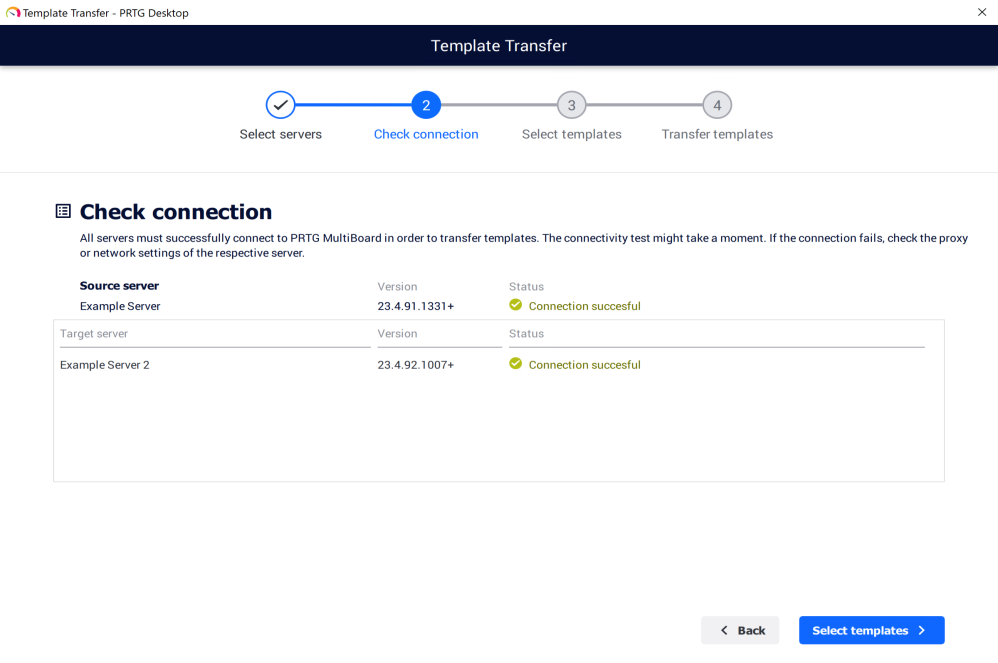
PRTG MultiBoard checks the connection of the servers
The connection check might take a moment. If PRTG MultiBoard is able to connect, you see a Connection successful status. Click Select templates to continue.
 If a server fails to connect, check the firewall settings of the PRTG server.
In the Select templates step, you can select one or more custom device templates that you want to transfer.
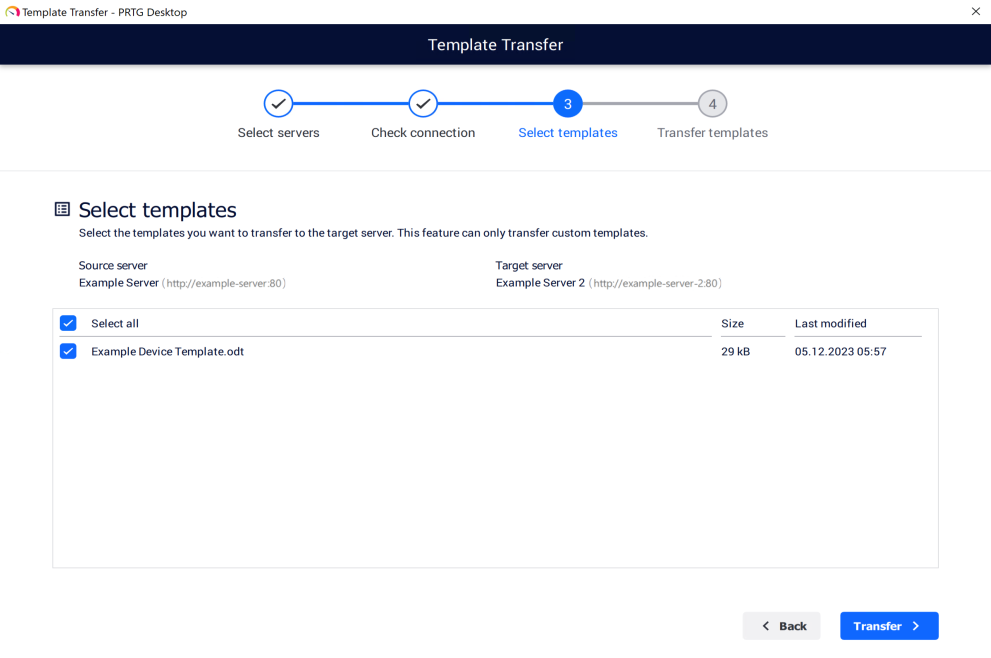
Select device templates to transfer
To select the device templates, take the following steps:
1.Select the device templates you want to transfer individually or use the checkbox in the table header to select all available custom device templates.
2.Click Transfer to continue.
In the Transfer template step, you can run the template transfer.
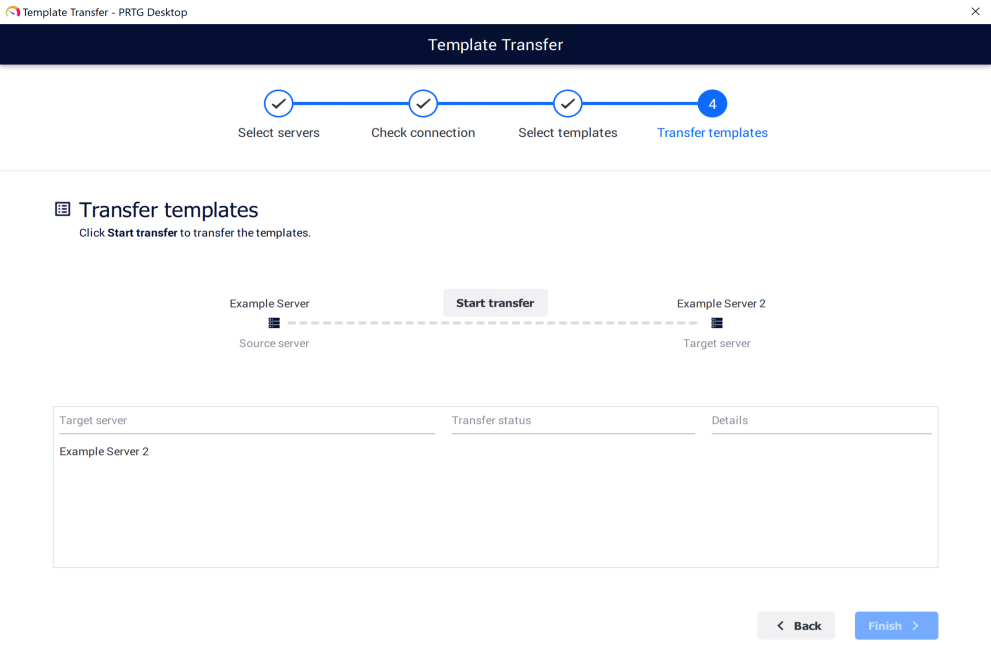
Start the template transfer
Click  to transfer the device templates to the target server.
The template transfer can fail if one of the selected PRTG servers goes offline or loses connection after the Check connection step. If this happens, run the template transfer again.
If the transfer is a success, the transfer status will display Success.
If the transfer fails, the transfer status will display Error and the reason for the error is shown in the Details column.
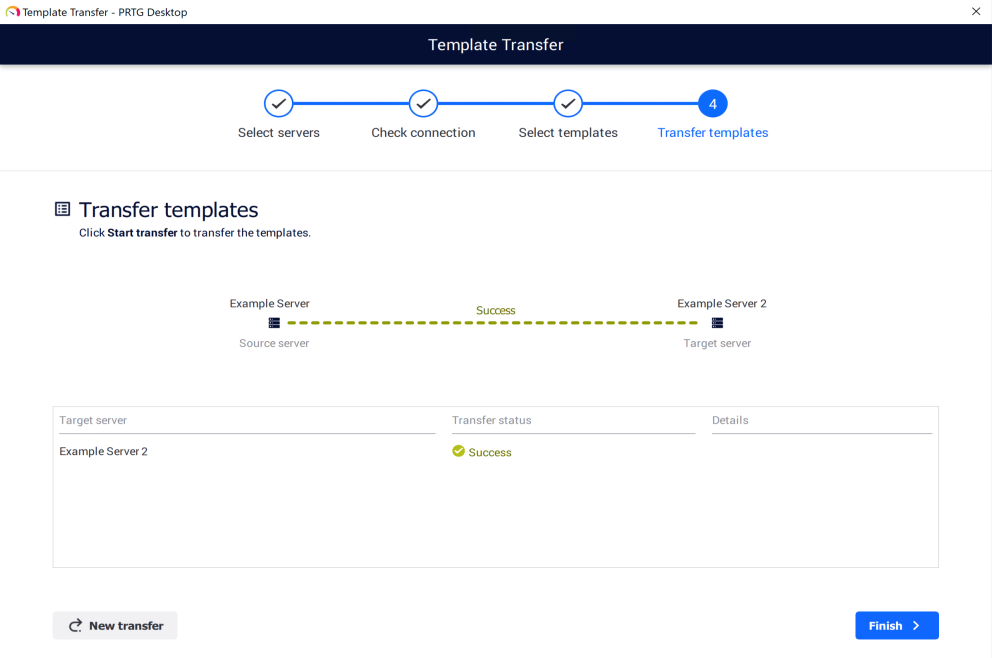
Finish the template transfer
The following actions are available:
▪Click  to do another template transfer.
▪Click  to close the template transfer dialog.
 PRTG MANUAL
