
PRTG Manual: Logs
On the Logs menu tab, you can find all past activities and events of your PRTG monitoring setup. This is useful for researching past user activities, system events, and, for example, to check whether messages were sent. In a typical setup, a huge amount of log data is produced. Because the PRTG app for desktop records the activity of every single object, you can use this information to check if your setup works exactly as desired.
 There are two ways to display the logs list: Either you click the Log tab while you view an object's details on the Devices menu tab, or you click the Logs menu tab to show a list of all log entries of the PRTG server.
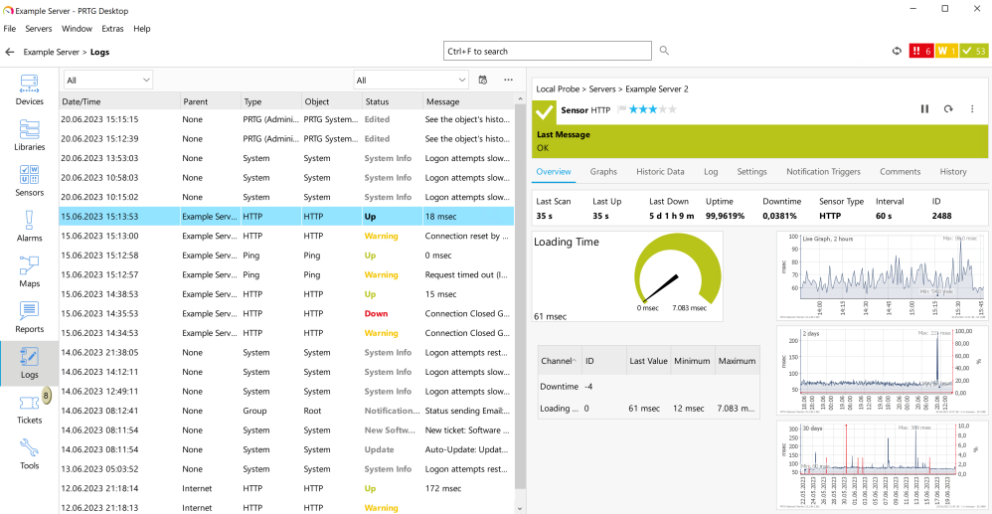
Logs list
Click  above the table to see a list of all possible categories. You can show or hide categories in the table via the checkbox next to the category names. Sort the table by clicking the table headers.
You can also enable filters to only show log entries of a specific event from the categories Status Changes, System Events, and Object History. Select the category from the first dropdown list.
The second dropdown list shows all possible event types for the category. Select an entry to only show events of the respective event type. Select a sensor status for status changes, Probe Related, Auto-Discovery, Notification Related, or Status Messages for system events, or a system object for object history.
You can also select a time span in which you want to show logs, or you use the date time picker  to enter the date and time.
 PRTG MANUAL
▪Logs
