
PRTG Manual: Desktop notifications
Use desktop notifications on your system tray to receive alerts from the PRTG app for desktop every time PRTG discovers new alarms in your network.
 To use the alert and notification features, you must first enable the tray icon under File | Settings | Notifications. If you do not enable the tray icon, PRTG app for desktop will not send alerts. For more information, see section Notifications.
Click  (or
(or  if there are no alarms) in your system tray to open the Multi Server View. Here you can see and learn more about the status of all your PRTG servers.
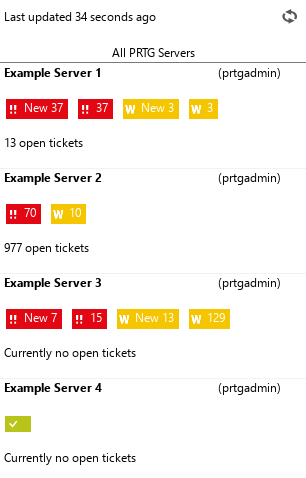
All PRTG servers overview
Setting |
Description |
|---|---|
Refresh |
Click |
All PRTG servers |
Click a PRTG server in the list to see all sensors that are have an alarm for that server.
|
 to instantly refresh the alarms of
If you click on a PRTG server with warning, you can see all sensors that more detailed view of all alarms:
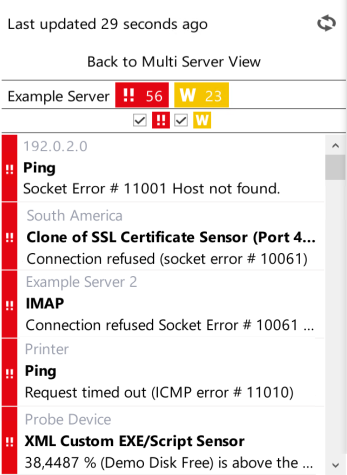
Tray overview
Setting |
Description |
|---|---|
Refresh |
Click |
Back to Multi Server View |
Click Back to Multi Server View to return to the PRTG server overview |
Show/Hide sensors |
Enable or disable the checkbox next to a sensor status icon to show or hide sensors in the Down and Down (Acknowledged) or the Warning state. |
Sensor alarms |
Click an alarm to open the Alarms menu tab in PRTG app for desktop. |
Right-click the PRTG app for desktop tray icon to open the tray menu.
Option |
Description |
|---|---|
Scan Now |
Perform an immediate scan for all PRTG servers. This option queries new data for all objects on all PRTG servers. |
Settings... |
Open the Settings menu. |
Open PRTG Desktop |
Open the PRTG app for desktop window. |
Open MultiBoard |
This option is only visible if you have a PRTG MultiBoard license. Open the MultiBoard window. |
Show Server List |
Display an overview list of your PRTG servers. |
Quit |
Close the PRTG app for desktop.
|
In addition to the tray icon, the PRTG app for desktop can optionally show desktop notifications in the event of new Alarms.

Desktop notification
You can also play sounds when there are new notifications for sensors.
 For more information, see section Notifications.
 PRTG MANUAL
KNOWLEDGE BASE
Which audible notifications are available in the PRTG web interface and in the PRTG app for desktop?
▪https://helpdesk.paessler.com/en/support/solutions/articles/76000041652
PAESSLER WEBSITE
How to set up notifications for the PRTG app for desktop
▪https://www.paessler.com/support/how-to/notifications-desktop
