
PRTG Manual: Notifications
In the Notifications settings, you can define what the PRTG app for desktop does if there are new alarms, even if the application is closed.
 For more information, see section Desktop notifications.
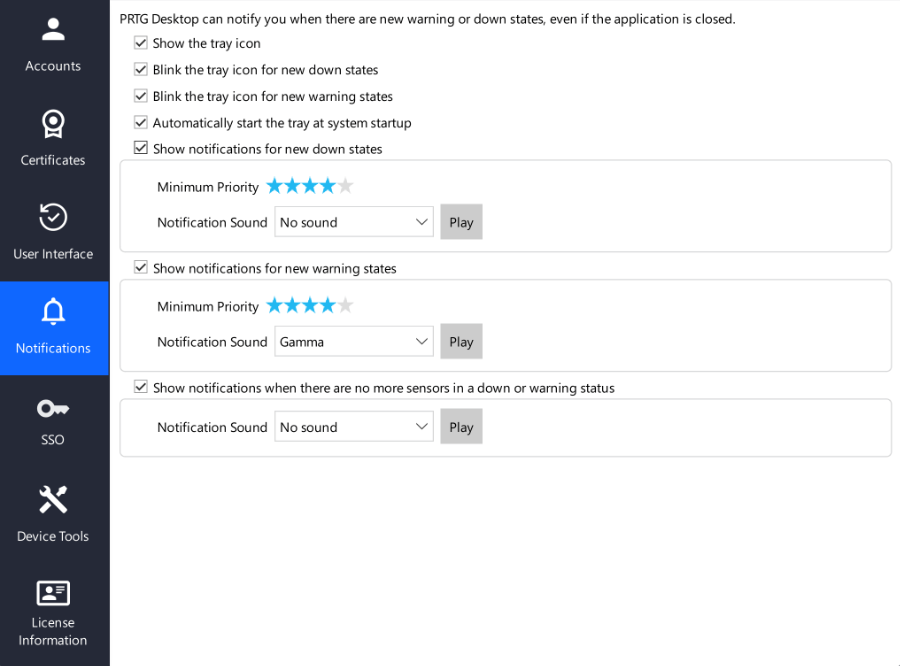
Notifications settings
You can change the settings for desktop notifications as follows:
Setting |
Description |
|---|---|
Show the tray icon |
This setting is disabled by default. If you enable this setting, a PRTG icon appears in the Windows tray. When you hover over it, it shows important status information about your monitoring. Left-click the tray icon to open an alarms overview where you see the status of all of your configured PRTG servers. Right-click the tray icon to show a context menu.
|
Blink the tray icon for new down states |
This setting is only available if you enable Show the tray icon. The tray icon blinks if there are sensors in new Down or Down (Partial) states. |
Blink the tray icon for new warning states |
This setting is only available if you enable Show the tray icon. The tray icon blinks if there are sensors in a new Warning status. |
Automatically start the tray at system startup |
This setting is only available if you enable Show the tray icon. This setting is disabled by default. If you enable this setting, the PRTG app for desktop automatically starts the tray at system startup. |
Show notifications for new down states |
This setting is only available if you enable Show the tray icon. Enable this setting to receive alerts for sensors in new Down or Down (Partial) states. ▪Minimum Priority: Select a minimum priority that sensors must have for notifications to be shown. ▪Notification Sound: Play an audible notification sound. The default setting is No sound. The PRTG app for desktop already comes with a set of sounds that you can choose from. Select Choose a custom file from the dropdown list to browse for any standard .wav file on your hard disk drive. |
Show notifications for new warning states |
This setting is only available if you enable Show the tray icon. Enable this setting to receive alerts for sensors in a new Warning status. ▪Minimum Priority: Select a minimum priority that sensors must have for notifications to be shown. ▪Notification Sound: Play an audible notification sound. The default setting is No sound. The PRTG app for desktop already comes with a set of sounds that you can choose from. Select Choose a custom file from the dropdown list to browse for any standard .wav file on your hard disk drive. |
Show notifications when there are no more sensors in a down or warning status |
This setting is only available if you enable Show the tray icon. ▪Notification Sound: Play an audible notification if there are no more sensors in the Down, Down (Partial), or the Warning status. The default setting is No sound. The PRTG app for desktop already comes with a set of sounds that you can choose from. Select Choose a custom file from the dropdown list to browse for any standard .wav file on your hard disk drive. |


 KNOWLEDGE BASE
Which audible notifications are available in the PRTG web interface and in the PRTG app for desktop?
▪https://helpdesk.paessler.com/en/support/solutions/articles/76000041652
PAESSLER WEBSITE
How to set up notifications for the PRTG app for desktop
▪https://www.paessler.com/support/how-to/notifications-desktop
