
PRTG Manual: Install the PRTG app for desktop
You can install the PRTG app for desktop on any system that meets the necessary requirements.
 You need administration rights to install the PRTG app for desktop on all supported Windows Server versions.
If you have not yet downloaded the PRTG app for desktop installer from the Paessler website, you can find it here: https://www.paessler.com/prtg/apps/desktop.
Install the PRTG app for desktop on Windows
1.Execute the setup program prtg-desktop.exe that you have downloaded.
 To install the PRTG app for desktop on macOS, open the PRTG app for desktop disk image, and drag the PRTG icon onto the Applications folder icon.
2.Click Install to accept the terms and conditions and to install the PRTG app for desktop.
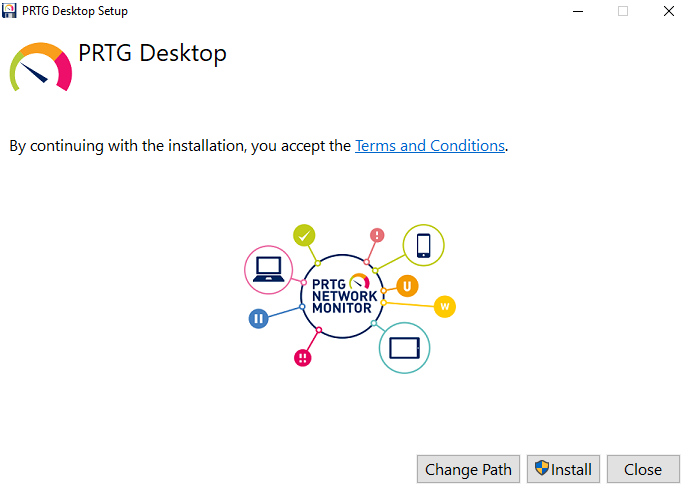
License agreement
 The PRTG app for desktop is automatically installed under C:\Program Files\Paessler\PRTG Desktop. Click Change Path to select a different folder. We recommend that you use the default path.
If asked, confirm the question of the Windows User Account Control with Yes to allow the program to install.
3.After installation, click Launch to start the PRTG app for desktop.
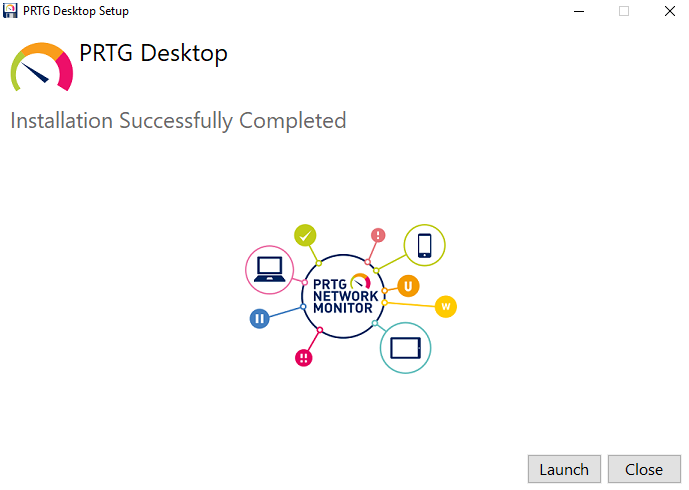
Installation complete
4.The welcome page is displayed. To continue with PRTG app for desktop, click Skip.
Optionally, click Activate PRTG MultiBoard License to enter your PRTG MultiBoard License Key. Enter your license key and click Next.
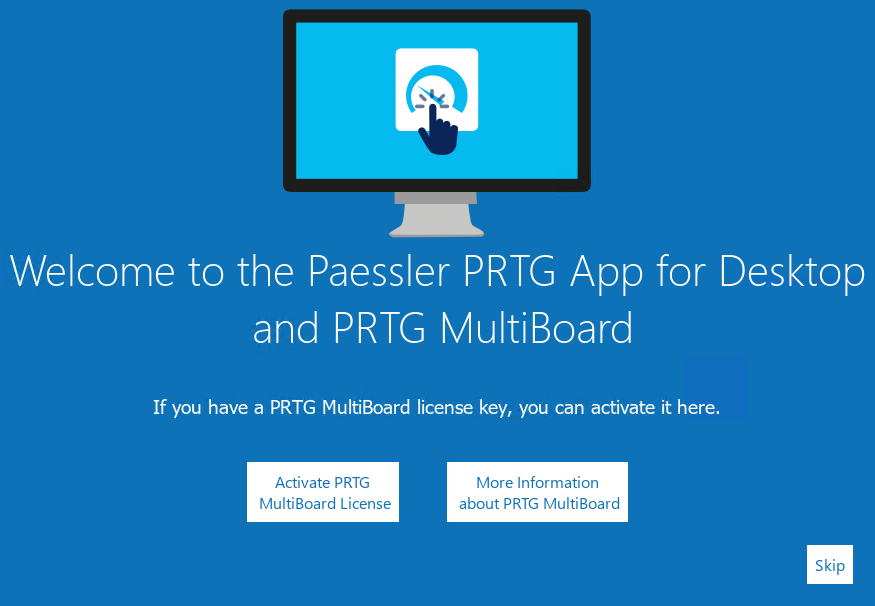
Welcome page
5.Click Connect to my server to continue. Optionally, you can try the demo server.
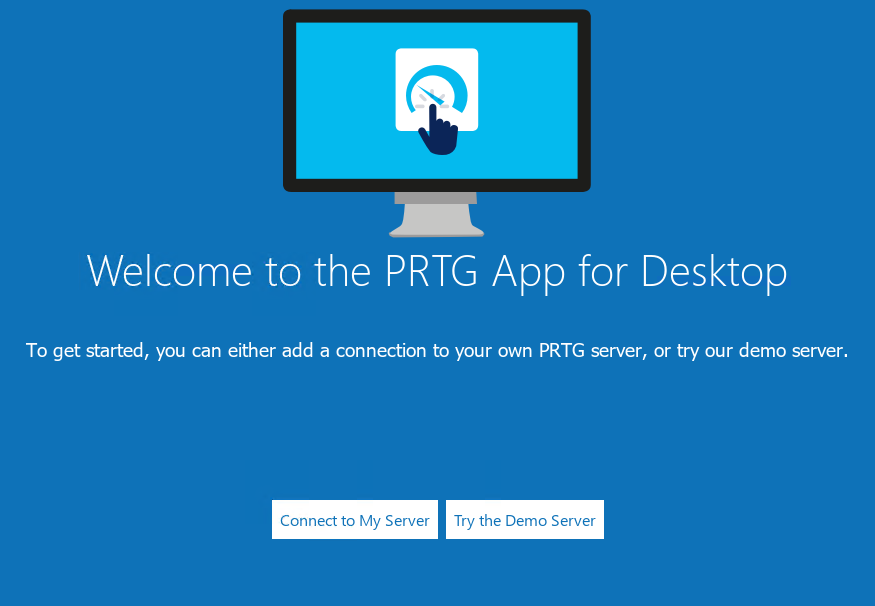
Connect to your server
6.If you choose Connect to my server, enter the connection settings for one of your PRTG servers and click Save to connect. To begin, you will only be adding one PRTG core server or PRTG Hosted Monitor instance. After installation, you can add more servers in File | Settings | Accounts. For more information, see section Accounts.
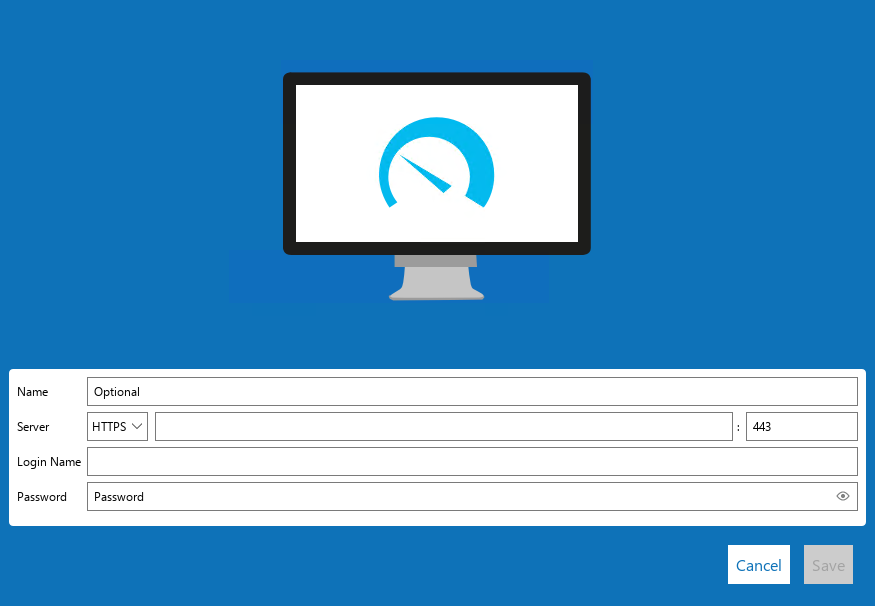
Connection settings
The PRTG app for desktop individually stores the connection settings for each Windows user under
%appdata%\Paessler\PRTG Desktop\data.
7.If the PRTG server uses Secure Sockets Layer (SSL), the PRTG app for desktop shows a certificate warning because the certificate that comes with PRTG cannot be signed by a valid authority.Click Yes to continue.
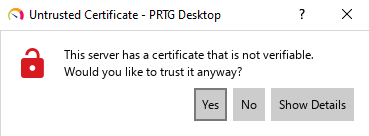
Certificate warning
8.The installer will show a few tips for using the PRTG app for desktop features. Click Next to continue.
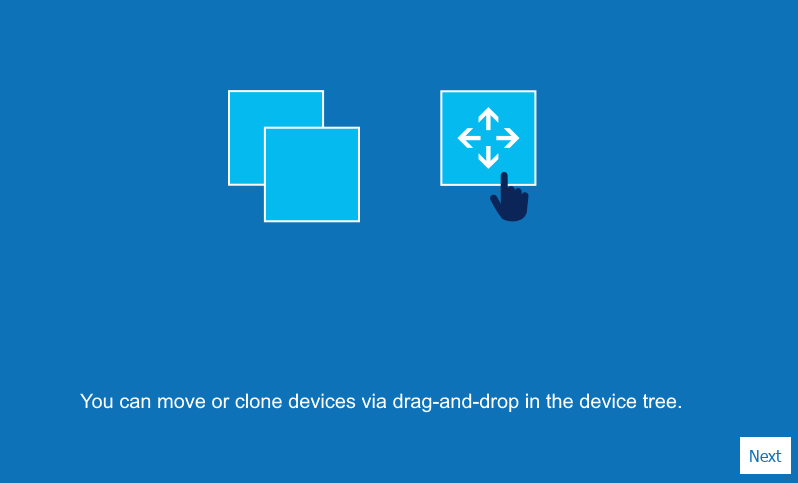
Tip how to move or clone devices
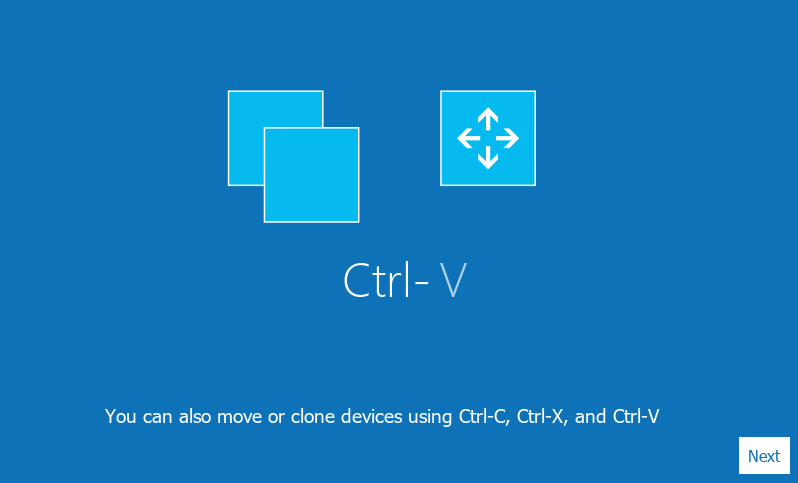
Move or clone devices shortcuts
9.Enable or disable the checkbox next to Enable the system tray to receive desktop notifications via the system tray or to deactivate notifications. This setting can be changed after installation.
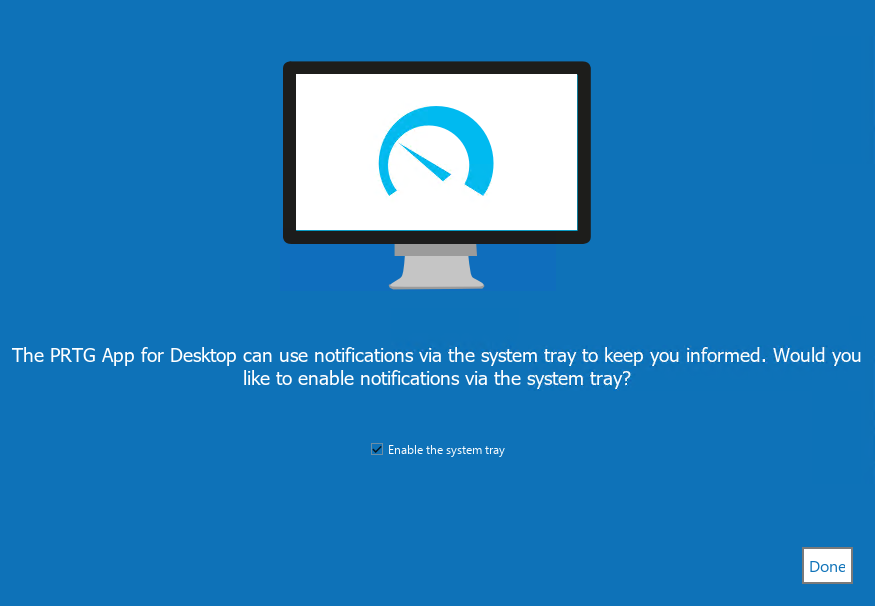
Enable system tray notifications
10.Click Done to start the PRTG app for desktop.
Click the PRTG app for desktop icon in the Windows Start menu to open the PRTG app for desktop. As soon as it opens, the PRTG app for desktop tries to connect to your PRTG servers via the defined connection settings.
If you get an error message when you open the PRTG app for desktop, check the connection settings. This is necessary, for example, if the IP address or password of your PRTG server changes.
You can now add more PRTG servers to your PRTG app for desktop instance. For more information , see section Accounts.
 KNOWLEDGE BASE
PRTG app for desktop on macOS 10.15 Catalina cannot be opened. What can I do?
▪https://helpdesk.paessler.com/en/support/solutions/articles/76000076557
