
PRTG Manual: Maps
The Maps menu tab content is split into two parts. On the left-hand side, you see all available maps from the PRTG server, on the right-hand side, the details of the map.
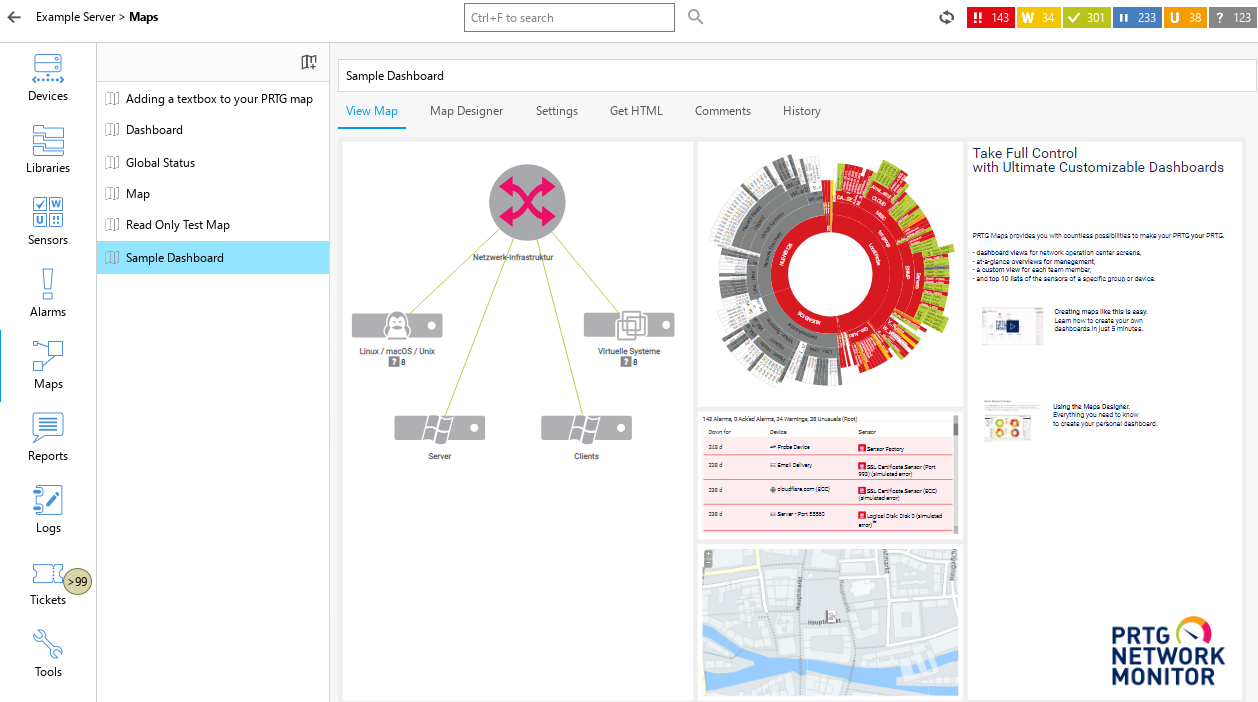
Maps
The following actions are available:
▪Click a map's name in the list on the left-hand side to display it in the window on the right-hand side. In the tabs above the map, select from View Map, Map Designer, Settings, Get HTML, Comments, and History. Remember to click Save to apply your settings.
▪You can edit a map via the Map Designer.
▪Right-click a map's name to open a context menu. The following actions are available: Open in new window, Rename, Edit, Clone, and Delete.
▪Click  to add a new map.
 For more information, see the PRTG Manual: Maps.
With the Map Rotation feature, the PRTG app for desktop can show several maps or dashboards that rotate on one page. Map rotation also lets you view different information on one screen based on time. You can compare this to a slide show. Follow the steps below to configure your own map rotation.
1.Select the maps that you want to rotate by holding down the Ctrl key while left-clicking.
2.Right-click the objects for the multi-edit menu to appear.
3.Click Map Rotation in the multi-edit menu.
4.Enter the time until a new map appears, the default is 30 seconds.
5.The PRTG app for desktop now shows the maps in rotation in a new window.
6.You can change the refresh interval by clicking  in the lower-right corner.
 PRTG MANUAL
▪Maps
