
PRTG Manual: Configuration import & export
Use the configuration import and export to move your PRTG MultiBoard configuration from or to a new system.
When you export a configuration, PRTG MultiBoard creates a JSON configuration file that contains server accounts and dashboard widgets configuration data. The configuration file does not include passwords or passhashes. You must enter the credentials for each account when you import the configuration file on a new system.
After you create a configuration file, you can use this feature to import the configuration file on a different system.
 If the target system does not have a PRTG MultiBoard instance, you can import the configuration file during installation after you enter your PRTG MultiBoard license.
How to export a configuration
1.From the main menu, select File | Configuration Import & Export.
2.Select Export configuration and click Next.
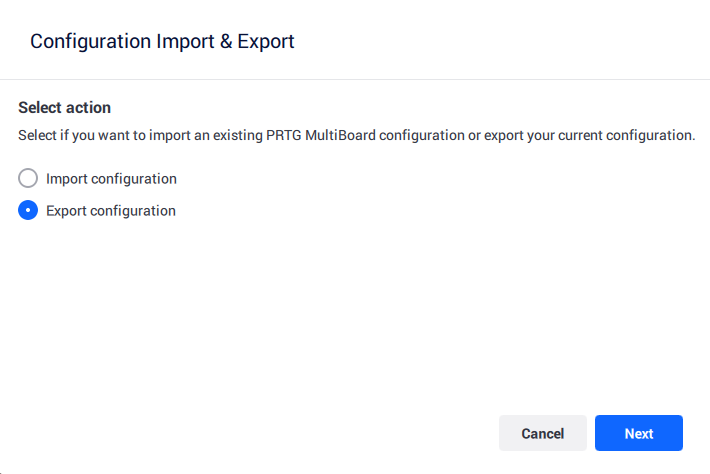
Select action: Export configuration
3.Select the accounts that you want to include in the configuration file.
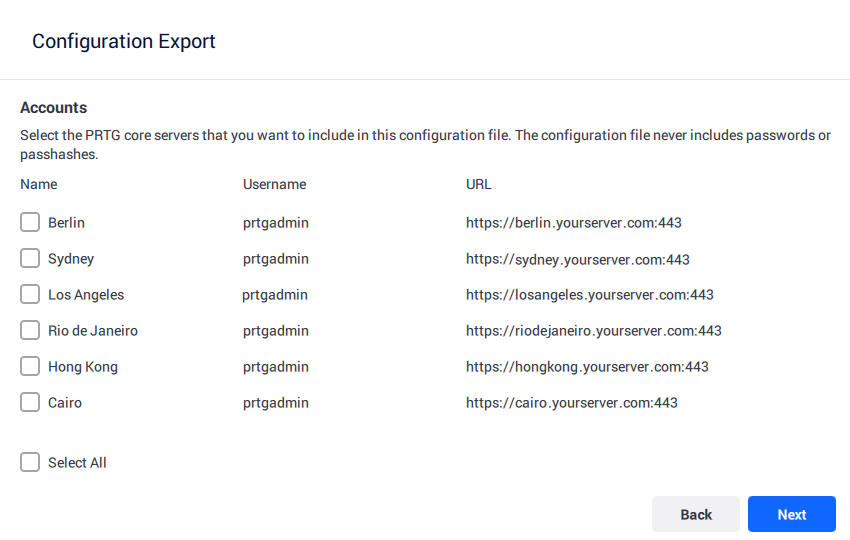
Select PRTG servers
4.Select the dashboard widgets that you want to include in the configuration file.
Only widgets that use the selected accounts are available for export. If you want to include a different widget, return to the previous and select the necessary accounts.
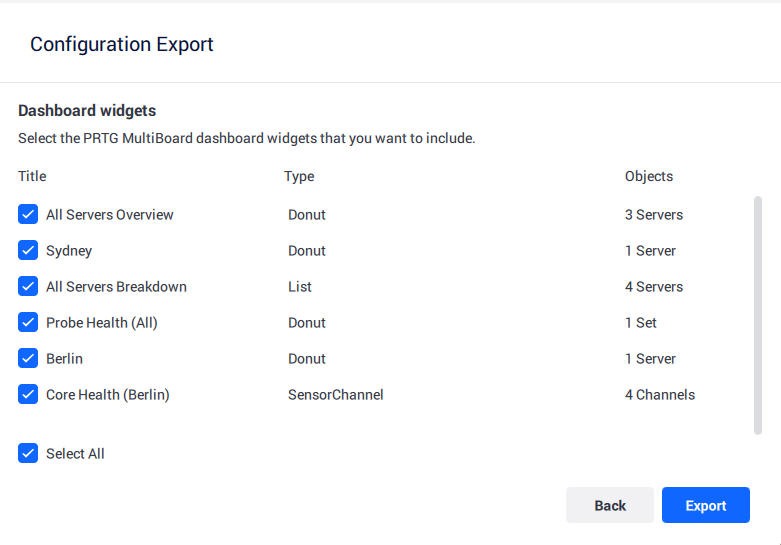
Select dashboard widgets
5.Click Export.
PRTG MultiBoard creates a configuration file and saves it in the default Documents folder on your system.
How to import a configuration
If you want to import a configuration file during installation, skip to step 3.
1.From the main menu, select File | Configuration Import & Export.
2.Select Import configuration and click Next.
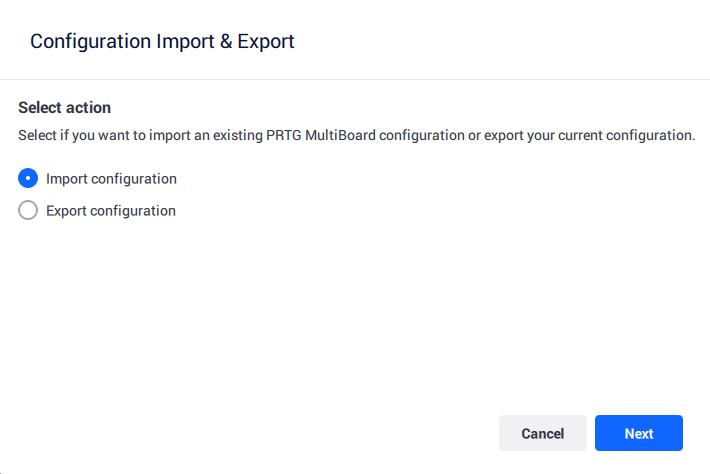
Select action: Import configuration
3.Drag and drop the configuration file that you want to import.
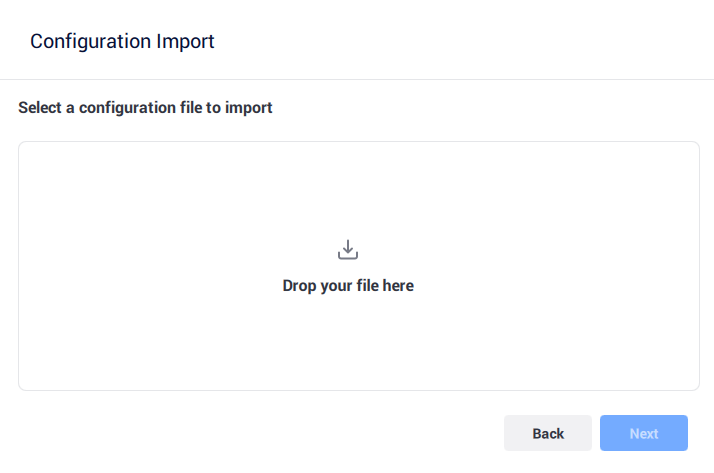
Select configuration file
4.Click Next.
5.Click Connect next to all the accounts that you want to connect to on the new system.
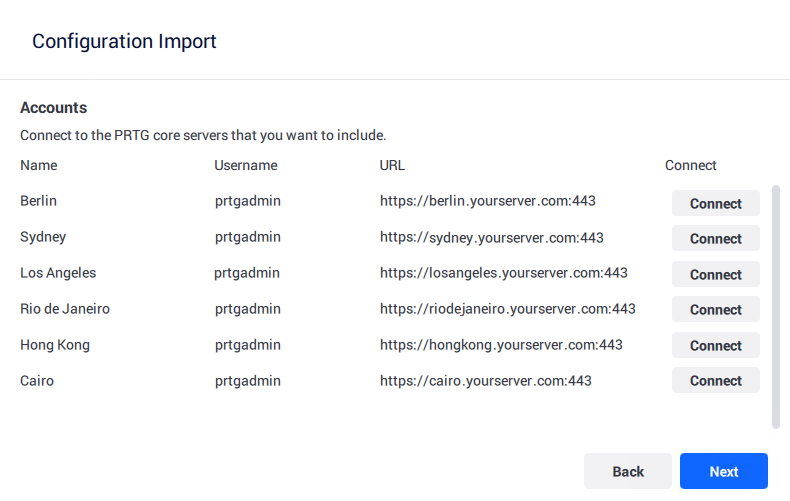
Connect to PRTG server accounts
6.Enter the credentials for each PRTG server that you want to connect to.
The application automatically fills in the name, URL, and login name of the PRTG server account based on the configuration file. It does not duplicate any existing accounts.
7.Click Next.
8.Select the dashboard widgets that you want to include on the new system.
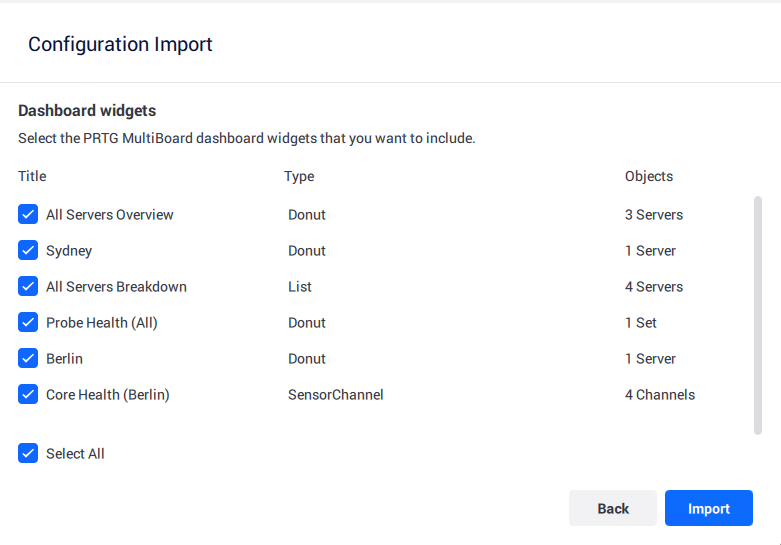
Select dashboard widgets
9.Click Import.
10.You receive confirmation of the imported data. Click Close.
