
PRTG Manual: Uninstall the PRTG app for desktop
You can use the Windows uninstall routines to remove the PRTG app for desktop software from your system.
 You need administration rights to uninstall the PRTG app for desktop on all supported Windows Server versions.
 To uninstall the PRTG app for desktop on macOS, drag the PRTG app for desktop out of your Applications folder to the trash can.
Uninstall the PRTG app for desktop
Take the following steps to remove the PRTG app for desktop from your system:
1.From the Windows Start menu, open the Windows Control Panel (the Windows Settings in Windows 10), go to the Programs and Features section (the Apps section in Windows 10), select the PRTG app for desktop, and click Uninstall.
2.If asked, confirm the question of the Windows User Account Control with Yes to allow the program to uninstall.
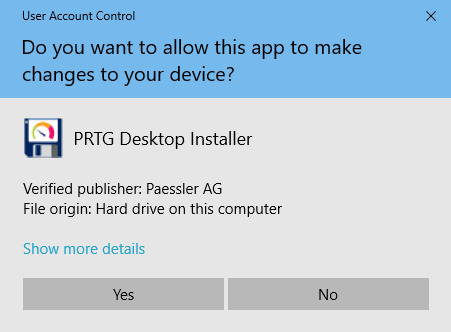
Allow uninstall
3.Click Uninstall to start the uninstall process.
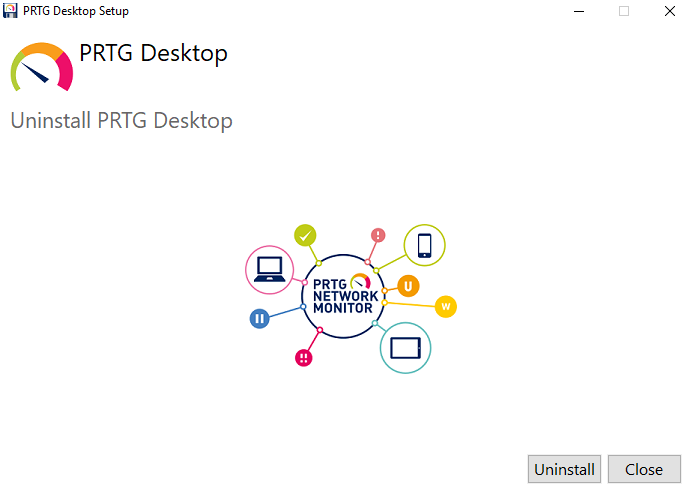
Uninstall the PRTG app for desktop
4.Wait while the software is removed. The dialog shows you the uninstall progress. Click Close when the uninstall process is complete.
5.After the software is removed, there is still some custom data in the PRTG app for desktop data directory.
To completely remove all PRTG app for desktop data from a Windows system, delete the following folder in the data directory: %allusers%\AppData\Roaming\Paessler.
 On macOS, delete /Users/<username>/Library/Application Support/Paessler/PRTG Desktop.
 For more information, see section Data storage.
 KNOWLEDGE BASE
I have issues with the PRTG app for desktop and PRTG MultiBoard. What can I do?
▪https://helpdesk.paessler.com/en/support/solutions/articles/76000064832
