
PRTG Manual: System requirements
To install and use the PRTG app for desktop, you need to meet the following requirements:
▪Requirements for connections to PRTG web servers
▪Restrictions for non-commercial editions
The PRTG app for desktop officially supports the following operating systems.
Operating system |
Supported systems |
|---|---|
Windows (64-bit) |
▪Microsoft Windows Server 2025 ▪Microsoft Windows Server 2022 ▪Microsoft Windows Server 2019 ▪Microsoft Windows 11 ▪Microsoft Windows 10 |
macOS |
▪As of macOS 10.15 |
Linux |
▪Tested on Ubuntu 20.04.4 |
 We recommend that you keep your graphics card drivers up to date for best performance.
Requirements for connections to PRTG web servers
 To show monitoring data of your PRTG setup, the PRTG app for desktop must be able to establish a connection to your PRTG web servers.
Make sure that the following account settings in the PRTG app for desktop match the following settings in the PRTG Administration Tool.
PRTG app for desktop account settings |
PRTG Administration Tool settings |
|---|---|
Server |
IP Address for PRTG Web Server on the PRTG Web Server tab 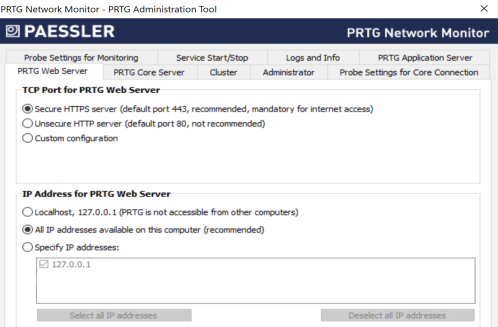 PRTG web server settings in the PRTG Administration Tool
|
Port |
TCP Port for PRTG Web Server on the PRTG Web Server tab
|
Login Name |
Login Name on the Administrator tab 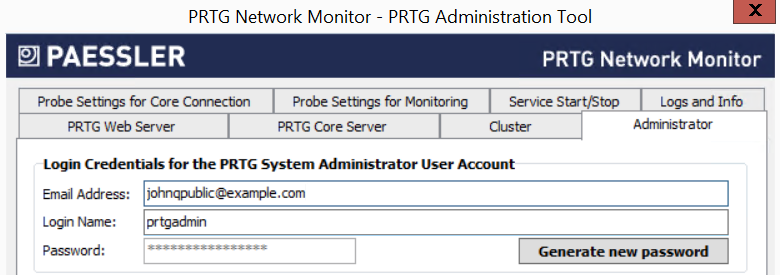 Administrator settings in the PRTG Administration Tool
|
Password |
Password on the Administrator tab
|


Also make sure that you meet the following requirements:
▪No local software firewall blocks the connection.
▪No local virus protection program blocks the connection.
▪No other application uses the specified port.
▪No (hardware) firewall blocks the connection when you connect through a network (LAN or WAN).
▪The software version of the PRTG web server is as of PRTG 17.4.35.
Restrictions for non-commercial editions
The PRTG app for desktop can connect to a maximum of two non-commercial installations (trial edition or freeware edition).
There are no restrictions on connections to commercial installations.
To install and use the PRTG app for desktop, your system must be connected to the internet as the PRTG app for desktop needs to connect with the PRTG servers you want to monitor.
 PRTG MANUAL
▪PRTG Administration Tool on PRTG Core Server Systems
PAESSLER WEBSITE
How to connect PRTG through a firewall in 4 steps
