
PRTG Manual: Accounts
In the Accounts settings, you can add, edit, and remove connections to one or more PRTG servers. The PRTG app for desktop connects to the PRTG web server that runs on the PRTG core server system, or it connects to a PRTG Hosted Monitor instance.
 For a successful connection, the PRTG core server must be as of PRTG 17.4.35. The PRTG app for desktop can be any version. However, we recommend that you always update to the latest version of the PRTG app for desktop.
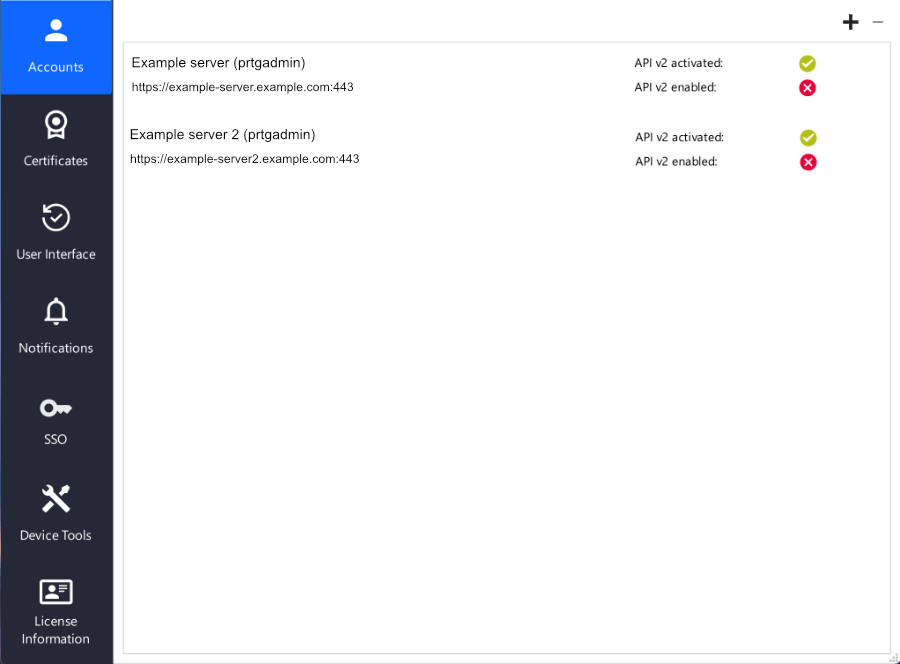
Accounts settings
The following actions are available:
▪Double-click an account in the list to edit it.
▪Click  to add a new account.
▪Select an account and click  to delete it.
Click to open the New Account dialog and enter the following settings.
Note that the PRTG app for desktop does not support multiple connections to the same PRTG server. You can only add one account per PRTG server.
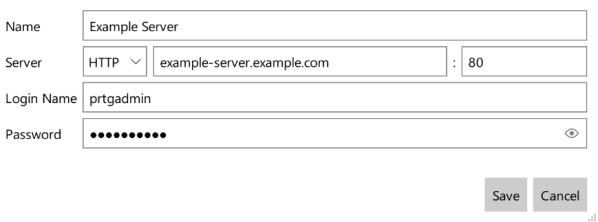
Add new account
Setting |
Description |
|---|---|
Name |
Optionally enter a name that the PRTG app for desktop displays in the Servers list and in the page header bar.
|
Server |
Select if you want to use a secure HTTPS connection or an unsecure HTTP connection. The default port for a secure connection is 443. The default port for an unsecure connection is 80. Enter the IP address or DNS name of the PRTG server that you want to connect to. This is the same IP address or DNS name as defined in the PRTG web interface settings under System Administration | User Interface | PRTG Web Interface.
|
Port |
Use the default port or enter the port that the PRTG server runs on. This is the same port as defined in the PRTG web server settings under System Administration | User Interface | PRTG Web Server | TCP Port for PRTG Web Server.
|
Login Using |
Select a login method from the dropdown list. You can log in with your Google, Facebook, Microsoft, or Amazon account via single sign-on (SSO) (Auth0), or via user name and password. Alternatively, you can also select Login Name & Password from the dropdown list to log in via email address and password.
|
Login Name |
Enter the login name that you use to log in to the PRTG web server. This can be the login name of the PRTG System Administrator user or the login name of a different PRTG user.
|
Password |
Enter the password that you use to log in to the PRTG web server.
|


Click Save to save your settings or Cancel to discard them.
 The PRTG app for desktop individually stores the connection settings for each Windows user under
%appdata%\Paessler\PRTG Desktop\data.
 PRTG MANUAL
