
PRTG Manual: Details
On the MultiBoard Details page, you can see all sensors of all PRTG servers as a sensor list or in a more detailed table view.
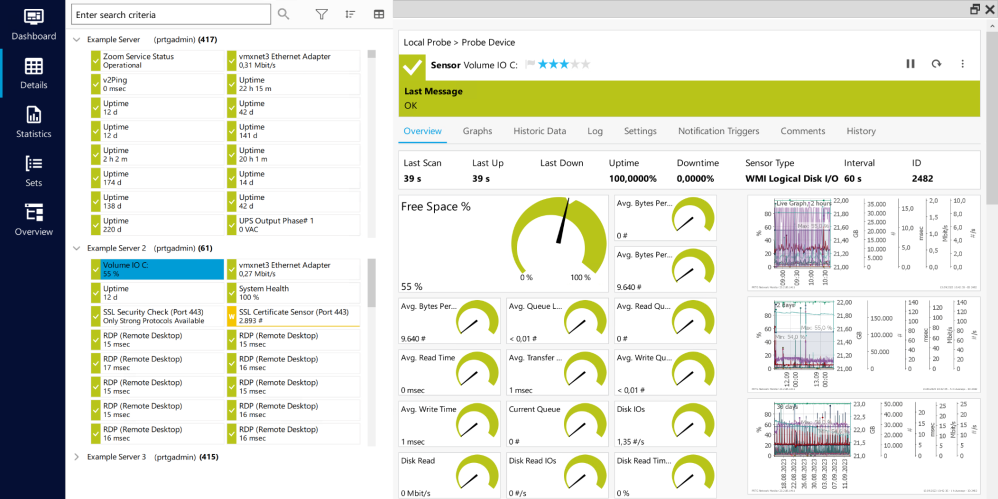
MultiBoard details view
The following actions are available:
▪Move PRTG servers via drag-and-drop.
▪Expand a PRTG server to show its sensors.
▪Scroll in the sensor list to show further sensors of the PRTG server.
▪Use the search box to search for sensors or devices via IDs or tags, for example.
▪Select a sensor on the left-hand side to see the sensor's Overview tab on the right-hand side. Click  to view the overview in a new window.
▪Click  to filter the list of sensors according to sensor states. Enable or disable the checkbox next to a specific sensor status to show or hide sensors in the specific status.
▪Click  to sort the list of sensors according to Probe, Group, Device, Name, Status, Down for, Last Value, or Priority. The default is No Sorting. An arrow icon next to the category name indicates an ascending
  or descending
  sorting order.
▪Click  to switch to a more detailed table view. Click
  above the table to see a list of all possible categories. You can show or hide categories in the table via the checkbox next to the category names. Sort the table by clicking the table headers.
 PRTG MANUAL
