
PRTG Manual: <%H_Compare_sensorsv2%>
Use the Compare Sensors feature of the PRTG app for desktop to compare sensors from different PRTG servers.
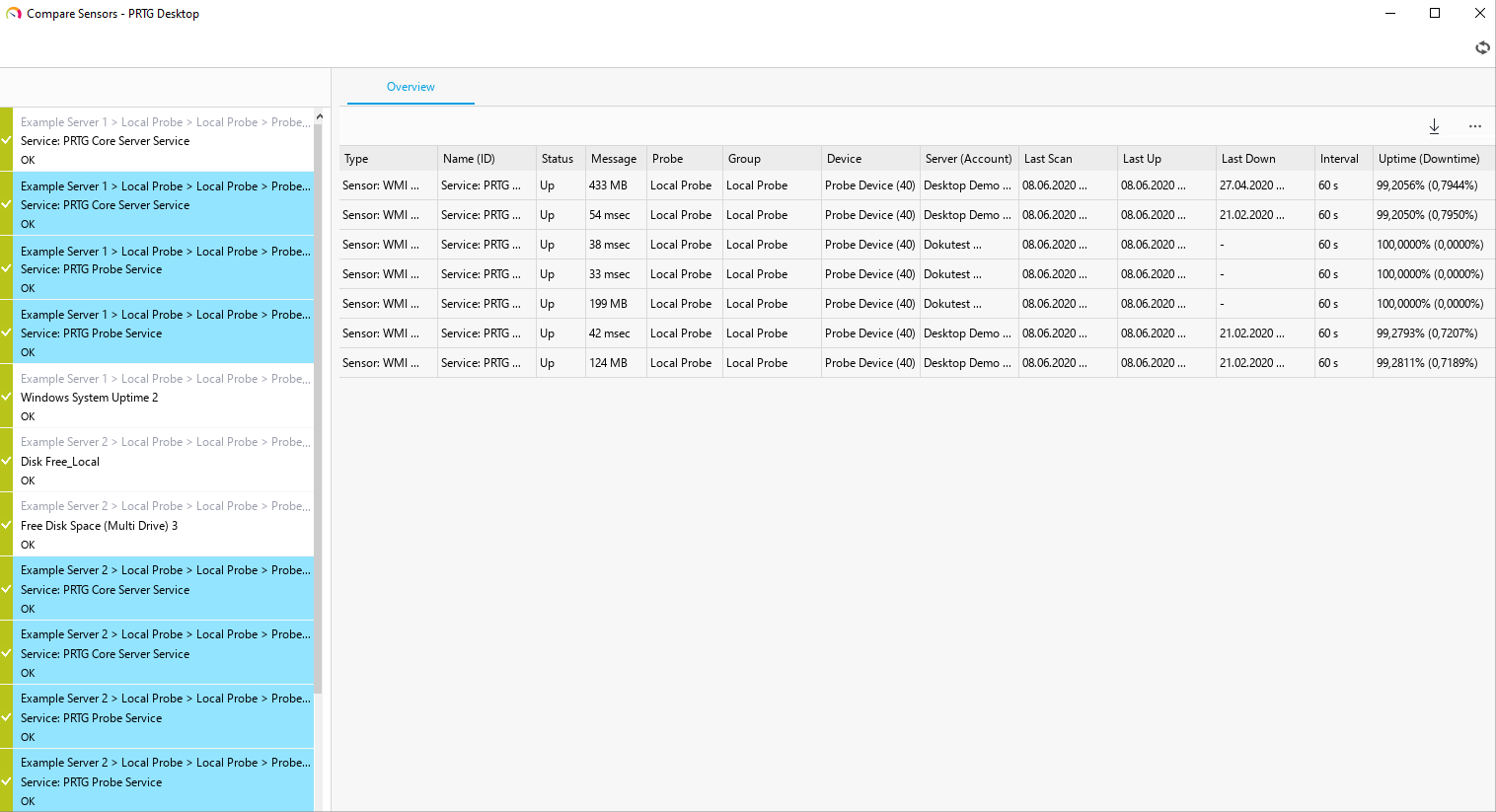
Compare sensors window
To add sensors to the Compare Sensors window, select one or more sensors in the device tree and click Add to Compare Sensors in the context menu. Repeat this for every PRTG server whose sensors you want to compare.
The Compare Sensors window shows a table with detailed information about the compared sensors. The following actions are available:
▪Click  above the table to see a list of all possible categories. You can show or hide categories in the table via the checkbox next to the category names. Sort the table by clicking the table headers.
▪Click  to export the table as a .csv file.
▪Right-click a sensor in the sensor list on the left-hand side to remove it from the list or to go to this sensor's Overview tab.
You can also select Window | Compare Sensors from the main menu to bring the Compare Sensors window to the foreground.
 Compare Sensors is only visible if you already added sensors to the sensor comparison.
 The PRTG app for desktop does not save the sensors in the Compare Sensors window. If you close the window, you must add the sensors again to compare them.
The PRTG app for desktop does not automatically refresh the data of sensors in the Compare Sensors window. Click  or press F5 to refresh the sensors' data.
