
PRTG Manual: Manage device tree
In the device tree, you can move objects via drag-and-drop or via keyboard shortcuts. You can also view and edit or multi-edit object settings. Changes take effect immediately. To manage objects in the device tree, you have the following options:
▪Zoom
▪Sort objects via drag-and-drop
In the device tree shown on the left-hand side, you can change the size of the objects via zoom. Hold down the Ctrl key (or  for macOS) and scroll up or down with your mouse to zoom in or out. You can also use the shortcuts Ctrl and +/- or right-click in the device tree for view options.
In the device tree, you can select one or more objects. Hold down the Ctrl key (or for macOS) to select more objects simultaneously with your mouse. Usually, you select more than one object to view, for example, combined graphs, or to apply a command from the context menus, for example, Pause or Delete, to several objects.
When you select multiple items, the right-hand side shows data for the items.
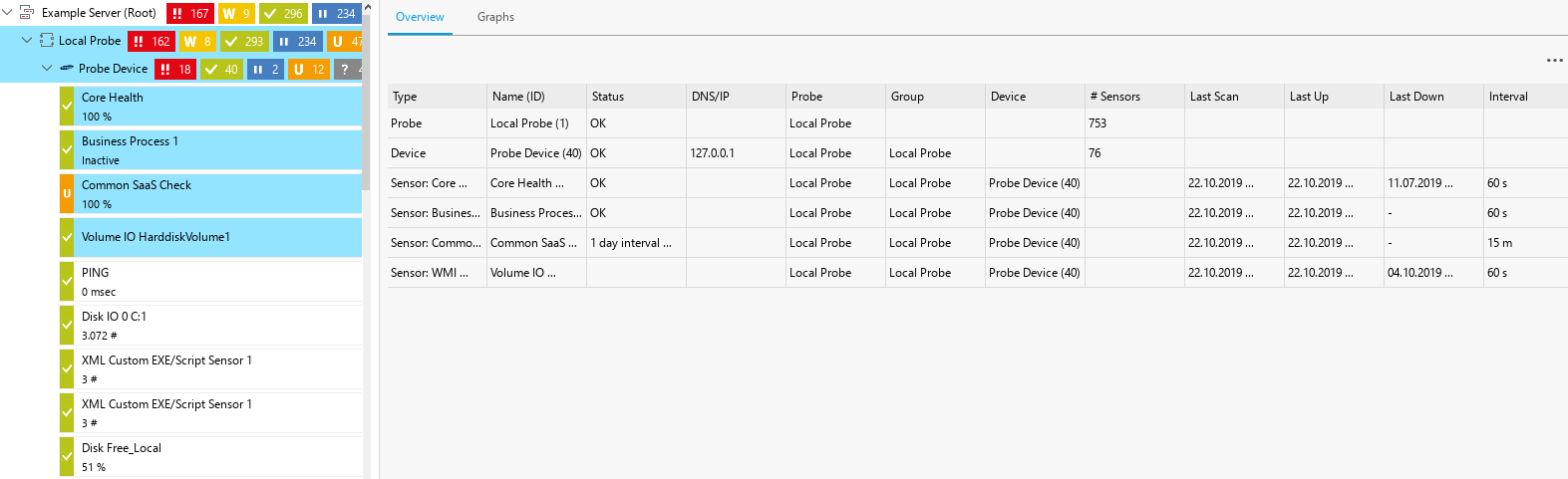
Select multiple objects in the device tree
On the Overview tab, you see a value table that summarizes general information that is available for the objects.
Click  above the table to see a list of all possible categories. You can show or hide categories in the table via the checkbox next to the category names. Sort the table by clicking the table headers.
The Graphs tab shows summary graphs for different time spans for up to five objects on one page. Each channel is represented as one line. You can individually show or hide channels via the checkbox next to the channel names. This aggregated view works for all kinds of objects. Use the dropdown list to select the graph type.
 Click a graph to open it in a new window:
▪Click Show All Channels or Hide All Channels to show or hide all channels at once. You can also show or hide channels individually by enabling or disabling the checkbox next to the channel names. To show or hide the value table, click Hide Value Table or Show Value Table.
▪Right-click the graph in the new window to open the context menu for graphs. Here, click Copy to Clipboard to export the graph as a .png file for use in other applications.
▪The following options are only visible for sensors:
▫Use the slider on the timeline below the graph to show the graph data for different points in time.
▫Click  to zoom in or
  to zoom out of the graph.
▫Click  to reset all zoom and timeline slider settings.
Live graphs are only available for sensors.
 For more information, see the Knowledge Base: What do I have to consider when I want to do a regular cleanup of my PRTG environment?.
When you select multiple sensors, you additionally see the Settings tab and the Channel Settings tab on which you can multi-edit sensor and channel settings. The Settings tab is also available when you select multiple probes.
For more information, see the PRTG Manual: Channel Settings and Multi-Edit.
If you select several objects on the left side, you can multi-edit the objects via the context menu option Edit Settings. Enable the checkbox for one or more settings that you want to edit. All changes apply to all selected objects. The multi-edit dialog only displays settings that the objects have in common.
If you only multi-edit sensors, the PRTG app for desktop also displays a Channel Settings tab. On this tab, you can multi-edit the settings of any channels that the sensors have in common (if the channels have the same name). Enable or disable the checkbox for one or more channel settings that you want to edit. All changes apply to all selected sensors.
For more information, see the PRTG Manual: Channel Settings and Multi-Edit.
Sort objects via drag-and-drop
In the device tree, you can change the position of probes, groups, devices, and sensors via drag-and-drop. Select an object and drag it to the new position.
You can also use the shortcuts Ctrl+X and Ctrl+V to move objects. Select the object and enter Ctrl+X. The object is then copied to the clipboard. Select the new location for the object and enter Ctrl+V. When you are finished, click Clear Clipboard.
You can only move a sensor to the top of the parent device via the shortcuts Ctrl+X and Ctrl+V.
 For macOS, the shortcuts for moving objects are +X and +V.
Restrictions for moving objects
You cannot move objects in the following cases:
▪You cannot move sensors from one device to a different device. To clone sensors to other devices, see Clone objects.
▪You cannot move sensors from one probe to a different probe. To clone sensors to other probes, see Clone objects.
▪You cannot move probes from one probe to a different probe.
For more information, see the PRTG Manual: Manage Device Tree.
You can clone groups, devices, and sensors in the device tree via the context menu or via the shortcuts Ctrl+C and Ctrl+V. Just select the object and enter Ctrl+C. The object is then copied to the clipboard.
For macOS, the shortcuts for cloning objects are +C and +V.
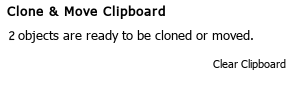
Copy to clipboard
Select the new location for the object and enter Ctrl+V. When you are finished, click Clear Clipboard.
You can also clone objects to other objects via drag-and-drop plus the Ctrl key (or for macOS).
You cannot clone fixed objects, such as the root group, the probe device, or PRTG system-internal sensors.
For more information, see the PRTG Manual: Clone Object.
For every object in the PRTG app for desktop, context menus are available that appear when you right-click an object in the device tree.
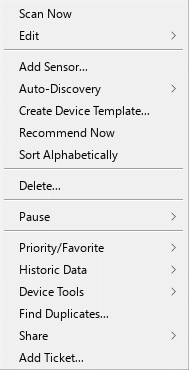
Context menu of a device in the PRTG app for desktop
The content of the context menu varies, depending on the type of object that you select.
For more information, see the PRTG Manual: Context Menus.
 PRTG MANUAL
KNOWLEDGE BASE
What do I have to consider when I want to do a regular cleanup of my PRTG environment?
▪https://helpdesk.paessler.com/en/support/solutions/articles/76000063584
