
PRTG Manual: Main menu structure
The main menu includes the File menu, the Servers menu, the Window menu, the Extras menu, and the Help menu.
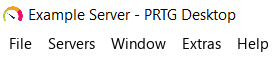
Main menu structure
The File menu offers system-related options for the PRTG app for desktop.
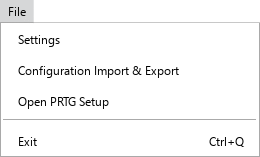
File menu
File |
|
|---|---|
Show settings for accounts, certificates, updates and themes, notifications, single sign-on, device tools, and license information. |
|
This feature is only available for users of PRTG MultiBoard. Import or export configuration settings for PRTG MultiBoard. |
|
Open PRTG Setup |
Open the system settings in the PRTG web interface. |
Exit |
Close the PRTG app for desktop. |
The Servers menu displays a list of all configured PRTG servers.
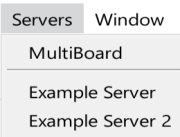
Servers menu
Servers |
|
|---|---|
MultiBoard |
This setting is only available for users of PRTG MultiBoard. Open the MultiBoard window to centrally view and manage all your configured PRTG servers. |
[Name of Server] |
Show a list of all configured PRTG servers. Click a server to view its data in a new window of the PRTG app for desktop. |
The Window menu lists all open windows of the PRTG app for desktop, for example, for different PRTG servers or graphs.
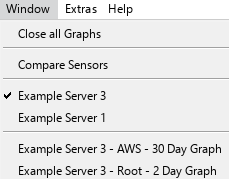
Window menu
Window |
|
|---|---|
Close all Graphs |
Close all open graph windows at once. |
Compare Sensors |
This setting is only visible if you add sensors to the Compare Sensors window. Bring the Compare Sensors window to the foreground. |
[Name of Non-Graph Window] |
Shows a list of all open windows that do not display graphs. Click an item in the list to jump to the respective window. |
[Name of Graph Window] |
Shows a list of all open graph windows. Click a graph in the list to jump to the respective window. |
The Extras menu provides displays extra options or feature previews.
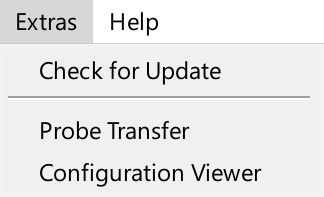
Extras menu
Extras |
|
|---|---|
Check for Update |
Check for new PRTG app for desktop versions. |
Probe Transfer |
Open the Probe Transfer feature.
|
Configuration Viewer |
Open the Configuration Viewer feature.
|

The Help menu provides links to help and information.
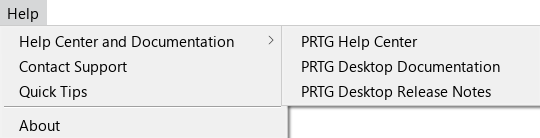
Help menu
Help |
|
|---|---|
Help Center and Documentation |
▪PRTG Help Center: Open the PRTG Help Center in the PRTG web interface where you have access, for example, to the PRTG Manual or where you can contact the Paessler support team. ▪PRTG Desktop Documentation: Download the PRTG MULTIBOARD & PRTG APP FOR DESKTOP MANUAL as a .pdf file. ▪PRTG Desktop Release Notes: View the release notes for the PRTG app for desktop. |
Contact Support |
This feature is only available for users with an active maintenance plan with their PRTG Network Monitor, PRTG Enterprise Monitor, or PRTG Hosted Monitor license. Open the Contact Support form.
|
Open the Quick Tips window that gives you short tips on how to work with the PRTG app for desktop. |
|
About |
Open an information window about the PRTG app for desktop with version number and copyright and license information. |

 PRTG MANUAL
