
PRTG Manual: Sets
On the MultiBoard Sets page, you can group sensors into customized sensor sets across all your PRTG servers.
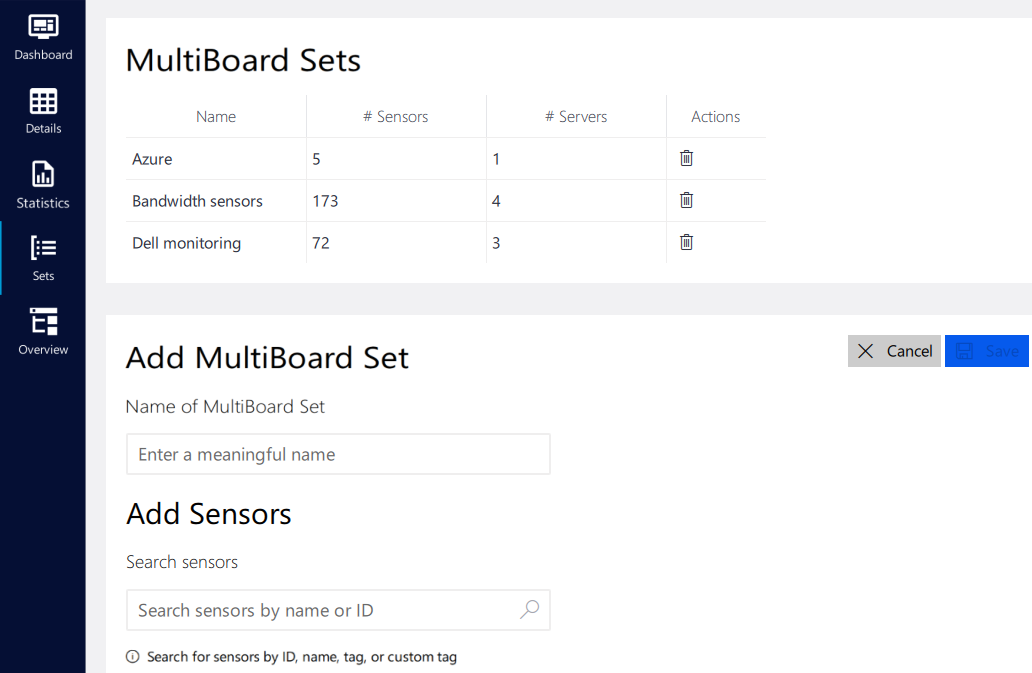
MultiBoard sets view
To create a new set of sensors, enter a name to identify the new set under Name of MultiBoard Set.
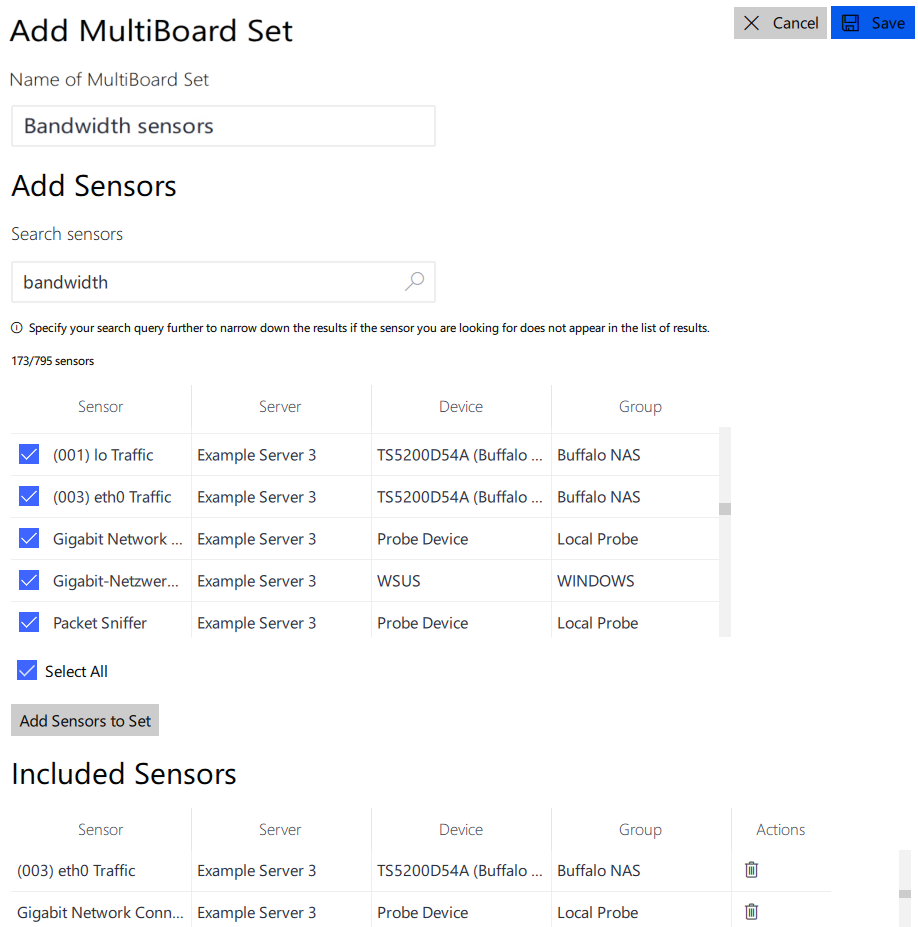
Add a new multiboard set
Under Search sensors, you can search for sensors that you want to include in the set by sensor name, by sensor ID, or by tag. The following actions are available:
▪Sort the search results by clicking a column header in the search results table. If you click the column header once, PRTG MultiBoard sorts the list items alphabetically in ascending order. Click the column header twice to sort the list items alphabetically in descending order. If you click the column header a third time, PRTG MultiBoard restores the default sorting order.
▪You can select or deselect sensors that you want to include in the new set via the checkbox next to the sensor name.
▪Enable the checkbox next to Select All to select the displayed maximum amount of sensors.
▪Click Add Sensors to Set to include the sensors in the new set. The sensors appear in the Included Sensors section below the search results table.
Click Save to save the new multiboard set. The set is now visible at the top of the page in the MultiBoard Sets table.
To edit a multiboard set, click the set in the MultiBoard Sets table.
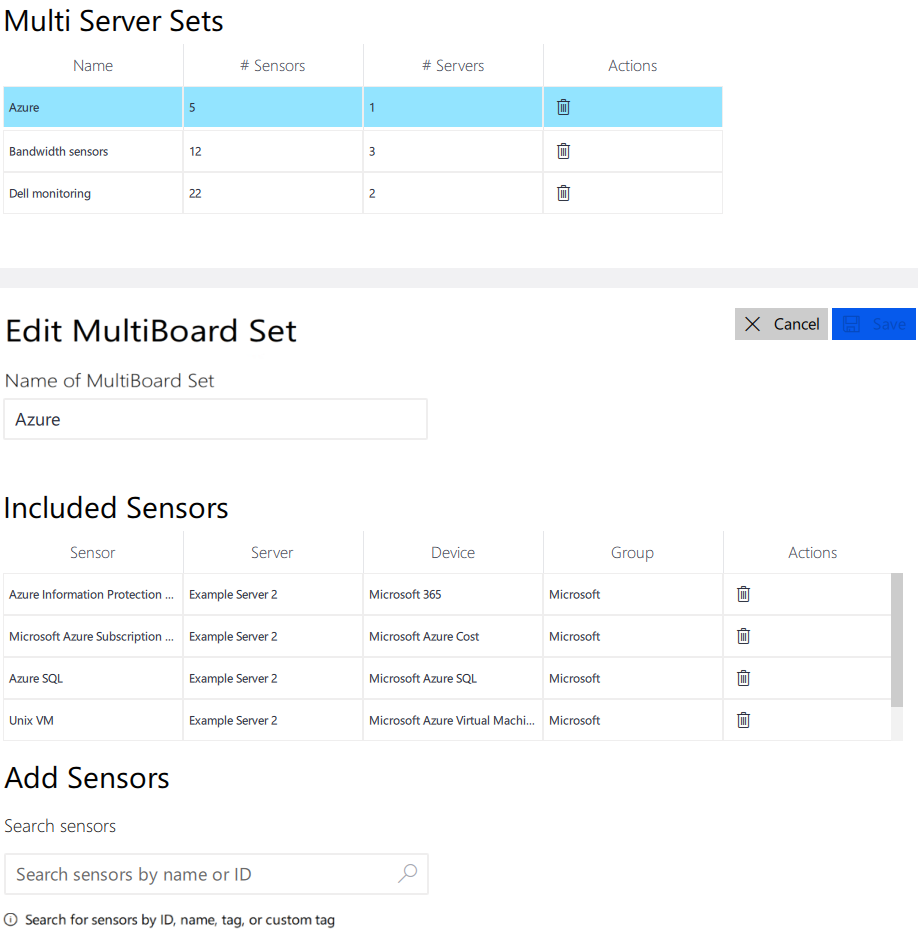
Edit a multiboard set
The following actions are available:
▪Click  to delete the set.
▪Under Edit MultiBoard Set, you can change the name of the set.
▪In the Included Sensors section, you can find a list of all sensors that the set includes. Click to remove a sensor from the set.
▪You can add further sensors to the set as previously described.
