
PRTG Manual: Tickets
On the Tickets menu tab, you can view a list of all tickets for the PRTG server. A badge displays the number of open tickets (the maximum number is 99 tickets).
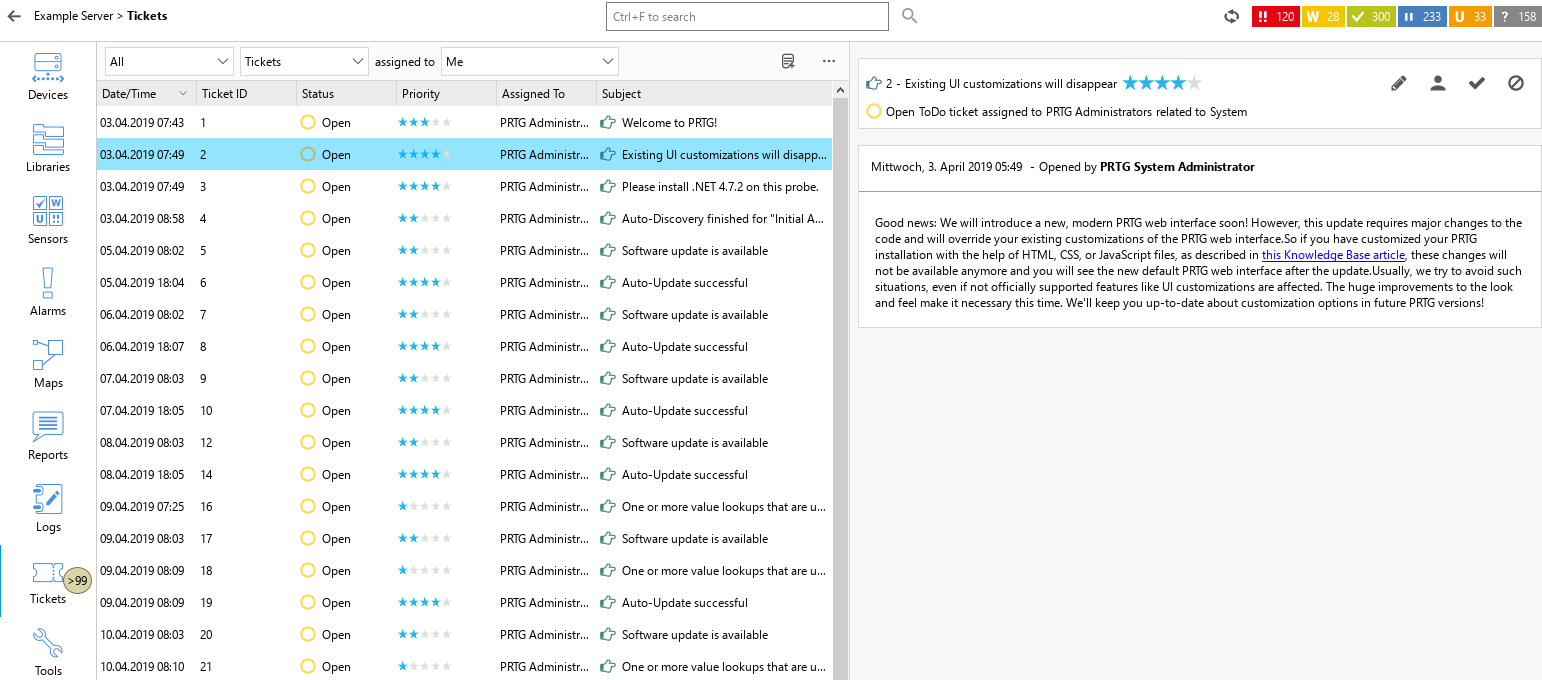
Tickets list
The following actions are available:
▪Click a ticket in the list on the left to display it in the window on the right-hand side. You can also multi-edit tickets via the context menu. Select several tickets by holding Ctrl or Shift (or  for macOS) and clicking the corresponding tickets.
▪Right-click a ticket to open a context menu. The following actions are available: Edit, Assign, Resolve, Reopen, and Close.
▪Click  to add a new ticket.
▪Click  above the table to see a list of all possible categories. You can show or hide categories in the table via the checkbox next to the category names. Sort the table by clicking the table headers.
You can also enable filters to only show tickets from the categories Open, Resolved, and Closed. Select the category from the first dropdown list.
The second dropdown list shows all possible ticket types. Choose from User Tickets, ToDo Tickets, and Notification Tickets.
In the third dropdown list, you can select a ticket assignee. This can be yourself, a different user, or a user group.
 PRTG MANUAL
