
PRTG Manual: Overview
On the MultiBoard Overview page, you can see all device tree objects of all of your PRTG servers.
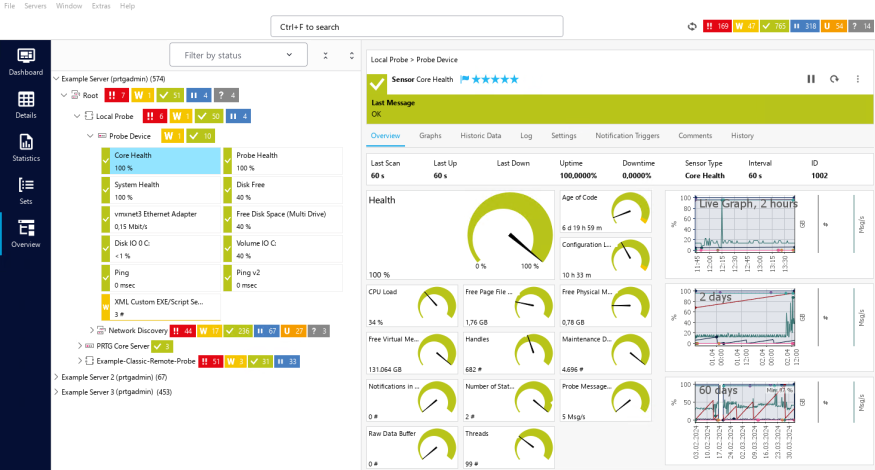
MultiBoard overview view
The following options are available:
▪Expand a PRTG server and its nodes to view the entire device tree.
 Use Collapse All and Expand All above the server list to completely collapse or expand a node. You must first select the node you want to expand or collapse.


▪Move probes, groups, devices, and sensors via drag-and-drop.
▪Select an object on the left-hand side to see its Overview tab on the right-hand side. You can select objects across multiple PRTG core servers.
Once you select multiple objects, use the buttons in the upper-right corner of the overview to pause , resume , or scan all selected objects at the same time.
 , resume
  , or scan
  all selected objects at the same time.
▪Right-click an object to open its context menu.
▪Search for objects across all connected PRTG servers. You can filter by object in your initial search and further filter by server within your search results.
▪Filter which sensors are visible based on their current status.
 For more information, see section Manage device tree.
Restrictions
▪The MultiBoard Overview page does not support the Classic View.
▪You cannot move PRTG servers via drag-and-drop.
▪You cannot move or clone objects between different PRTG servers.
 PRTG MANUAL
