
PRTG Manual: MultiBoard
Use the MultiBoard feature of PRTG MultiBoard to view data of all your independent PRTG servers in one window so you can centrally manage your monitoring.
From the main menu, select the Servers menu.
Click MultiBoard to open the MultiBoard window. You can also use the shortcut Ctrl+M to open the MultiBoard window. For macOS, the shortcut is  +M.
+M.
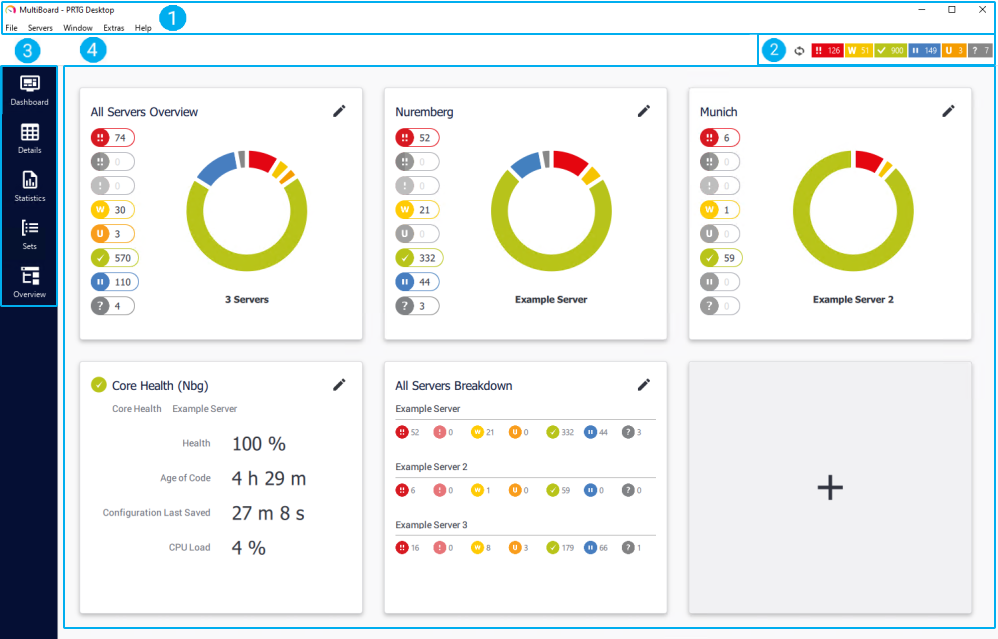
Layout of the multiboard window
From top to bottom, the main layout of the MultiBoard window consists of the following.
Screen number |
Page area name |
Description |
|---|---|---|
1 |
Main menu |
The main menu gives access to general configuration and settings.
|
2 |
Page header bar |
This area shows the aggregated status of all sensors from all configured PRTG servers, divided into different sensor states. |
3 |
Menu tabs |
This area contains the main navigation tabs. |
4 |
Page content |
This area contains different content depending on the menu tab you select. |

Use the menu tabs bar to navigate through the MultiBoard window. The following menu tabs are available:
▪Sets
 KNOWLEDGE BASE
I have issues with the PRTG app for desktop and PRTG MultiBoard. What can I do?
▪https://helpdesk.paessler.com/en/support/solutions/articles/76000064832
