
PRTG Manual: Device tools
In the Device Tools settings, you can define device tools that are available in the context menu of devices. There are predefined device tools for a remote desktop connection, ping, and traceroute.
 You might need to run the PRTG app for desktop as an administrator user to make the device tool function work with your Windows version.
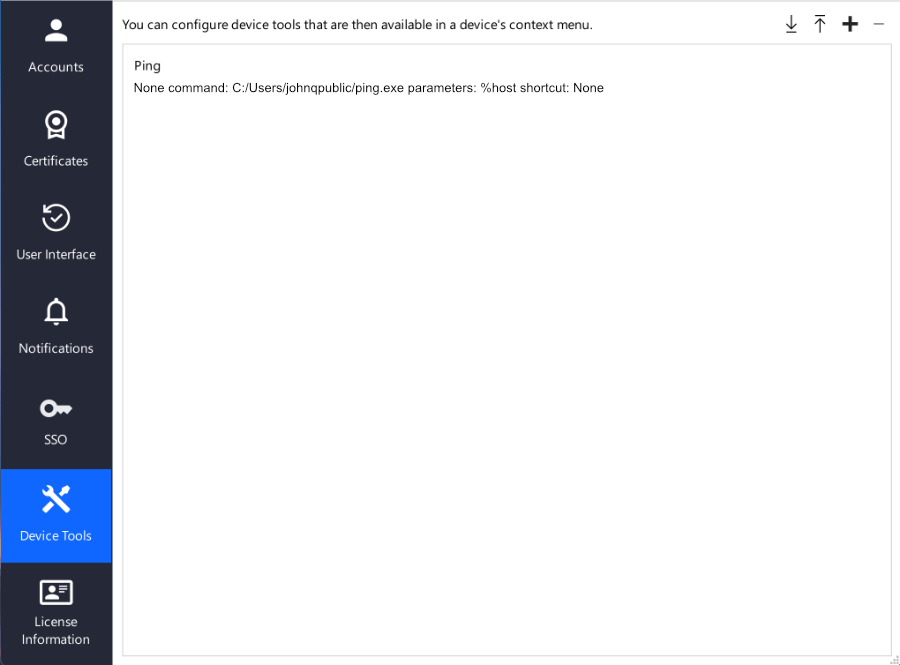
Device tools settings
The following actions are available:
▪Double-click a device tool in the list to edit it.
▪Click  to add a new device tool.
▪Select one or more device tools and click  to delete them.
▪Click  to export all or only select device tools to your system.
▪Click  to import device tools to the PRTG app for desktop.
Click to open the Add Device Tool dialog and enter the following settings.
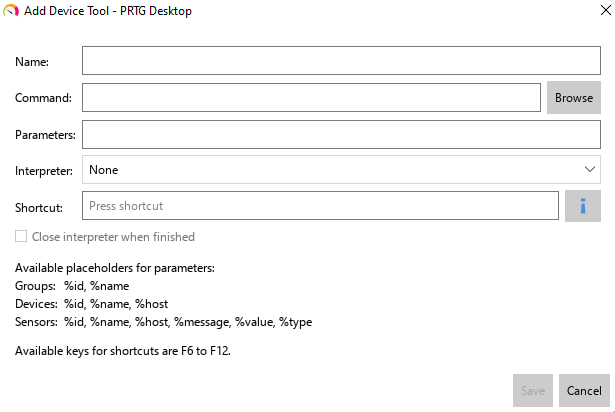
Add a device tool
Setting |
Description |
|---|---|
Name |
Enter a custom name for your device tool. The device tool shows up with this name in context menus. Enter a string. |
Command |
Browse for the program or script that you want to execute on your local system. |
Parameters |
Enter the parameters that you want to use to execute the command.
|
Interpreter |
Select the program to run the device tool: ▪None: Run the device tool directly. ▪cmd.exe: Use Command Prompt. ▪powershell.exe: Use PowerShell. |
Shortcut |
Press a valid shortcut key to use it for the device tool.
|
Close interpreter when finished |
This setting is only available if you select an Interpreter. Choose whether to close the interpreter after you run the device tool. |

Click to export all your custom device tools to a .json file and to store the file on your system. You can also select a single device tool or multiple device tools by holding down the Ctrl key, then clicking to export only select device tools to your system.
To import device tools to the PRTG app for desktop, click and select the .json file stored on your system. A dialog opens where you can select the device tools that you want to import:
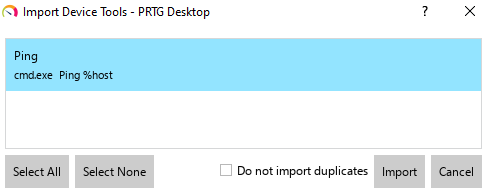
Import device tools
Take the following steps:
1.Select one or more device tools by holding down the Ctrl key. You can also click Select All or Select None.
2.Enable the checkbox next to Do not import duplicates if you do not want to import device tools that already exist in your PRTG app for desktop installation.
3.Click Import to upload the device tools to the PRTG app for desktop or click Cancel to close the dialog.
You can configure the device tools to run any local program or script. To understand the functionality of the device tools, see the following example configuration.
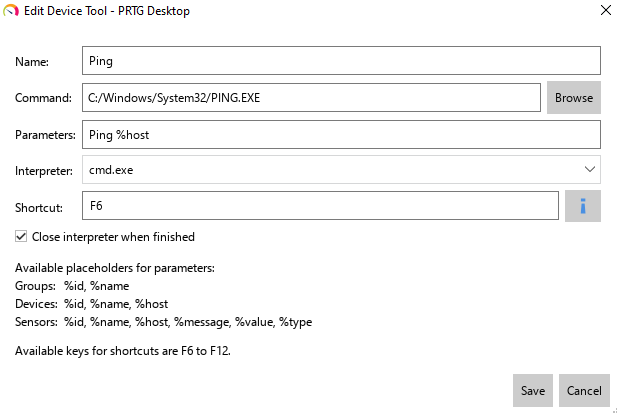
Example of a device tool configuration
The resulting device tool Ping opens the command line and performs a ping command for the %host entry of the device that you select in the device tree.
To see the result of the ping request when you run the device tool via Device Tools in the context menu of the device, do not enable the checkbox next to Close interpreter when finished.
