
PRTG Manual: General layout
The main layout of the PRTG app for desktop consists of different elements.
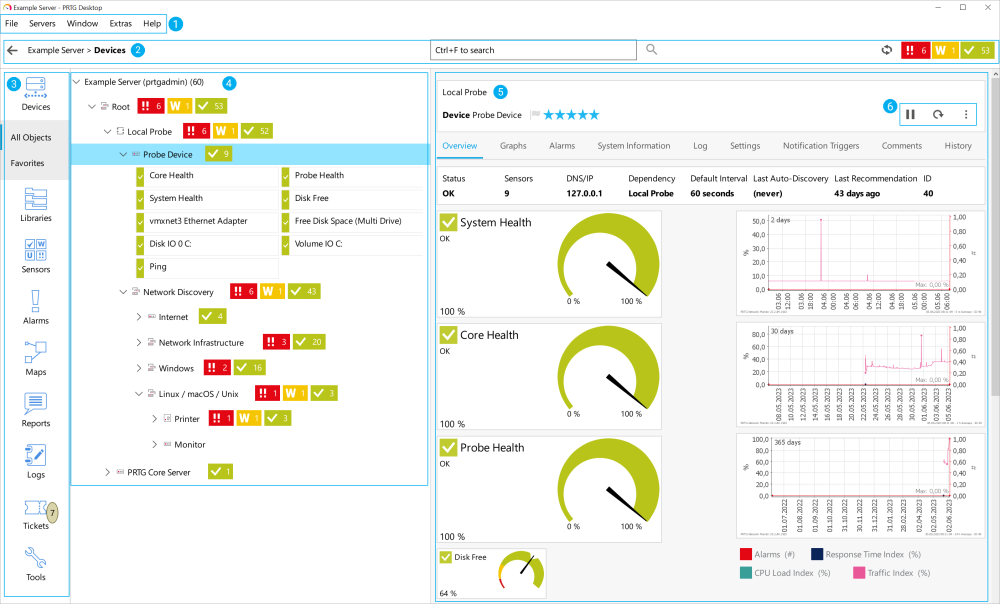
PRTG app for desktop layout
Screen number |
Page area name |
Description |
|---|---|---|
1 |
The main menu gives access to general configuration and settings. |
|
2 |
This area contains breadcrumbs, the search bar, the refresh button, and the sensor states overview. |
|
3 |
This area contains the main navigation tabs. |
|
4 |
This area contains the entire object hierarchy. |
|
5 |
This area contains information about the object, the object's status bar with command buttons, and several tabs with settings. |
|
6 |
This area contains several command buttons for the device tree object. |
Often, the PRTG app for desktop displays data and settings directly. It also provides a seamless link to the PRTG web interface to access further functionalities such as reports, maps, and libraries.
Extended setup additionally requires a new window of the system's default browser where the PRTG web interface opens. In this case, you are logged in to the PRTG web interface automatically via login name and passhash. In your browser, it might be necessary to confirm the certificate that the PRTG core server uses.
 If the PRTG web server uses Secure Sockets Layer (SSL), your browser shows a certificate warning because the certificate that comes with PRTG cannot be signed by a valid authority. Anyway, the connection to your PRTG core server is secured via SSL, and you can confirm the claimed security risk.
If you configure the PRTG app for desktop for a connection with more than one PRTG server, use the Servers menu to select which PRTG server's data you want to access.
The main menu gives you access to general configuration and settings.
 For more information, see section Main menu structure.

Page header bar
The page header bar consists of the following parts.
Part |
Description |
|---|---|
|
The PRTG app for desktop stores the different views that you navigate to in the application. Click the previous viewpoint button to step back in the history.
|
Breadcrumbs |
The breadcrumbs show you the PRTG server and the menu tab that you are on. |
Status information |
This area shows, for example, if a new PRTG core server version is available. It also shows the maintenance or trial status, or if overload protection is active.
|
Search bar |
Enter a keyword to search the respective PRTG server. In the Search Results dropdown list, the PRTG app for desktop displays matching objects and related objects. If you click an object, for example a sensor, in the search results, the PRTG app for desktop opens the object on the Devices menu tab with the sensor overview on the right-hand side. |
|
Click refresh (or use the shortcut F5 on Windows, |
Sensor status icons |
This area shows the aggregated status of all sensors from the PRTG server, divided into different sensor states. Depending on the particular sensor states, you see boxes in different colors with numbers that represent the sensors. For example, you can see how many sensors are in the Up, Down, Down (Acknowledged), Down (Partial), Warning, Paused, Unusual, or the Unknown status.
|


You can navigate through your setup via the menu tabs. The page content varies depending on the menu tab. It shows various types of information about your monitored objects.
For more information, see section Menu tabs and page content.
You can use several command buttons for different actions on the right side of the page content area.

Command bar
Depending on the object you select in the device tree, the following actions are available.
Command buttons |
|
|---|---|
—or—
|
Pause the object. If the object is already in the Paused status or in the simulated error status, Resume appears. Click to resume monitoring for the object. |
|
Acknowledge an alarm for a sensor in the Down or Down (Partial) status.
|
|
Perform an immediate scan for the object. This queries the data for all devices and sensors underneath in the object hierarchy. |
|
Open the Setup page in the PRTG web interface.
|
|
Add a group, an auto-discovery group, a device, or a sensor. Click to open the respective dialog. |
|
Open the New Ticket dialog.
|
|
Hover over Share to see available options: ▪Send Link by Email: Send the link to the object by email. Click to create a new email with your system's default email client. The email contains a direct link to the Overview tab of the object. ▪Open in a Web Browser: Open the object in the PRTG web interface with your system's default browser. |
|
Restart the PRTG core server service. Click Yes to restart the service.
|
|
Restart the PRTG probe service. Click Yes to restart the service.
|


 PRTG MANUAL
▪PRTG Administration Tool on Remote Probe Systems
KNOWLEDGE BASE
What is overload protection?
▪https://helpdesk.paessler.com/en/support/solutions/articles/76000041606
