
PRTG Manual: Configuration viewer
Use the configuration viewer to compare the PRTG Configuration.dat files of PRTG servers outside of the probe transfer process.
To use the configuration viewer, you must meet the following requirements:
Setting |
Description |
|---|---|
Administrative rights |
The user account that you use to access the PRTG web interface must be a user account with administrative rights.
|
PRTG version |
The source system and the target system must run as of PRTG 22.1.75.
|
PRTG MultiBoard File Transfer |
The source system system must allow PRTG MultiBoard to access the PRTG Configuration.dat file. To grant access, you must enable the PRTG MultiBoard File Transfer. In the PRTG web interface, navigate to Setup | System Administration | Core Server | PRTG MultiBoard Access.
|


From the main menu, select Extras | Configuration Viewer to open the configuration viewer dialog.
In this step, select the PRTG server whose configuration file you want to load.
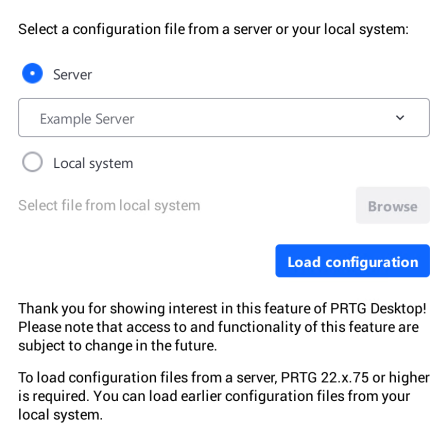
Configuration viewer
1.Select a PRTG server from the dropdown list or select Local system.
2.Click Load configuration.
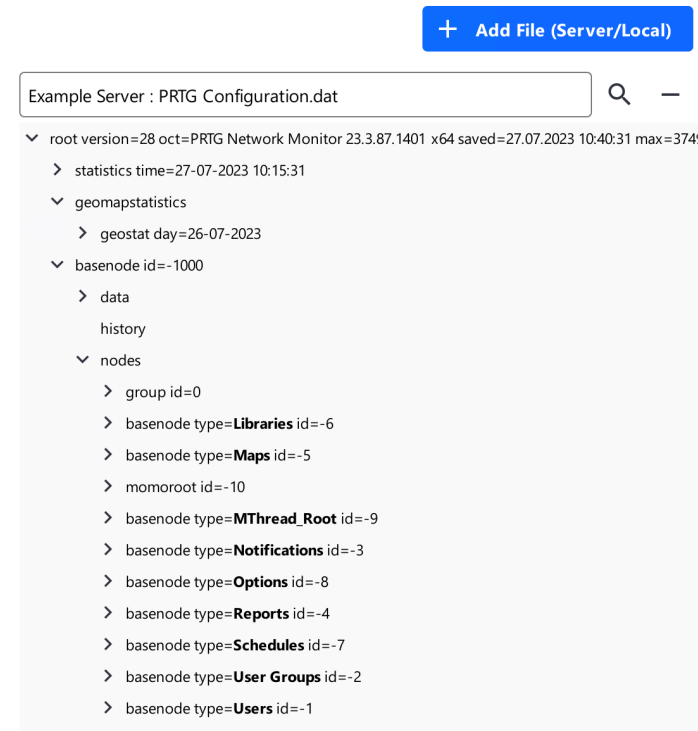
View configuration
3.Click  to open a configuration file to compare this configuration file with.
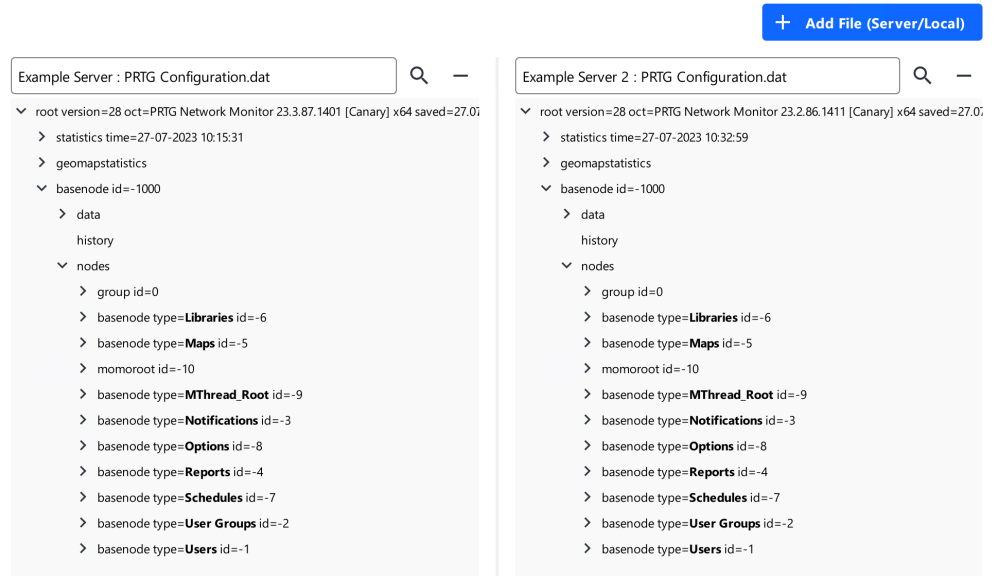
Compare configuration
The following actions are available:
▪Click and enter a search term to search the respective configuration file.

▪Click  next to the respective file path to remove configuration files.
▪Click  to expand an entry in the file tree to get more detailed information about the systems, including all available nodes.
