
PRTG Manual: Sensors
On the Sensors menu tab, you can see a list of all sensors of the PRTG server. You can select the kind of sensors that you want to see.
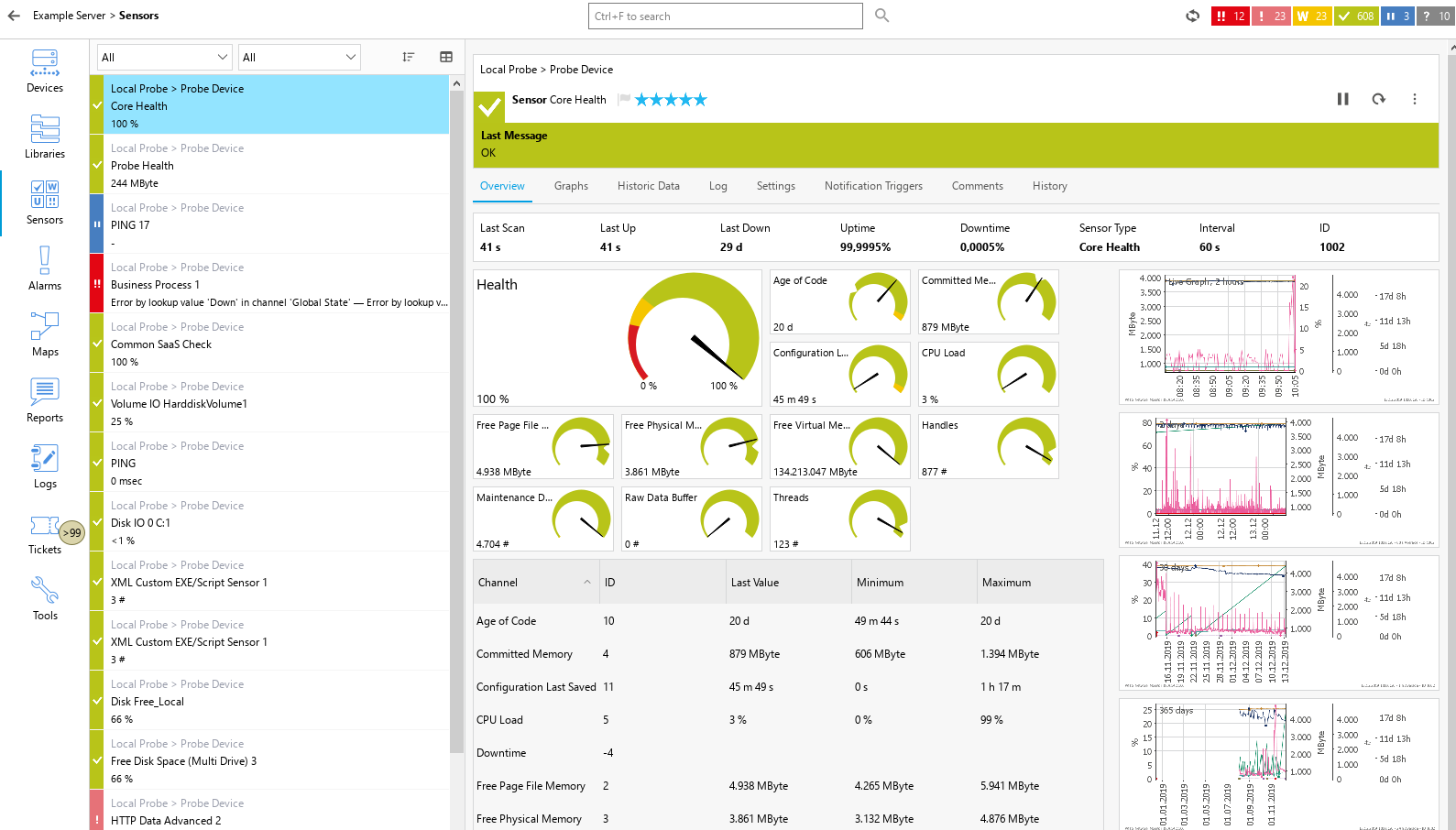
All sensors in the Up status
In the list of sensors on the left-hand side, the following actions are available:
▪Click  to sort the list of sensors according to Name, Last Value, Status, Priority, or Probe > Group > Device. The default is No Sorting. An arrow icon next to the category name indicates an ascending
  or descending
  sorting order.
▪Click  to display the list of sensors as a list or
  to display the list of sensors as a table. Click
  above the table to see a list of all possible categories. You can show or hide categories in the table via the checkbox next to the category names. Sort the table by clicking the table headers.
▪Click a sensor’s name to display the sensor on the right. Right-click a sensor’s name to open its context menu.
▪Select multiple items to view graphs or to apply the same action to them via the context menu.
You can also enable filters to only show specific sensors. To do so, choose from two different dropdown lists to build a filter. With each filter, you can further decrease the number of shown sensors.
Filter |
Description |
|---|---|
By Type |
The first dropdown list shows various filter types. Select an entry to apply the filter. The default value is All. |
By Status |
The second dropdown list shows all possible sensor states. Select an entry to only show sensors that show this status. Choose between All, Up, Warning, Down, Down (Acknowledged), Down (Partial), Unusual, Paused, and Unknown. The default value is All.
|
 If you have filtered out all sensors and the list shows no entries, remove some filters by reverting them to the default values.

PRTG app for desktop sensor subtabs on the sensors menu tab
The Overview tab shows sensor details, status, last value of all channels of the sensor, and a channels table, as well as graphs for different time spans.
The Last Value in the sensor's channels table shows only the last value of the sensor's primary channel.
Click a gauge of a channel to open the channel’s settings from the PRTG web interface. The view and functionality are the same as in the PRTG web interface. You can also right-click a gauge to change its settings or to make this channel the primary channel of the sensor.
 For more information, see the PRTG Manual: Channel Settings.
If you hide channels from tables via the channel settings, the channels disappear from the sensor's Overview tab. Show hidden channels appears above the value table. Enable the checkbox to show the hidden channels in the value table again.
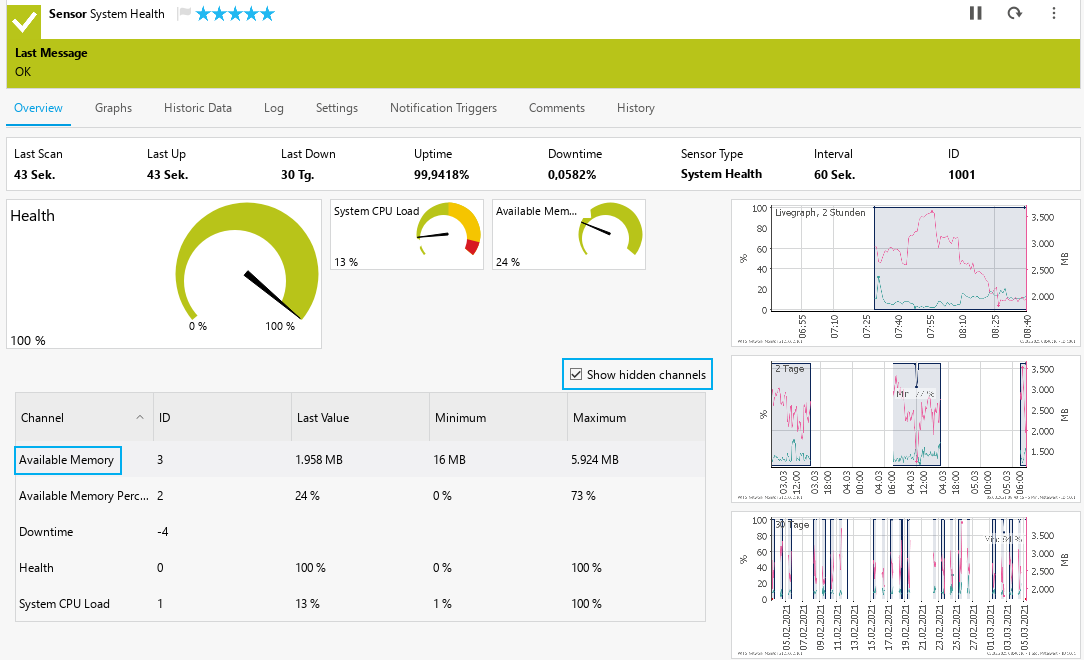
Show hidden channels on a sensor's Overview tab
Click a graph to open it in a new window:
▪Click Show All Channels or Hide All Channels to show or hide all channels at once. You can also show or hide channels individually by enabling or disabling the checkbox next to the channel names. To show or hide the value table, click Hide Value Table or Show Value Table.
▪Right-click the graph in the new window to open the context menu for graphs. Here, click Copy to Clipboard to export the graph as a .png file for use in other applications.
▪The following options are only visible for sensors:
▫Use the slider on the timeline below the graph to show the graph data for different points in time.
▫Click  to zoom in or
  to zoom out of the graph.
▫Click  to reset all zoom and timeline slider settings.
The Graphs tab shows graphs for different time spans and their corresponding value tables. Click Hide Graphs or Hide Value Tables to only display value tables or graphs. To show the graphs or the value tables again, click Show Graphs or Show Value Tables.
Click Hide All Channels or Show All Channels to show or hide all channels at once. You can also show or hide channels via the checkbox next to the channel names.
Click a graph to open it in a new window:
▪Click Show All Channels or Hide All Channels to show or hide all channels at once. You can also show or hide channels individually by enabling or disabling the checkbox next to the channel names. To show or hide the value table, click Hide Value Table or Show Value Table.
▪Right-click the graph in the new window to open the context menu for graphs. Here, click Copy to Clipboard to export the graph as a .png file for use in other applications.
▪The following options are only visible for sensors:
▫Use the slider on the timeline below the graph to show the graph data for different points in time.
▫Click to zoom in or to zoom out of the graph.
▫Click to reset all zoom and timeline slider settings.
On the Historic Data tab, you can generate reports and charts for the data of the sensor. The functionality is the same as in the PRTG web interface.
For more information, see the PRTG Manual: Historic Data Reports.
The Log tab shows all log information for this object. This is a subset of the entries that are available via the Logs menu tab.
The Settings tab loads and displays the object's settings from the PRTG web interface. The view and functionality are the same as in the PRTG web interface. For every type of object, different options are available.
For more information, see the PRTG Manual: Sensor Settings.
 Save your settings. If you change tabs or use the main menu without saving, all changes to the settings are lost.
The Notification Triggers tab loads and displays the object's notification trigger settings from the PRTG web interface. This feature works the same as in the PRTG web interface. You can set different notification triggers.
For more information, see the PRTG Manual: Notification Triggers Settings.
You cannot multi-edit notification settings. We recommend that you use the inheritance of settings.
For more information, see the PRTG Manual: Multi-Edit and Inheritance of Settings.
Save your settings. If you change tabs or use the main menu without saving, all changes to the settings are lost.
On the Comments tab, you can enter free text for each object. You can use this function for documentation purposes or to leave information for other users.
Save your settings. If you change tabs or use the main menu without saving, all changes to the settings are lost.
The History tab shows, for example, when an object was created, changes to the settings of an object via a time stamp, the user who made the change, and a message.
 PRTG MANUAL
