
PRTG Manual: Probe transfer
Use the probe transfer to clone probes from one system to another system. The probe transfer pauses the probes on the source system so that you do not lose any historic data.
 You cannot transfer multi-platform probes with the probe transfer.
 The probe transfer does not clone any historic data or custom files that you stored in the PRTG program directory on the source system. Move custom files like scripts or lookups to the target system manually after the probe transfer.
To transfer a probe, you must meet the following requirements:
Setting |
Description |
|---|---|
Port |
The port number that PRTG MultiBoard uses to connect to a PRTG core server. The default port is 44387.
1.Completely close the application via the system tray. Right-click the application icon in your system tray and select Quit. 2.Navigate to the PRTGDesktop folder in your Windows registry. 3.Right-click in the registry window and select New | DWORD (32-bit) Value. 4.Rename the key FileTransferLocalHttpServerPort. 5.Double-click the new key to edit it. 6.In the Base field, select Decimal. 7.In the Value data field, enter the port number you want to use. 8.Click OK to save your changes.
|
Administrative rights |
The user account that you use to access the PRTG web interface must be a user account with administrative rights.
|
PRTG version |
The source system and the target system must run as of PRTG 22.x.75.
|
PRTG MultiBoard File Transfer |
The source system and the target system must allow PRTG MultiBoard to access the PRTG Configuration.dat file. To grant access, you must enable the PRTG MultiBoard File Transfer. In the PRTG web interface, navigate to Setup | System Administration | Core Server | PRTG MultiBoard Access.
|
Connections |
The target system must accept incoming probe connections.
|

From the main menu, select Extras | Probe Transfer to open the probe transfer dialog.
In the Select systems step, select the source system and the target system for the probe transfer.
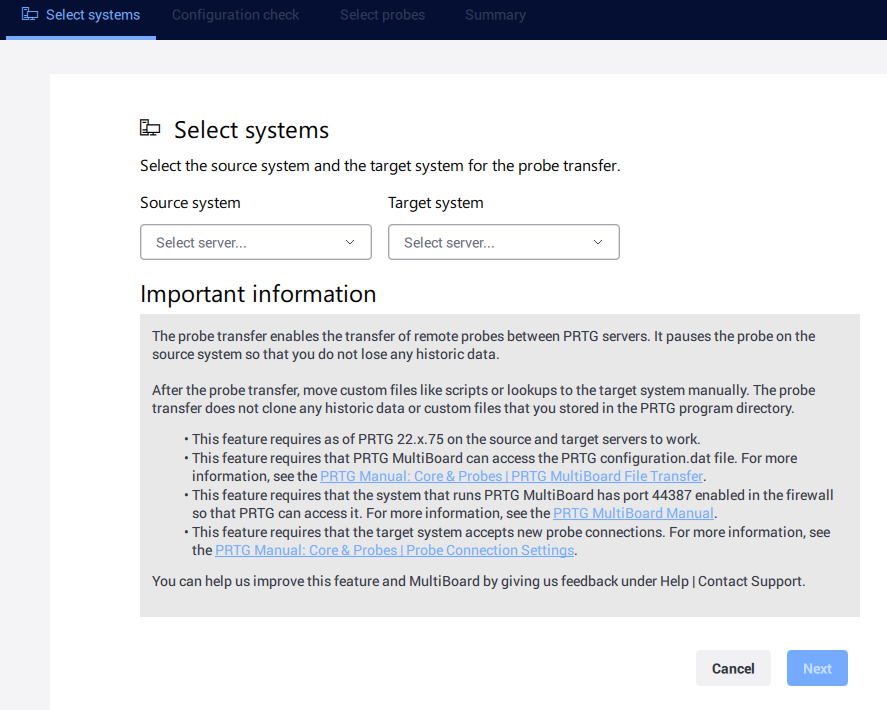
Select the source system and the target system
To select the systems, take the following steps:
1.Click  under Source system to open a dropdown list with your systems that have probes on them. Systems that you do not have access to because they are disconnected or because you do not have sufficient rights are grayed out. Select the system that you want to transfer the probe from.
2.Click under Target system to open a dropdown list with your systems that are available for the probe transfer. Systems that you do not have access to because they are disconnected or because you do not have sufficient rights are grayed out. Select the system that you want to transfer the probe to.
3.Click Next to continue.
The Next button is grayed out if there is no probe to transfer on the source system.
In the Configuration check step, PRTG checks if the PRTG versions of the source system and the target system are compatible with each other.
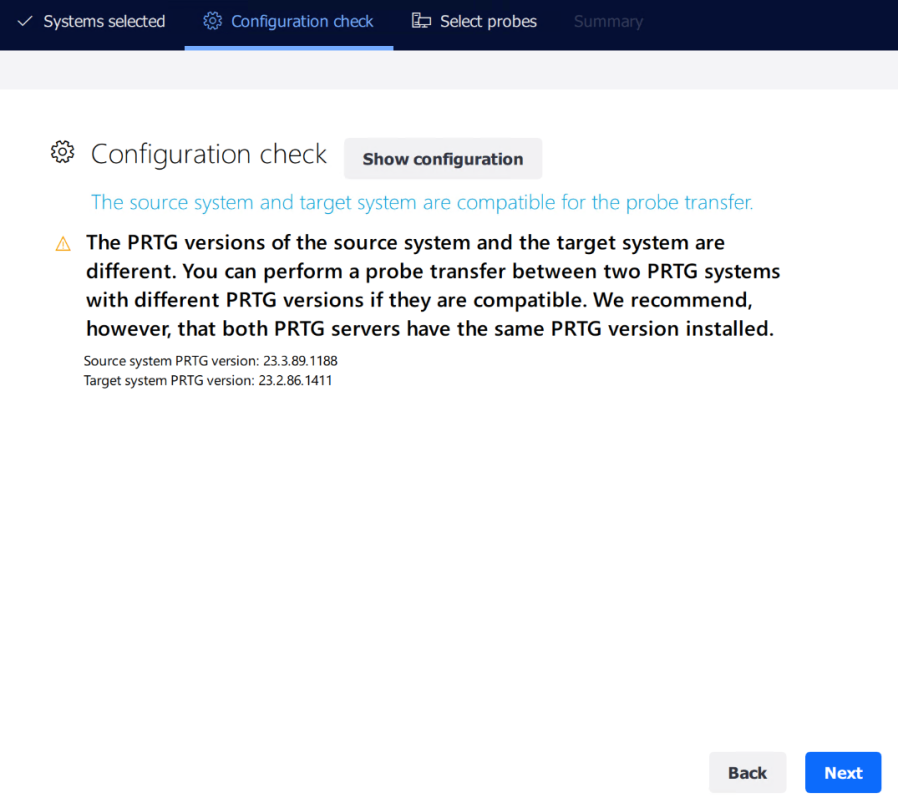
Successful configuration check
The configuration check might take up to several minutes. If the PRTG versions are compatible with each other, you get an according message.
The following actions are available:
▪Click Show configuration to open the PRTG Configuration.dat files of both the source system and the target system to compare them.

Configuration comparison
▪Click  in the upper-right corner to add configuration files.
▪Click and enter a search term to search the respective configuration file.

▪Click  next to the respective file path to remove configuration files.
▪Click  to expand an entry in the file tree to get more detailed information about the systems, including all available nodes.
▪Close the window to return to the Configuration check page.
▪Click Next to continue.
You can also compare configuration files outside of the probe transfer process. For more information, see section Configuration viewer.
In the Select probes step, you can select one or more probes that you want to transfer.
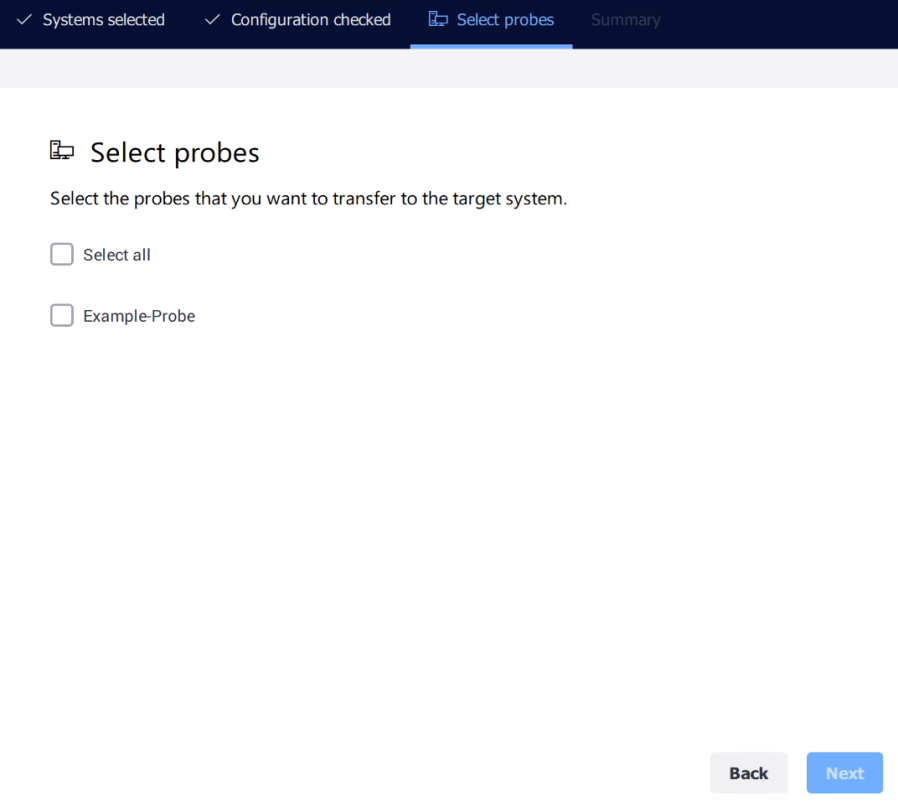
Probe selection for the transfer
To select the probes, take the following steps:
▪To select all listed probes for the probe transfer, enable the checkbox next to Select all. To select specific probes for the probe transfer, enable the checkbox next to a probe name.
▪Click Next.
In the Summary step, you get a summary of all your settings and you can start the transfer.
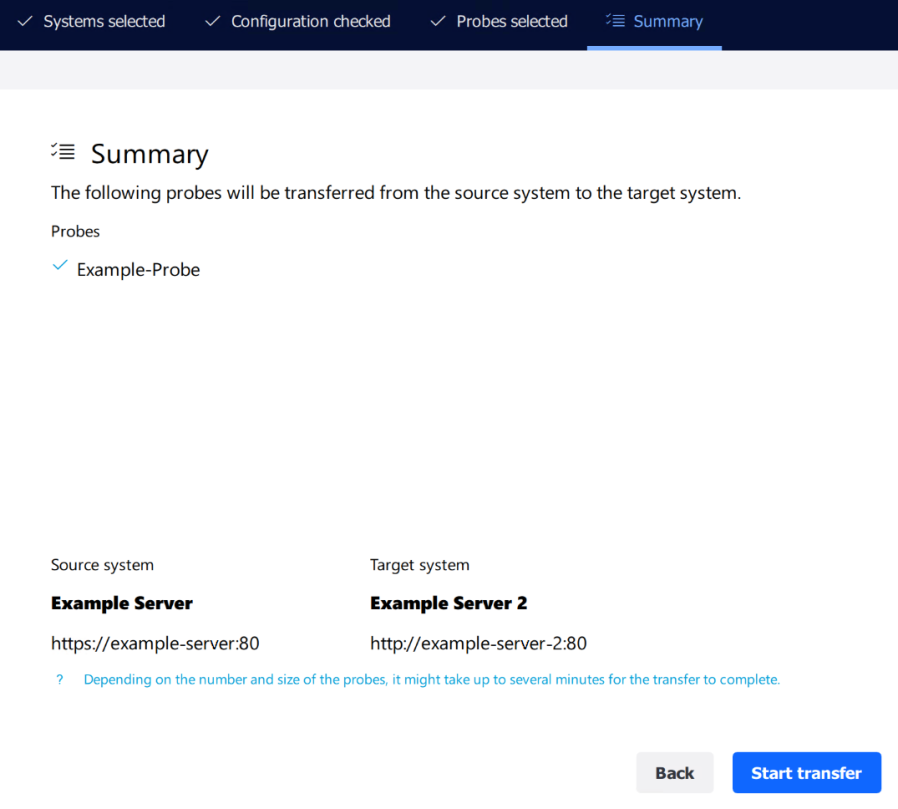
Summary
You can see which probes you selected and the connection details of the source system and the target system. If you want to change any settings, click the steps in the menu to go back to the respective step.
If all settings are correct, click Start transfer.
If you click Start transfer, the PRTG app for desktop needs to restart the PRTG core server service. During the restart, all users of the PRTG web interface, PRTG app for desktop, or PRTG apps for iOS or Android are disconnected and reconnected.
After you transferred the probe to the target system, the PRTG app for desktop still displays the probe in the device tree of the source system, marked with  . Make sure that you manually delete the probe to avoid a system failure. The reason for this is that if you transfer the original probe back to the source system, there will be two probes with the same ID, which PRTG does not support.
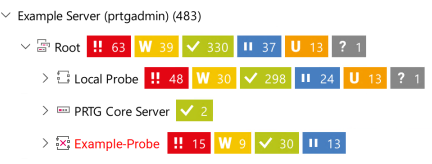
Probe on the source system after the probe transfer
▪Some sensors have special dependencies that might be interrupted after a probe transfer. These sensors show the Down or Unknown status. To resolve this issue, go to the Settings tab of the affected sensor and click Save. You do not need to change any settings. The sensor will begin to receive the monitoring data and will show the actual status with the next sensor scan.
 PRTG MANUAL
