
PRTG Manual: Single sign-on
In the Single Sign-On settings, you can set up single-sign on (SSO) for PRTG MultiBoard. Enable SSO to enforce authentication for PRTG MultiBoard as a means to increase security and control who has access to the application.
 Once you enable SSO, you cannot disable it without losing database data. SSO authentication encrypts your PRTG MultiBoard database.
 It is currently not possible to connect to PRTG servers using SSO authentication.
PRTG MultiBoard currently only supports SSO authentication with Microsoft Entra ID and Okta.
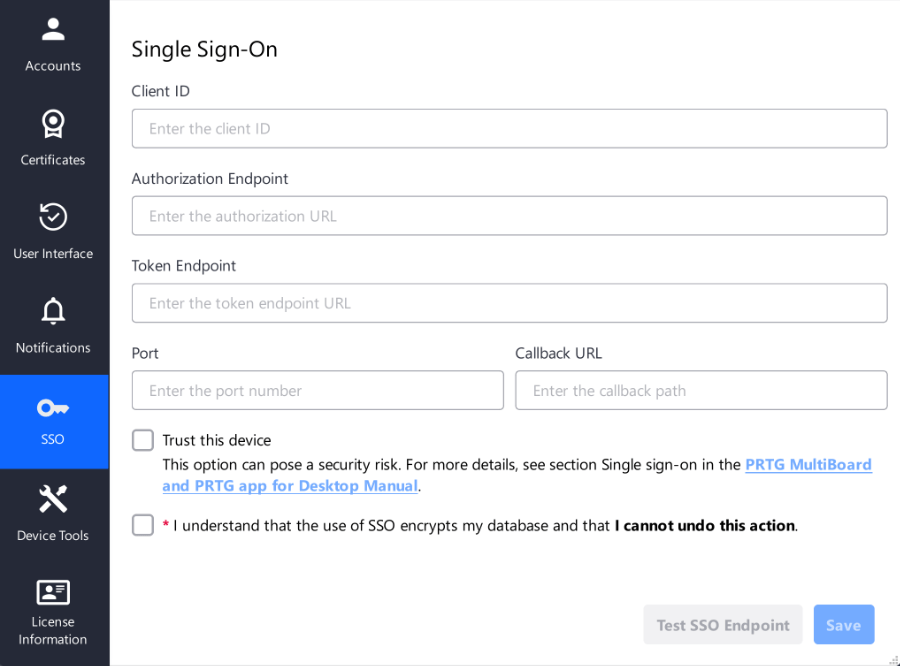
Single Sign-On settings
Setting |
Description |
|---|---|
Client ID |
Enter the client ID. In Entra ID, this is also known as the application ID. |
Authorization Endpoint |
Enter the authorization endpoint in the format https://domain/tenant-ID/ouath2/v2.0/authorize. |
Token Endpoint |
Enter the token endpoint in the format https://domain/tenant-ID/ouath2/v2.0/token. |
Port |
Enter the port that PRTG MultiBoard uses to communicate with the active directory. This should match the port defined in the redirect URI. |
Callback URL |
Enter the callback URL. This should match the URL defined in the redirect URI. |
Trust this device |
Select the checkbox if you want to trust the system you are on. If you select this checkbox, you do not need to log in to PRTG MultiBoard every time.
|
Database encryption |
Select the checkbox to accept that once you set up SSO with PRTG MultiBoard, you cannot undo this process. |
Test SSO Endpoint |
Test the SSO endpoint before you save your settings. |
 KNOWLEDGE BASE
How can I use Microsoft Entra ID to set up SSO with PRTG MultiBoard?
▪https://helpdesk.paessler.com/en/support/solutions/articles/76000085967
How can I use Okta to set up SSO with PRTG MultiBoard?
▪https://helpdesk.paessler.com/en/support/solutions/articles/76000086087
