
PRTG Manual: Dashboard
On the MultiBoard Dashboard page, you can use different widget types to show overviews of your PRTG servers.
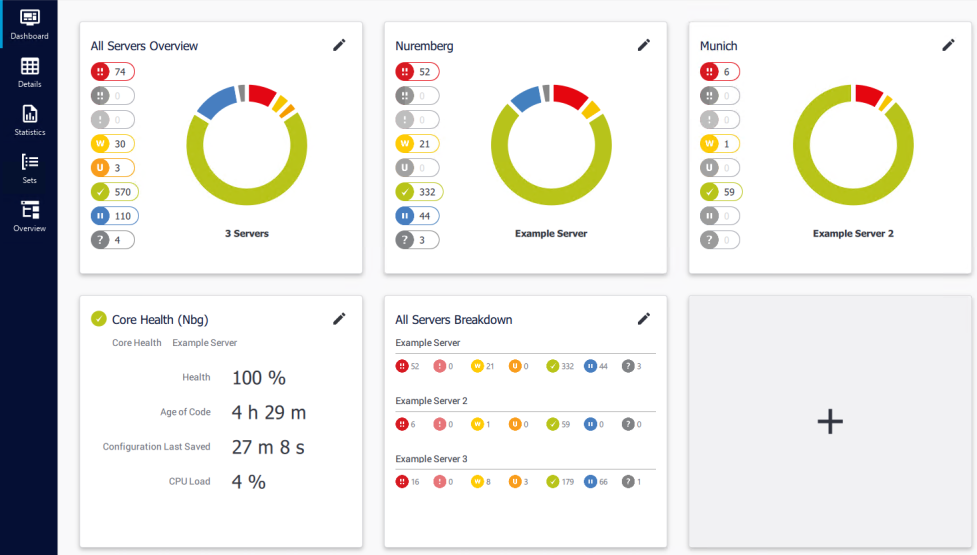
Overviews of configured servers in the multiboard dashboard
Click  in the widget list to open a dialog to add a new widget.
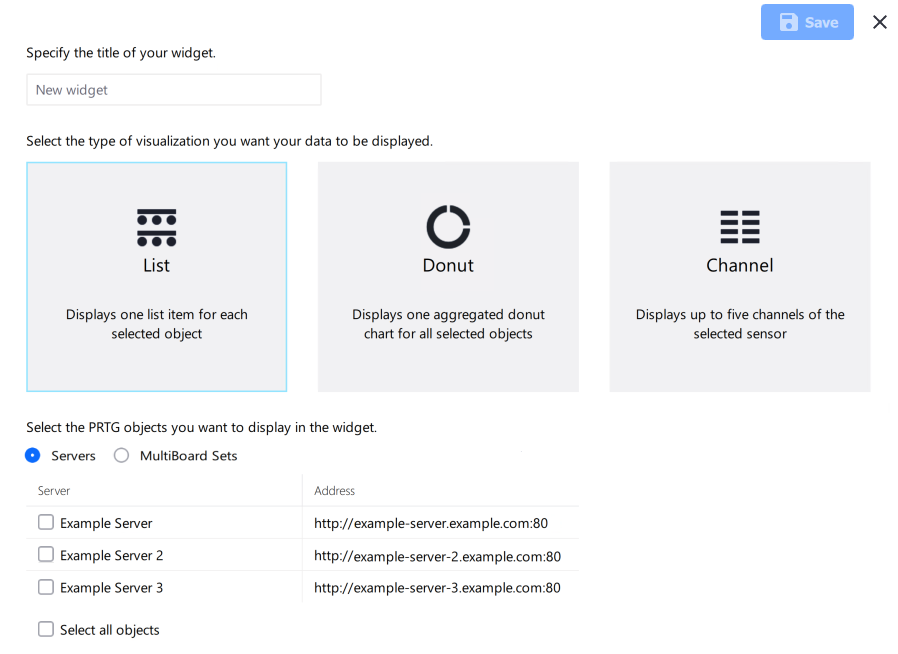
Select a widget type and the servers or multiboard sets to display
The following actions are available:
▪Enter a name to identify the widget.
▪Select a widget type: List, Donut, or Channel. List displays one list item for each PRTG server or MultiBoard set that you select. Donut displays one aggregated donut chart for all PRTG servers or MultiBoard sets that you select, Channel displays up to five channels of the sensor that you select.
▪Select the objects that you want to display in the widget. You can choose between your PRTG servers, the multiboard sets that you added, or sensors.
▪If you select Servers, select the PRTG servers that you want to display in the widget by via the checkbox next to the name of a PRTG server. Enable Select all objects to show all configured PRTG servers.
▪If you select MultiBoard Sets, select the multiboard sets that you want to display in the widget via the checkbox next to the name of a set. Enable Select all objects to show all sets.
▪If you select the Channel widget type, search for the sensor, select the sensor, and select up to five channels.
Click  to add the new widget.
On the Overview page, you can use drag-and-drop to change the position of widgets. Hover over the widget you want to use until the  band appears at the bottom of the widget. Click and drag it to the new position, and then drop it.
The following actions are available for the Donut widget:
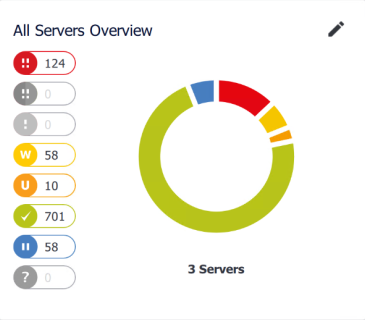
Donut widget
▪On the left, you can see different toggles that show the aggregated number of all sensors on all selected servers or multiboard sets in a specific status. If there are no sensors in a specific status, the toggle is grayed out. Click a toggle to hide or show sensors that show a specific status.
▪Hover over the different sections of the donut chart to also see the aggregated number of all sensors on all selected servers or multiboard sets in a specific status.
▪Click the number of servers or multiboard sets below the donut chart to open a box that shows a list with the names of all included servers or multiboard sets. Click a server name to open the device tree view of the selected server in a separate window. Click a set name to open the MultiBoard Sets page.
▪If the donut chart displays data for a single server only, click the server name to open the device tree view of the server in a separate window. If the donut chart displays data for a single multiboard set only, click the set name to open the MultiBoard Sets page.
▪Click  to edit the widget. In the dialog that appears, adjust the settings that you want to change and click
  . To delete the widget, click
  . If you click , the PRTG app for desktop does not ask you to confirm the deletion. The PRTG app for desktop immediately deletes the widget.
The following actions are available for the List widget:
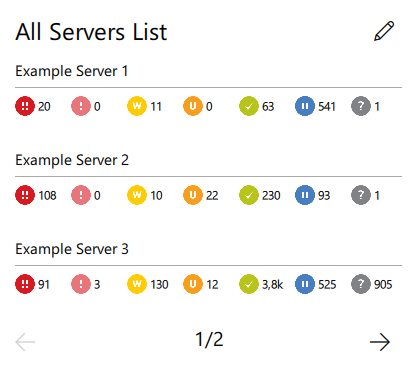
List widget
▪The widget displays every server or multiboard set as one list item. For each server or multiboard set, you can see the number of all sensors that are in a specific status.
▪Click  or
or  to navigate to the next page or to a previous page in the list.
▪Click a server name to open the device tree view of the server in a separate window. Click a set name to open the MultiBoard Sets page.
▪Click a sensor status icon below a server name to open a sensor list for the server that is filtered according to the sensor status in a separate window. Click a sensor status icon below a set name to open the MultiBoard Details page with all sensors on all servers that is filtered according to the sensor status.
▪Click to edit the widget. In the dialog that appears, adjust the settings that you want to change and click . To delete the widget, click . If you click , the PRTG app for desktop does not ask you to confirm the deletion. The PRTG app for desktop immediately deletes the widget.
The following actions are available for the Channel widget:
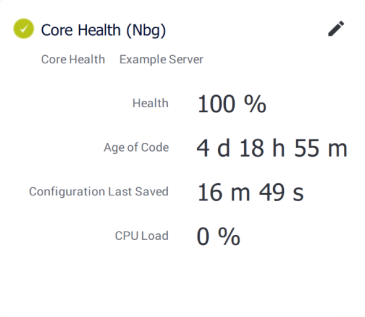
Channel widget
▪Click to edit the widget. In the dialog that appears, adjust the settings that you want to change and click . To delete the widget, click . If you click , the PRTG app for desktop does not ask you to confirm the deletion. The PRTG app for desktop immediately deletes the widget.
▪Click the name of the sensor to open the MultiBoard Details page and to display the sensor's Overview tab.
▪Click the name of the PRTG server to open the Devices menu tab of the single PRTG server.
 PRTG MANUAL
