
PRTG Manual: Alarms
On the Alarms menu tab, you can see the alarms of the PRTG server.
You can see all sensors that are in the Down, Down (Partial), Down (Acknowledged), Warning, or the Unusual status. Sensors in other states, for example, Up, Paused, or Unknown, do not appear here. This is useful for keeping track of all irregularities in your network.
From this list view, you can select multiple items to view graphs or to apply the same action to the items via the context menu.
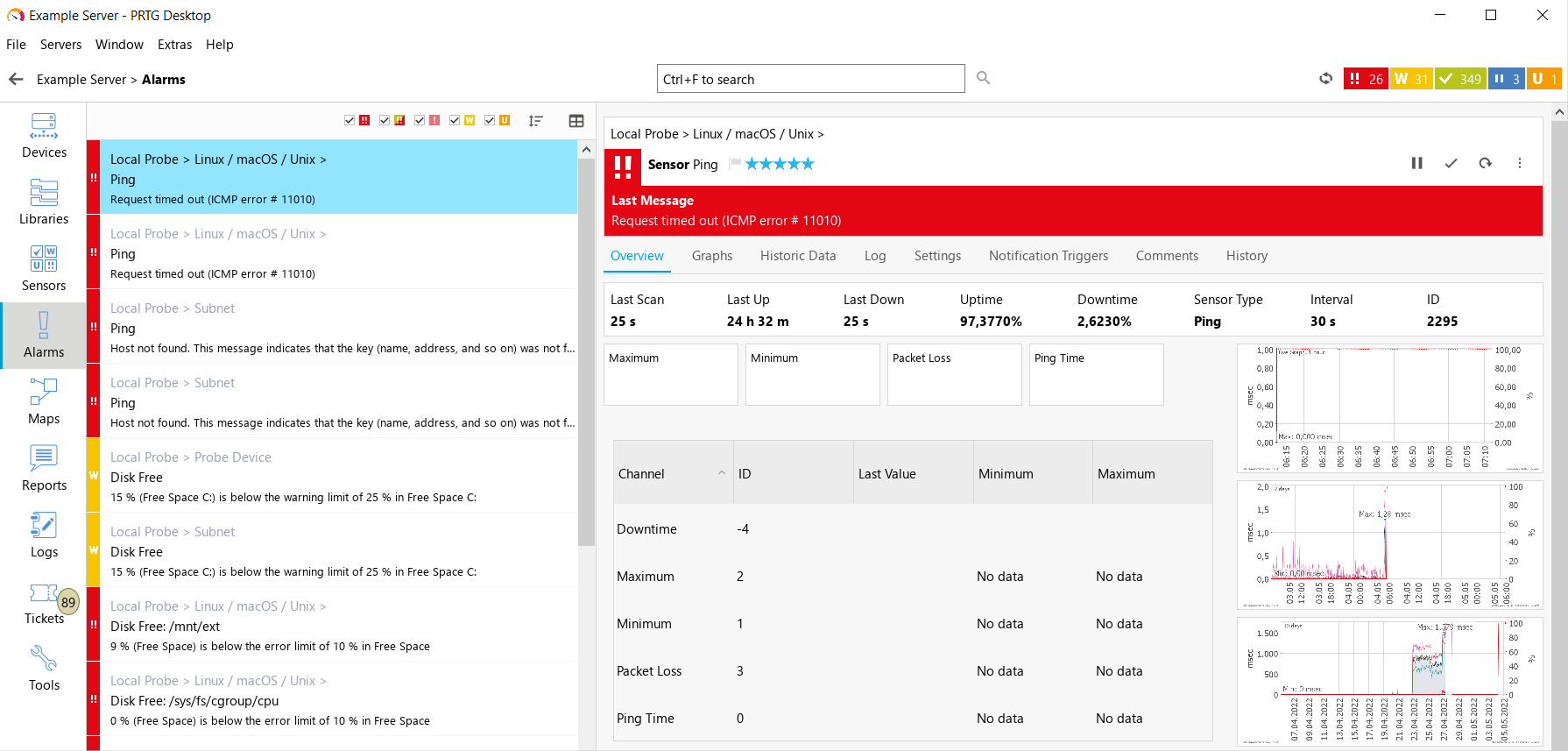
Alarms list
You can hide and show sensors in the Down, Down (Acknowledged), Down (Partial), Warning, or the Unusual status via the checkbox next to the status icons.

Remove and add check marks
In the list of alarms on the left-hand side, the following actions are also available:
▪Click  to filter the list of alarms for Name, Last Value, Down for, Status, Priority, or Probe > Group > Device. The default is No Sorting. An arrow icon next to the category name indicates an ascending
  or descending
  sorting order.
▪Click  to switch to a more detailed table view. Click
  above the table to see a list of all possible categories. You can show or hide categories in the table via the checkbox next to the category names. Sort the table by clicking the table headers.
An acknowledged alarm shows up in the alarms list as Down (Acknowledged) and does not trigger any more notifications.
 If the alarm condition clears, the sensor usually returns to the Up status with the next scanning interval.
To acknowledge an alarm, right-click a sensor and select Acknowledge Alarm from the context menu, then select a time frame. For the time frame, you can choose between Acknowledge Indefinitely, acknowledge for 5 Minutes, for 15 Minutes, for 1 Hour, for 3 Hours, for 1 Day, or Until. You can optionally enter a message that appears in the last message value of the sensor. Click OK to confirm your settings.
If you select Acknowledge Until, a dialog box appears:
Acknowledge |
|
|---|---|
Acknowledge [Objects] |
Shows the sensors that you want to acknowledge the alarm for. You can acknowledge alarms for more than one sensor via multi-edit. |
Until |
Enter the date when the Down (Acknowledged) status ends, or use the date time picker
|
Optional Message |
Enter a text, for example, the reason why you acknowledge the alarm. Enter a string or leave the field empty. |
 to enter the date and time.
You can also acknowledge an alarm for a sensor by clicking  . Then select a time frame and optionally enter a message. Click again to change your settings, for example, to select a different time frame.
Only users with write access rights can acknowledge alarms. You can give read-only users the right to acknowledge alarms as well.
 For more information, see the PRTG Manual: User Accounts.
 PRTG MANUAL
