
PRTG Manual: Startup Page
UVexplorer has a startup page that is presented when the application is first opened. The startup page provides easy access to common operations such as discovering networks and opening discovery results.
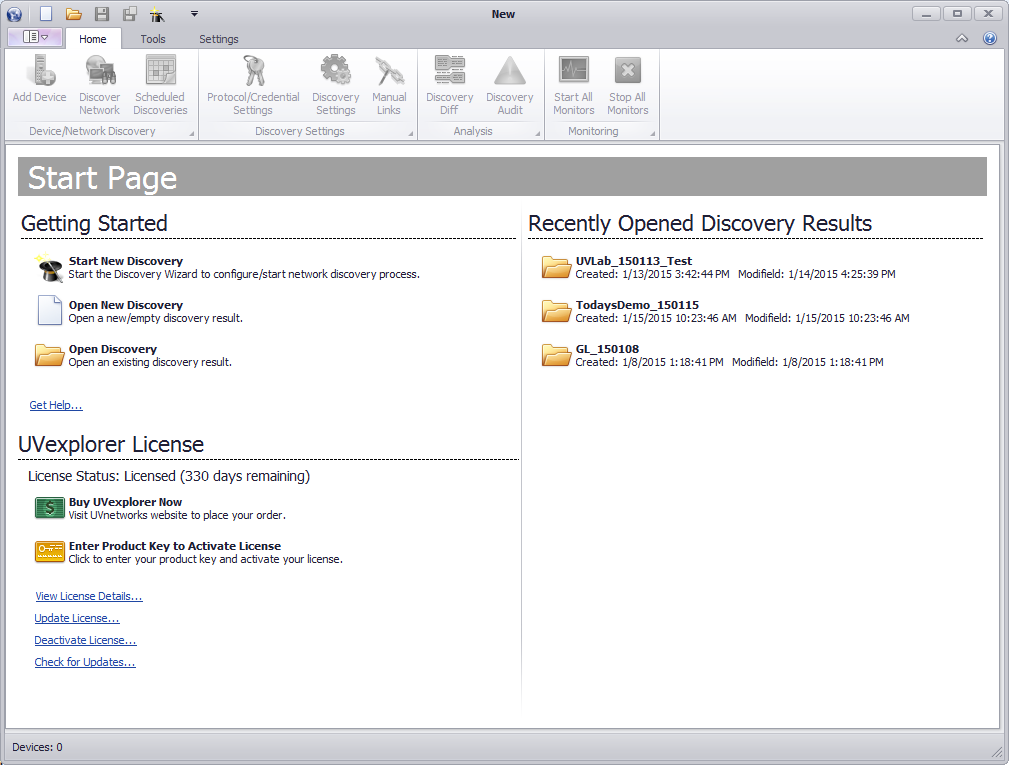
The startup page is presented when the application is first started. To startup page can also be accessed from the backstage view, by pressing the 'Getting Started' menu option in the left navigation pane.
The getting started section of the startup page allows you to start the discovery wizard, open a new discovery or open an existing discovery result.
Recently Opened Discovery Results
The recently opened discovery results section contains the last five recently opened discoveries.
The license section displays the current license status along with the options to change the license. The license section contains the following settings:
Buy UVexplorer now
This option will take you to the UVnetworks website where you can buy and update your license.
Activate License
This option will allow you to enter your product license key to license the application. If the product is already licensed it must first be deactivated to change the license.
View License Details
This option will take you to the help/support section of the backstage view which contains the current license information.
Update License
This option will launch the update license wizard. See Updating UVexplorer License for more information.
Deactivate License
This option will launch the deactivate license wizard. See Deactivating UVexplorer for more information.
Check for updates
This option will send a request to the UVexplorer update server to check whether you have the latest version of the application. If the application is current a message will be displayed. If the application is not current an option to update will be presented. See Updating UVexplorer for more information.
