
PRTG Manual: Monitors
UVexplorer monitors allow you to query specific information regarding device state and configuration from the monitored devices on a recurring interval. The Monitors view allows you to configure monitors and view their results.
To access the monitor view select the 'Monitors' link at the bottom of the main application view. The Monitors view contains a navigation pane with the available monitors and monitor results and a main monitors view where the corresponding results and monitors can be viewed.

UVexplorer manages monitored devices separate from the devices stored in the Discovery Results. See Monitored Devices for more information on managing monitored devices.
To create a monitor of a specific type, start by selecting the desired monitor type in the left navigation pane. For example, to create a ping monitor you would select the 'Ping / Latency' item in the Monitors section of the navigation pane. Selecting a monitor type will change the context of the main view and all monitors of the corresponding monitor type will be showing in the main view. With the desired monitor selected, add a monitor by right clicking on the main grid and selecting 'Add...' in the context menu, or by pressing the add  button in the lower left corner of the monitor view. A monitor configuration editor for the selected monitor will appear.
To edit a monitor, select the monitor in the list and right click and select 'Edit...' in the context menu, or press the edit  button in the lower left corner of the monitor view. The monitor editor will be displayed.
To delete a monitor select the monitor and right click and select 'Delete' in the context menu, or press the delete  button in the lower left corner of the monitor view. A confirmation dialog will be presented and the monitor will be deleted upon confirmation.
NOTE: When a monitor is deleted all results associated with that monitor will be deleted.
Monitors will be run based on their schedule and if the monitor is enabled. A monitor can also be run on demand by selecting 'Run Now' in the monitors context menu. When a monitor is run on demand, it will be run quietly in the background, for most monitors depending on the number of devices included in the monitor this will happen very quickly. When the monitor completes the application will update automatically reflecting any changes to the monitor or related device states.
A monitor will only run on its schedule if it is enabled. A monitor can be enabled within the monitor editor by checking the enable check box. Monitors can also be enabled/disabled in the main monitor view by selecting the check box for that monitor in the 'Enabled' column. When a monitor is disabled it will not run on its schedule again until the enabled check-box is re-selected.
Starting and Stopping All Monitors
At times it may be desirable to pause all monitors for time. This may be accomplished by selecting the 'Stop All Monitors' button in the Home tab of the main form ribbon header. Stopping all monitors will stop any new monitors from being scheduled to run. Any currently running monitors will run till completion. To restart the monitors so that they run on their schedules select the 'Start All Monitors' button. If a monitor missed its scheduled run time while the monitors were stopped, it will run shortly after restarting the monitors.
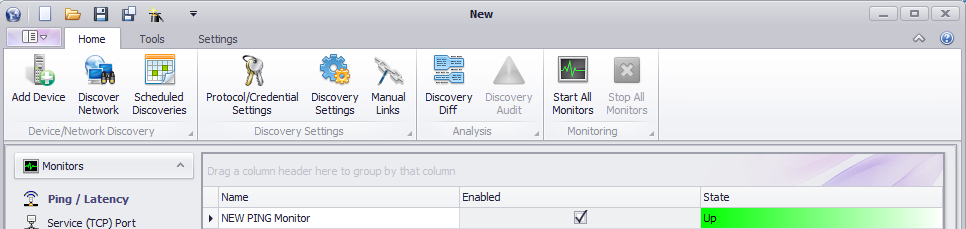
Monitors may still be run on demand when the scheduled monitors are stopped.
Occasionally you may want to pause the monitors for a particular device on a one time or recurring basis. This can be accomplished using maintenance policies. See Maintenance Policy for more information.
When a monitor runs the results of the monitor queries will be stored and available for viewing and used to determine the monitor state. To manage the number of results stored each monitor can be configured to limit the amount of stored results. If at any point you would like to clear all of the results collected by a particular monitor, you may select 'Clear History...' in the monitors context menu. This will delete all of the data collected by that monitor to that point.
When a monitor is run it will collect information for all of the devices or entries associated with that device. Each entry in the device will have its own state associated with its results. The monitor will also have an overall stated based on the state of the entries within the monitor. With a Ping/Latency monitor for example, if one of the devices failed to respond to the ping queries and received a state of 'Down'; the monitor would also be considered to have a state of 'Down'. This state would be reflected in the 'State' Column of the Monitors Grid.
To view the state of each device or entry in the monitor, select 'Monitor State Details...' in the monitors context menu. A dialog containing each entry in the monitor with their corresponding state will be displayed, along with any details associated with the state. This dialog can show you the state of the monitor when the dialog was opened, or it can show you the latest state of the monitor by refreshing the dialog as the monitor completes. To always display the latest state select the 'Show Latest State' option at the bottom of the dialog.
Viewing Monitor History
Viewing the history of a monitor allows you to view the results of the monitor over time. To view the history of a monitor, select the monitors history in the context menu. A dialog containing a grid, and for certain monitors a graph, with the results of the monitor will be displayed. See the help documentation for the following monitors that support monitor history.
The state of a device is based on all of the monitors it is associated with and can be viewed using the Monitored Devices view. To view all devices associated with a monitor select the 'All Devices' option in the Monitored Devices navigation pane. A list of all devices associated with a monitor is displayed along with their overall state. The overall state is based on the 'worst' state of any associated monitors.
To view detailed information about the state of the device in all of its monitors select the 'Monitor State Details' context menu. A dialog containing a list of all of the monitors the device is associated with, a monitor summary, notes, and the current state within the monitor is presented.
If the monitors associated with the device support viewing the monitor history then the monitor history for the device can be viewed by selecting the monitor history in the devices context menu. The history for that single device will be displayed in the monitors history dialog.
UVexplorer supports the following monitors. For details about each monitor, follow the link to their corresponding help documentation.
