
PRTG Manual: Service (TCP) Port Monitor
The Port monitor allows you to monitor whether a specified port is open or closed on a device. When a Port monitor runs it attempts to connect to monitored devices on the specified ports using the associated protocols and determines whether the port is open or closed.
The Port monitor editor contains the following tabs that require configuration: Settings, Devices, Schedule, Event, and History.
The Schedule, Events and History settings are the same for all monitor types. See Configuring Monitors for more information about configuring these settings. For the settings tab see the information below.
Name
The Monitor name is the name of the monitor used to refer to the monitor in the monitors list view, and in monitor events and notifications. Monitor names must not be unique but it is recommended you use unique names to differentiate them.
Port Check/Test
The Port Check/Test section is a list of the ports to be checked by the monitor.
Adding a Port
To add a port test press the add button  . An editor allowing you to configure the port test entry is displayed. Once configured press the save button and the port test is added to the list.
Editing a Port
To edit a port test press the edit/configure button  . The configuration editor is displayed. To save the changes press the save button and the port test changes are applied.
Deleting a Port
To delete a port test select the port test in the list and press the delete button  . The port test entry will be removed from the list.
Configuring a Port Test entry
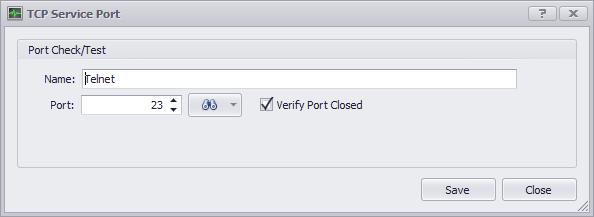
A port test entry contains the name of the test, the port, and whether the test is for open or closed.
The name is used to identify the test in the list. This name can be anything you choose but typically describes the service hosted on the port. If the port is chosen from the list of well known ports the name is populated automatically.
The port is the port you would like to monitor. To see and search through a list of common ports select the search button to the right of the port editor. If the port you want is in the list select the port in the list and the port editor will be populated with the result. You can also see common ports by using the spin editor arrows in the port editor. If the port you want is not in the list of well known ports you may manually enter the port and port name.
The devices tab allows you to select which devices will be monitored. To add devices to the monitor select the button in the lower left corner. A device selector will be presented allowing you to choose one or more devices to monitor. To remove a device from the monitor select it in the grid and press the delete button .
