
PRTG Manual: Configuring Monitors
Each monitor consists of settings specific to that monitor along with schedule settings, event notification settings, and monitor result history settings. For details on configuring settings specific to a monitor see the monitors associated help page. For information on configuring the schedule, event, or history settings see below.
Monitors can be scheduled to run on a specified interval allowing you to monitor the state of a device over time. The following schedule types are available:
Minutes
This schedule will run the monitor every N minutes. For example, ‘Run every 30 minutes’.
Hours
This schedule will run the monitor every N hours at a specified minute during the hour. For example, ‘Run every 6 hours’.
Days
This schedule will run the monitor every N days at a specified time of day. For example, ‘Run every 3 days at 2:00 PM’.
Weekly
This schedule will run the monitor weekly on specified days of the week at a specified time of day. For example, ‘Run every Friday at 2:00 PM’.
Monthly (Nth day of month)
This schedule will run the monitor monthly on the Nth day of the month at a specified time of day. For example, ‘Run on the 1st day of each month at 2:00 PM’.
Monthly (Ordinal day of week)
This schedule will run the monitor monthly on the first, second, third, fourth, or last occurrence of the specified week day. You can also specify the time of day at which the monitor will run. For example, ‘Run the last Friday of each month at 2:00 PM’.
Each monitor has a state associated with the monitor results. UVexplorer provides three ways to notify you of events that occur as a result of running the monitor. To select which events to be notified of select the states in the state drop down checklist.
The available states are:
UP
UP indicates that the results of the monitor queries are within the tolerances configured in the settings.
DOWN
Down indicates that the results of the monitor queries are completely outside of the configured tolerances.
WARNING
Warning indicates that the results of the monitor queries are within the configured warning tolerances.
UNKNOWN
An unknown state is a result of successfully running the monitor and not recognizing the response as one that can be compared to the monitors tolerances. Unknown should be treated as a DOWN monitor.
INFORMATION
The information state is only used for monitors whose queries could include additional information separate from the UP or DOWN state of the monitor. Ping monitors for example will provide an information state when it is recognized that the system up time has reset.
NO DATA
No data is a state used to indicate that the monitor has not yet been run and there is currently no available data.
Log Events
UVexplorer provides an event log that contains all of the logged events. Monitor events will be included here if the log events option is selected. Details of the events will be available in the event view. See UVexplorer Events View for more information.
Desktop Notifications
Since UVexplorer runs as a System Tray application, event notifications can be displayed as a system tray 'balloon' message. This is a message appearing from the System Tray UVexplorer icon containing a message about the event that occurred. Details about the event can be seen by clicking on the balloon. Clicking on the balloon will display the UVexplorer applications Events View. Since the details of these notifications are the logged events, the 'Log Events' option must be enabled to enable the desktop notifications. To enable desktop notifications check the 'Display System Tray Notifications' option within the Log Events group box.
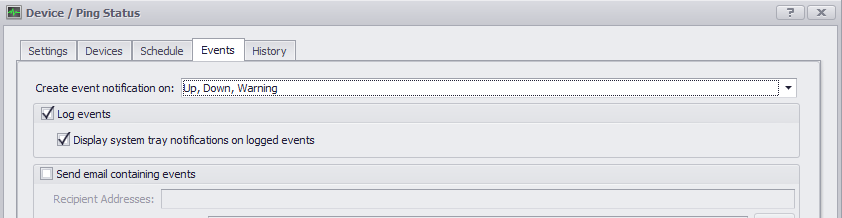
Email Notifications
UVexplorer can be configured to send email notifications containing details about state changes within monitor results. To send emails on monitor state changes select the 'Send Email Containing Events' check box. Emails can be sent to the pre-configured system recipients, as well as to additional recipients specified for the monitor. When email notifications are enabled an email message containing information about the event will be sent to all of the specified recipients.
Email notifications will only work if the system email server settings are configured. The system settings can be accessed by pressing the browse '...' button to the right of the System Recipients check box. See SMTP Email Server Settings for more information.
Each time a monitor is run the results of the monitor queries are stored. Overtime, depending on the frequency of the monitor schedule, these results could become quite large and require a considerable amount of disk space and memory. The monitor history configuration allows you to dynamically limit the number of results to keep. As a convenience the time duration the monitor results will be stored is displayed based on the number of results and the current monitor schedule. This value will change as the number of results and or the schedule are changed. For example if you choose to store 72 results and the monitor is scheduled to run every hour you will see that monitor results will be stored for 3 days.

In an attempt to maintain system stability the maximum number of stored monitor results are limited to 1000.
