
PRTG Manual: Backstage View
The UVexplorer backstage view provides easy access to application operations such as managing discovery results and viewing application version and licensing information.
To access the backstage view press the backstage view button on the far left of application near the main views tab menu.
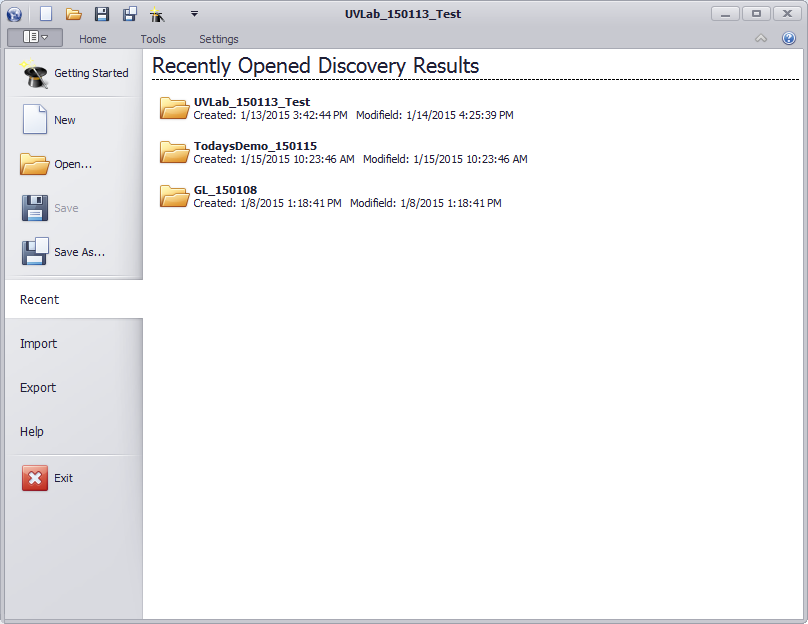
Selecting the getting started menu item will open the getting started view. See Startup Page for more information.
The new menu item will close any currently opened discovery results and open a new empty discovery result.
The open menu item will open the open discovery results dialog. The dialog will present previously discovered networks available to open within the application. The selected network will be opened and the application will return to the main view.
The save menu item will save any changes to the current network, whether they were changes that occurred from a discovery or by working with the discovered network result. If the current network has never been saved the Save As dialog will be presented.
The save as menu item will save the current network to the database as new network with a new name. When pressed a save as dialog is presented that allows you to specify the name of a new network.
The recent menu item will display a list of the five most resent discovery results opened within the application. The recent discoveries will be presented in the pane to the right and can be opened by clicking on one of them. When opened the application will open the network and return to the main view.
The import menu item allows you to import a discovery result that has previously been exported from UVexplorer. The import option allows you to share discovery results with other computers or network administrators.
To import a discovery file press the import button. A dialog will be presented allowing you to select a '.dis' file that has been previously exported from UVexplorer.
The export menu item allows you to export devices from a discovery result to make them available to import into UVexplorer at a later time or on another machine. The discovery result is exported to a '.dis' file which is an encrypted and compressed serialization format of the network devices.
To export devices select them in the device list and press the export button. A dialog will be presented to allow you to name the discovery file in the file system.
The help menu item opens a view containing licensing and application version information and other options
Support
The support section provides links to launch the application help, present the Startup Page, or direct you to UVnetworks support web page.
Help on the Web
The help on the web section provides a link to the UVexplorer help documentation available on the web.
About UVexplorer
The about UVexplorer section contains the application version information.
License Information
The license information section contains the current license status along with your license key.
See UVexplorer activation for more information about licensing.
