
PRTG Manual: Install
Installing PRTG Data Exporter works like other Windows-based applications. To install PRTG Data Exporter, run the installation setup program that you downloaded.
In this section:
▪PRTG Data Exporter Setup Wizard
1.If any prerequisites are not present on the target system, you must first go through the steps in the Prerequisites Setup Wizard. If all prerequisites are installed already, you can immediately start with the PRTG Data Exporter Setup Wizard. Click Next.
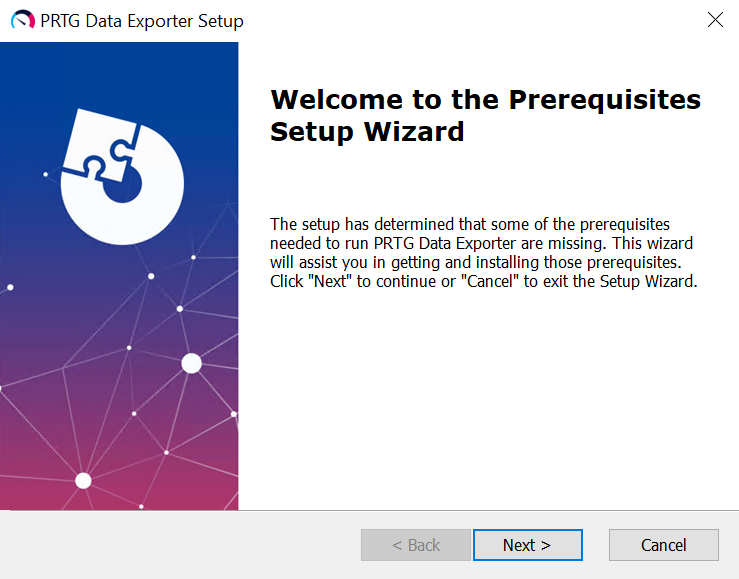
Welcome to the Prerequisites Setup Wizard
2. The installer detects which of the necessary components you still need to install. Select the software you want to install and click Next.
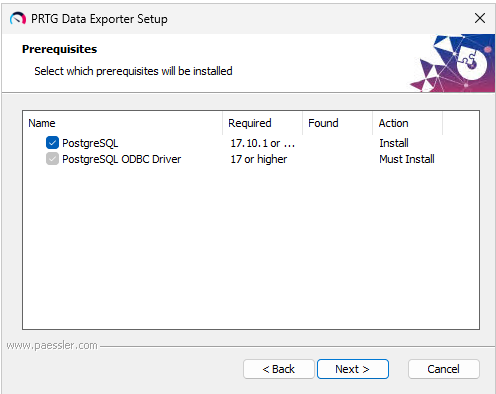
Select prerequisites to install
3.Next, configure the installation of PostgreSQL. Create a password for the PostgreSQL admin account and confirm the installation directory. You can skip this if you plan to use your own PostgreSQL instance.
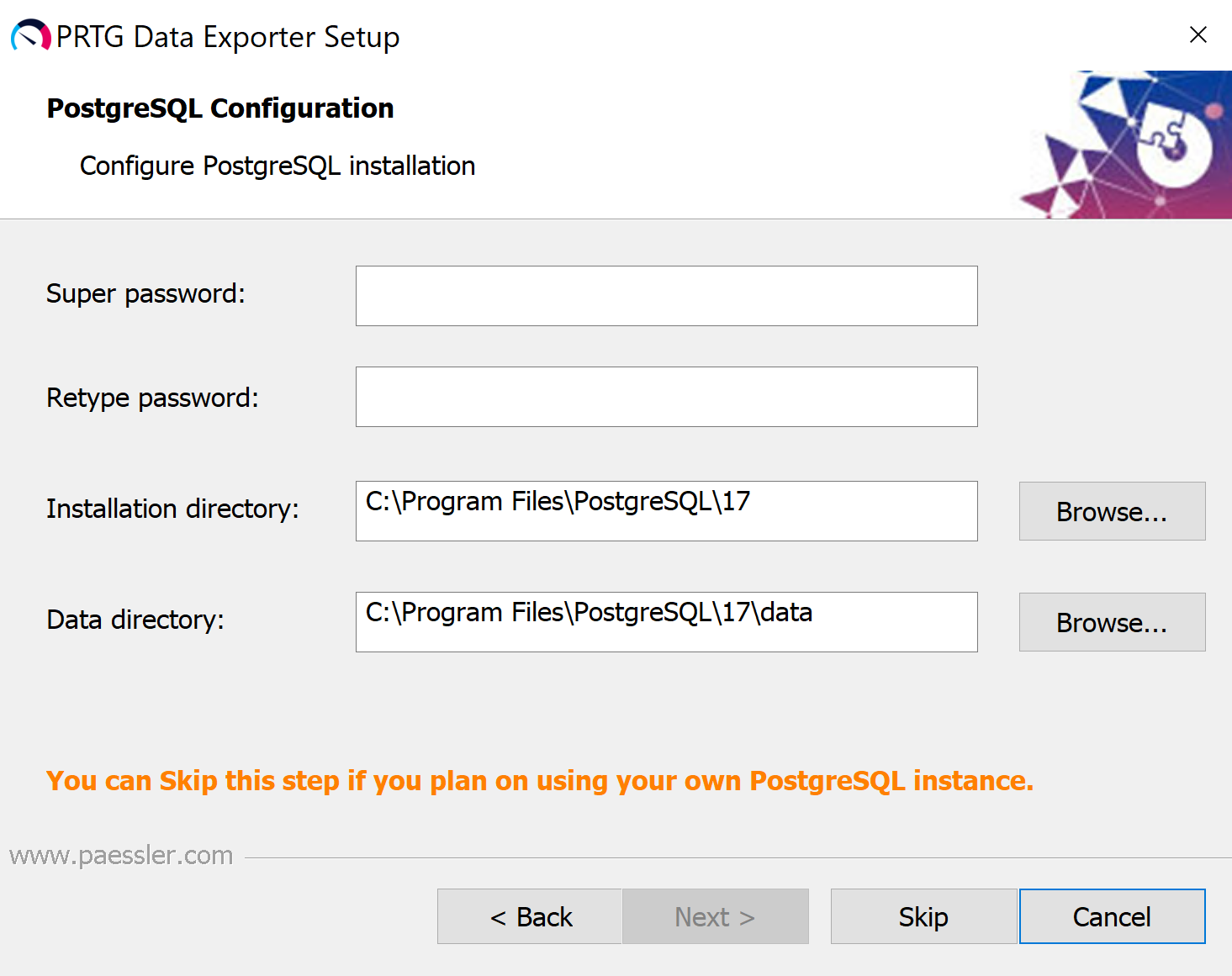
Configure PostgreSQL
4.Wait while the setup wizard installs the prerequisites. This may take a few minutes.
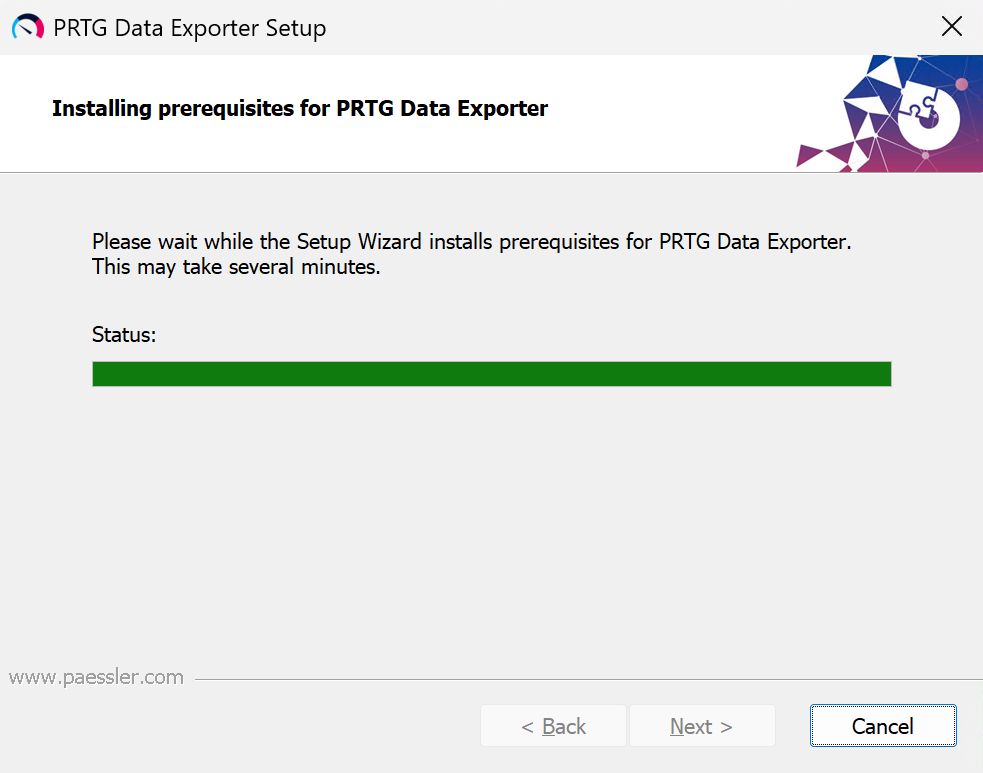
Installing prerequisites
PRTG Data Exporter Setup Wizard
 During installation, the setup wizard installs .NET, Microsoft IIS Features, and Microsoft IIS URL Rewrite Module on your system.
1.When your system meets all the system requirements, start the PRTG Data Exporter Setup Wizard. Click Next.
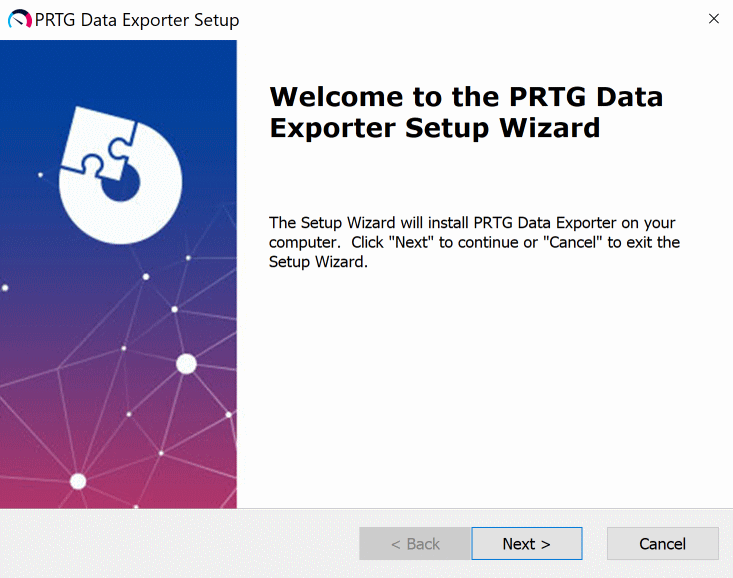
Welcome to the PRTG Data Exporter Setup Wizard
5.Read the License Agreement and select I accept the terms in the License Agreement to continue. Click Next.
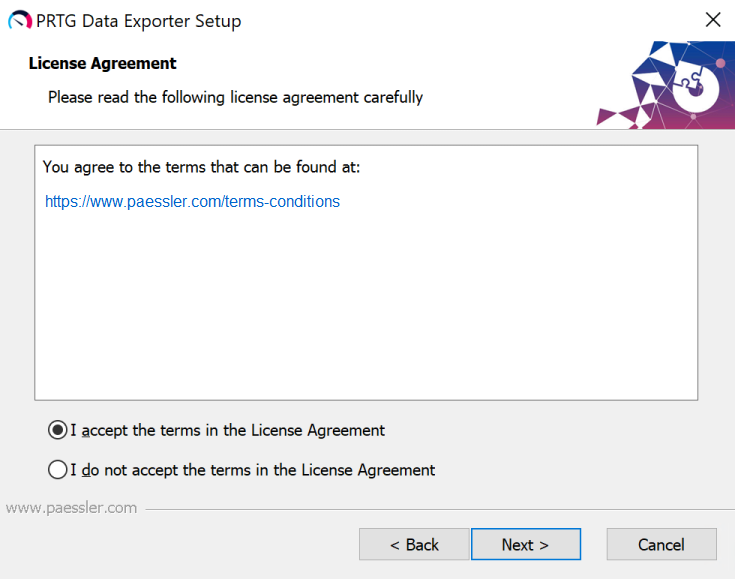
License agreement
6.Next, configure your SQL Connection. Specify the database server where you want the information stored in the format server\instance. PRTG Data Exporter searches for and uses a local PostgreSQL installation by default. Use the local server or modify the values in the settings to specify a different one. Enter your corresponding password. Click Next.
If you used the Prerequisite Setup Wizard to install PostgreSQL, the installer autofills your information, including the password that you configured.
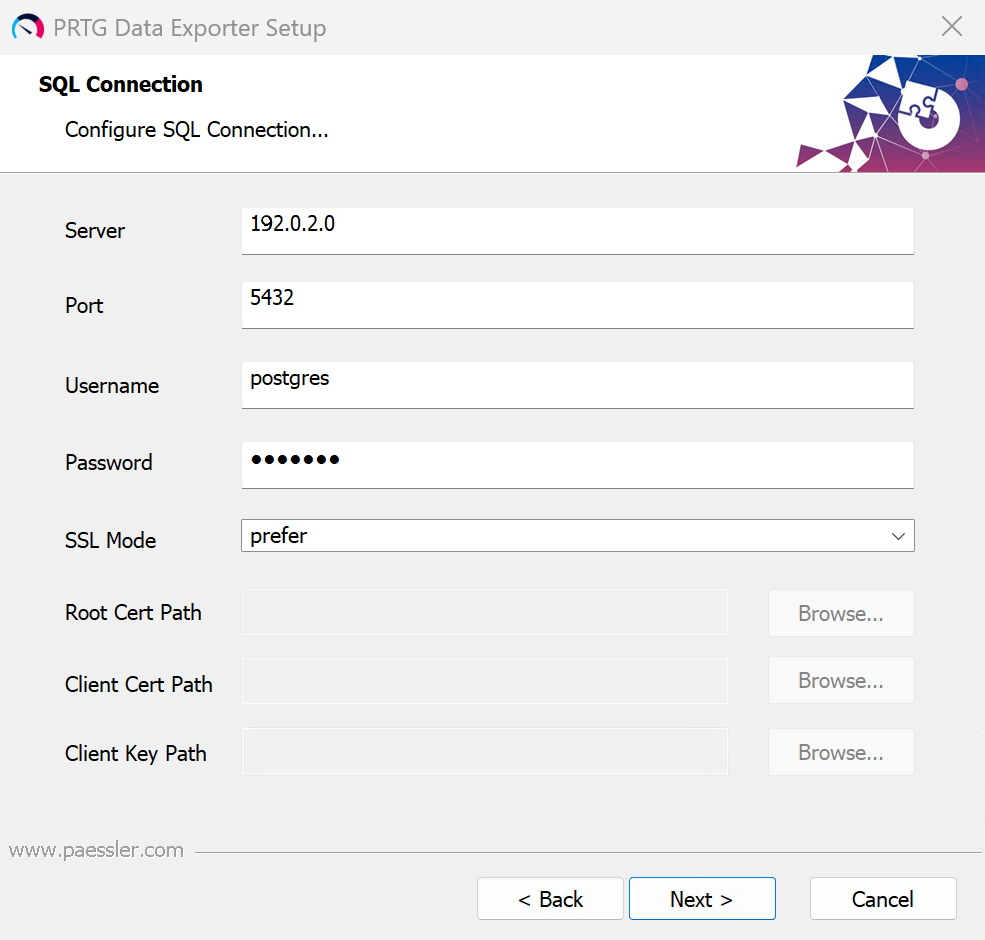
Configure SQL server connection
7.Click Install to start the installation or click Back to review or change your installation settings.
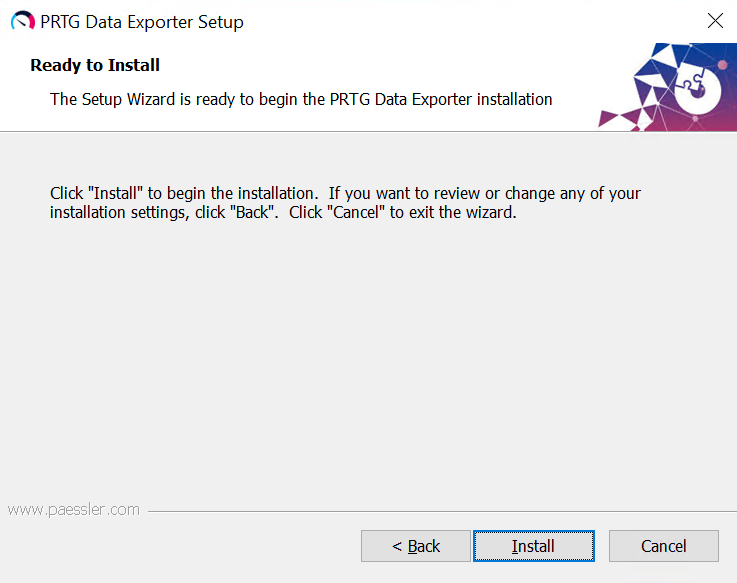
Start the installation
8.Wait while the setup wizard installs PRTG Data Exporter. This may take a few minutes.
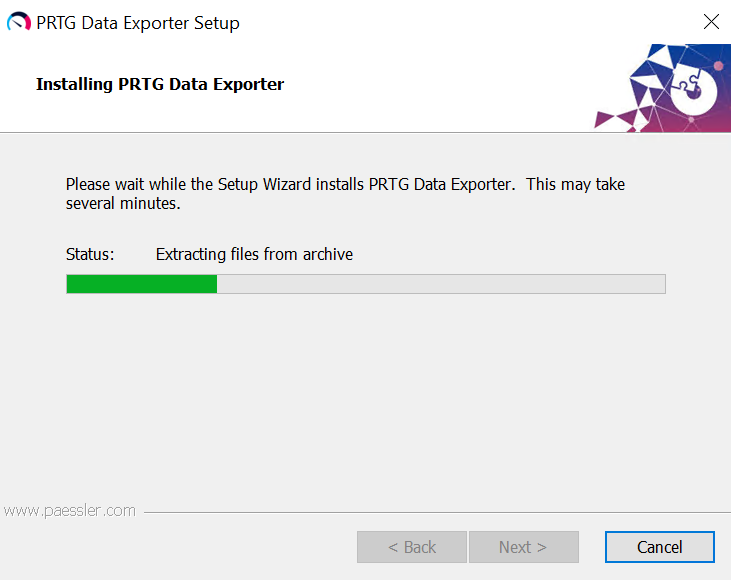
Installing PRTG Data Exporter
9.After the installation finishes, you receive a confirmation message. Click Finish to complete the installation. PRTG Data Exporter launches automatically.
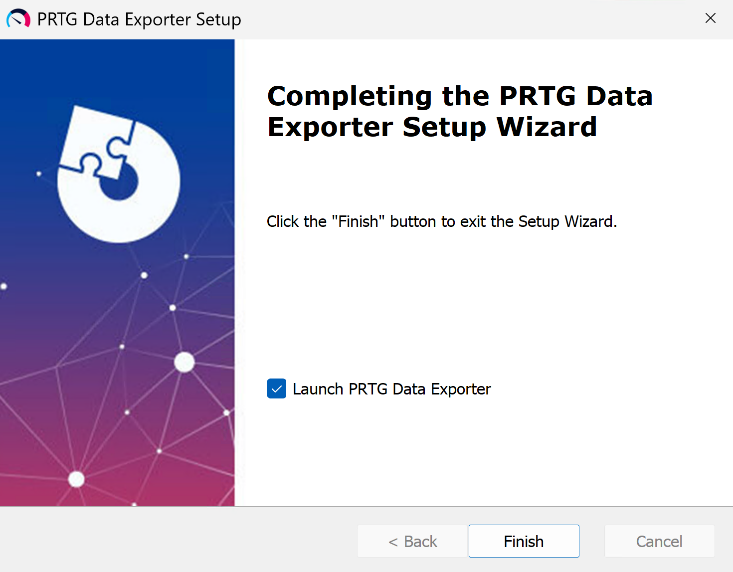
Successful installation
On your first login, you must sign in with the default credentials:
▪Username: admin
▪Password: Adm1n!
The PostgreSQL admin password you set during installation is not the PRTG Data Exporter login. Use the default credentials above on first login.
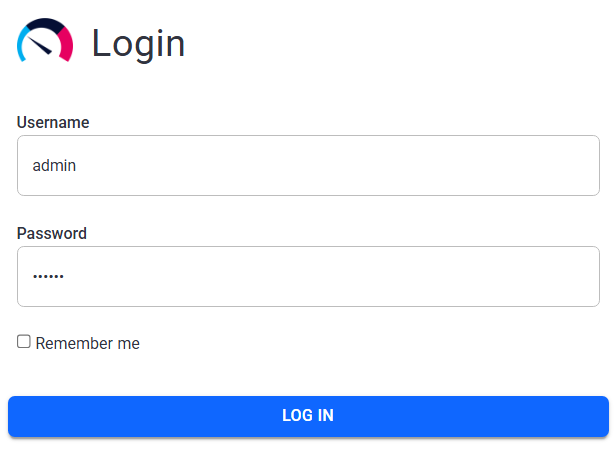
Login with default credentials
Change Password
PRTG Data Exporter prompts you to change the password every time you log in with the default credentials. If you skip this step, you can also change your password in the profile settings.
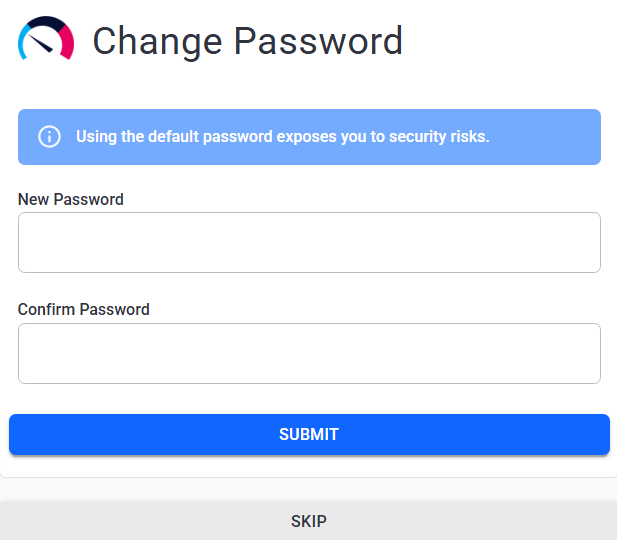
Change password upon login
