
PRTG Manual: Data Collection Setup Wizard
PRTG Data Exporter comes with a Data Collection Setup Wizard to help you set up your data collection flows. We recommend that you use this wizard to configure your very first data collection flow. You can skip the setup wizard if you do not want to use it.
 You can rerun this setup wizard as many times as you want to set up additional data collection flows.
The setup wizard helps you to:
▪Connect to your PRTG servers.
▪Configure a target database.
▪Create a filter to refine your data collection.
▪Configure data profiles with data collection flows and schedules.
Step 1: Open the Data Collection Setup Wizard
PRTG Data Exporter prompts you to use the Data Collection Setup Wizard immediately after installation. If you want to rerun the setup wizard, click on the menu bar. Click Proceed to start the setup process
 on the menu bar.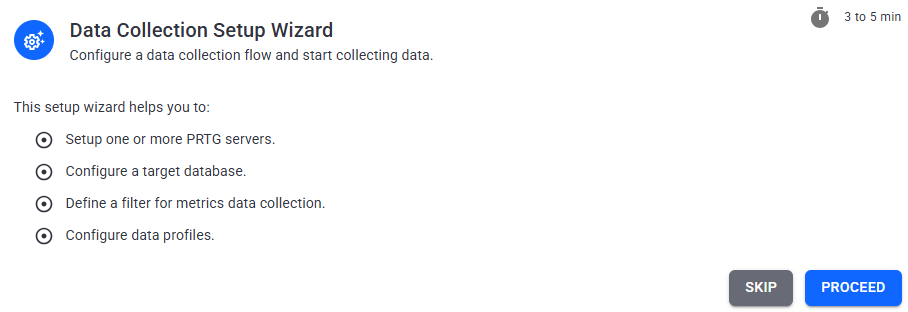
Start Data Collection Setup Wizard
Step 2: Add one or more PRTG servers
Connect your PRTG Data Exporter instance to one or more PRTG servers.
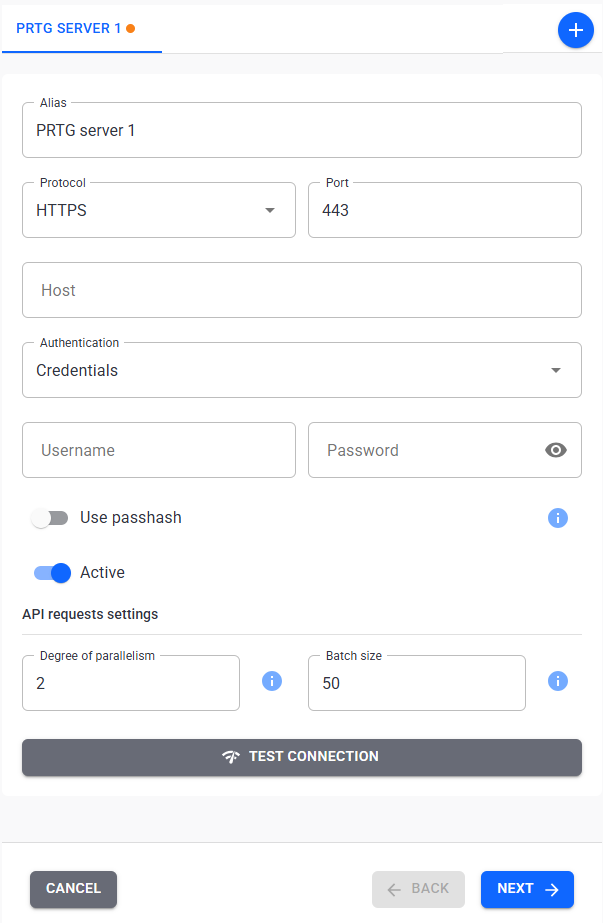
Start Data Collection Setup Wizard
1.Specify a unique name in the Alias field for the PRTG server. This name is unique to PRTG Data Exporter.
2.Select the protocol and add the port on which PRTG Data Exporter can reach the PRTG server.
3.Add the URL of your PRTG server.
4.Select if you want to use credentials or an API key for authentication and add the corresponding values. If you use credentials for authentication, we recommend that you use a passhash.
 For PRTG Hosted Monitor instances, you must use a passhash if you select Credentials.
5.Determine the degree of parallelism and the batch size for API requests. We recommend that you use the default values first and modify them later based on your needs and system setup.
6.To add more PRTG servers, click on  and repeat steps 1 - 5.
7.When you are done, you can test the connection with the Test Connection button on the bottom.
8.Click Next.
 For more information about the settings in this step, see section PRTG Servers.
Step 3: Create a target database
Add the database where PRTG Data Exporter stores the data it collects from the PRTG servers.
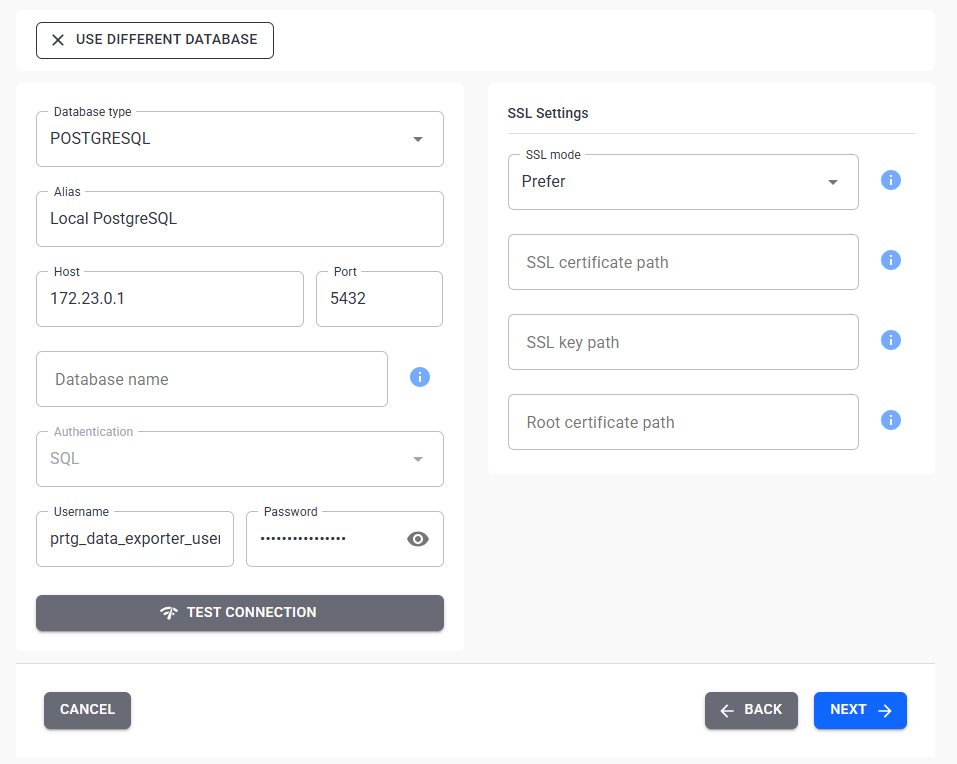
Add a target database
1.Select the database type.
The Multi-Core Dashboards feature requires a PostgreSQL or an MSSQL database.
2.Enter an alias for the database.
3.Enter the host and port to reach the database.
4.Enter the database name.
5.Define if you want to authenticate with SQL or Windows and enter the appropriate user credentials. Make sure that the database user has the necessary permissions to access the database.
6.Define if you want to use SSL encryption. If you want to use SSL encryption, enter the certificate information.
7.Test the database connection
8.Click Next.
For more information, see section Target Databases.
Step 4: Create a metrics profile filter
Optionally, create a filter that you can use to filter monitoring data in a metrics data profile. If you skip this step, you can only configure a Status Data Profile with the setup wizard.
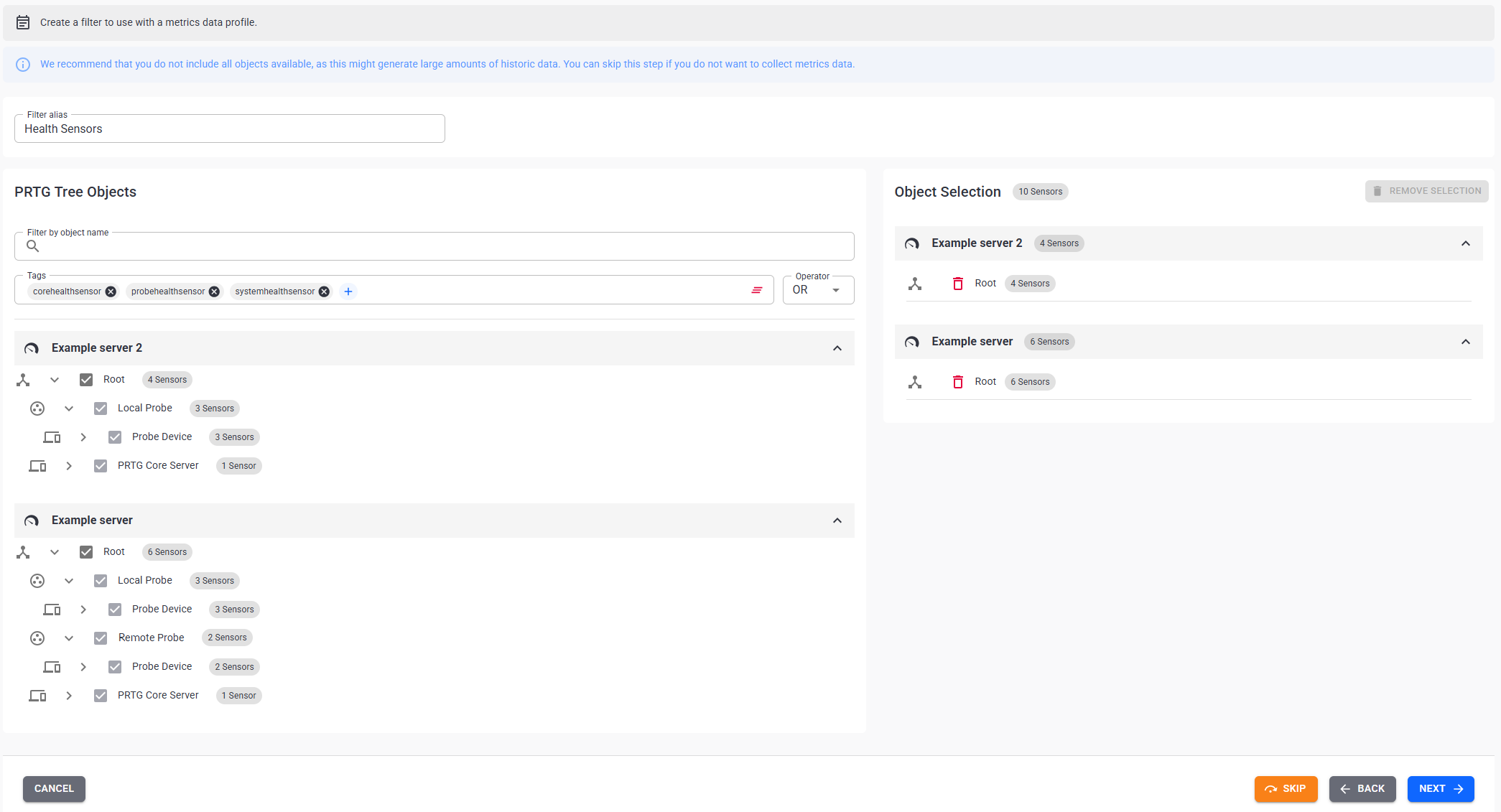
Add a filter
Use tags and tree nodes to select the objects that you want to collect historic data for.
PRTG Data Exporter automatically collects the status of all objects on the PRTG servers that you add. We recommend that you do not include all objects available, as this might generate large amounts of historic data. You can edit your selection later.
For more information, see section Filters.
Step 5: Configure data profiles
Enter a name for each data profile and define a schedule that they should follow. The data profiles run a data collection based on the schedule you define. You can create more profiles later. You can also assign the data profile to an agent.
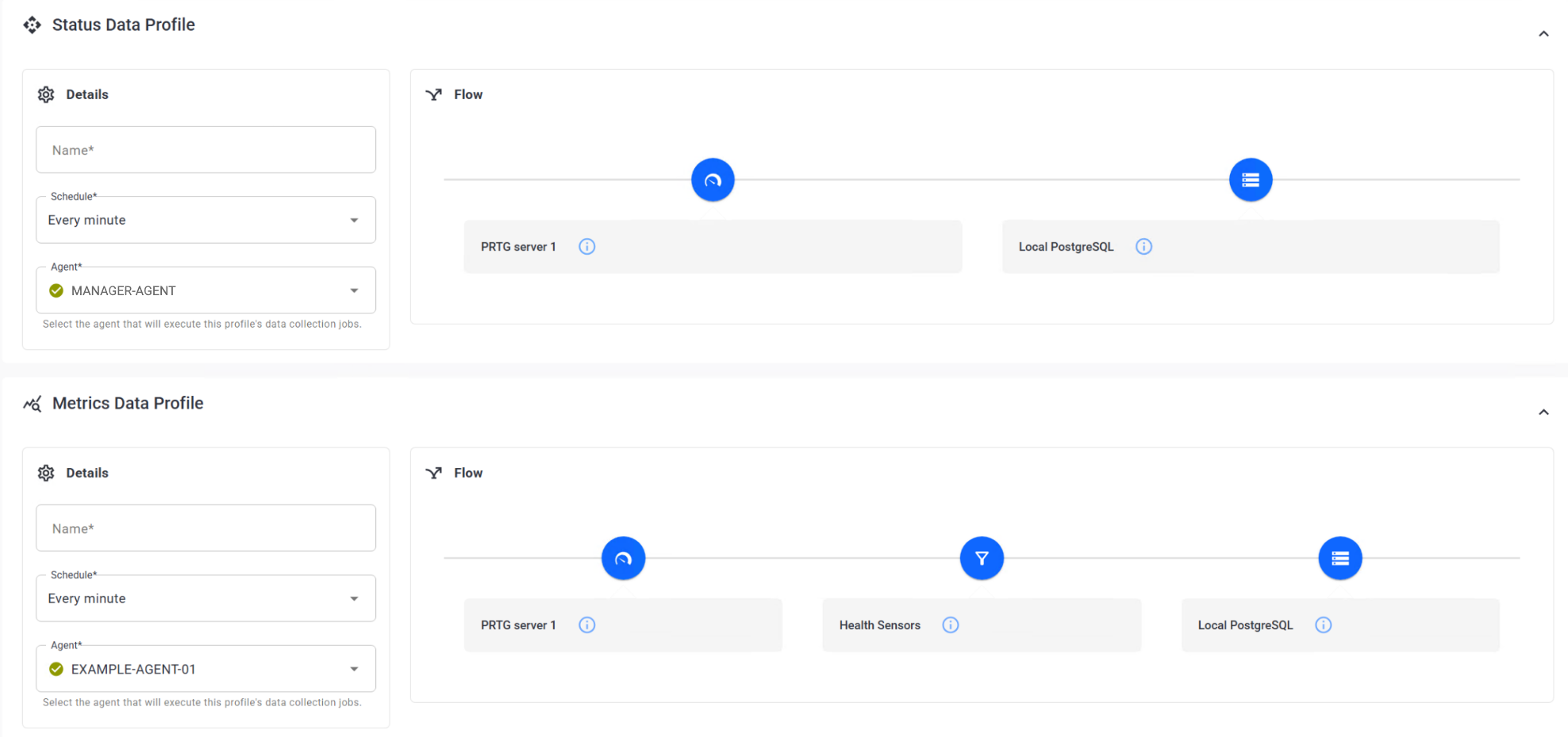
Configure data profiles
For more information, see section Schedules.
Step 6: Successful configuration
Congratulations! You configured a data collection flow and you can start to use PRTG Data Exporter.
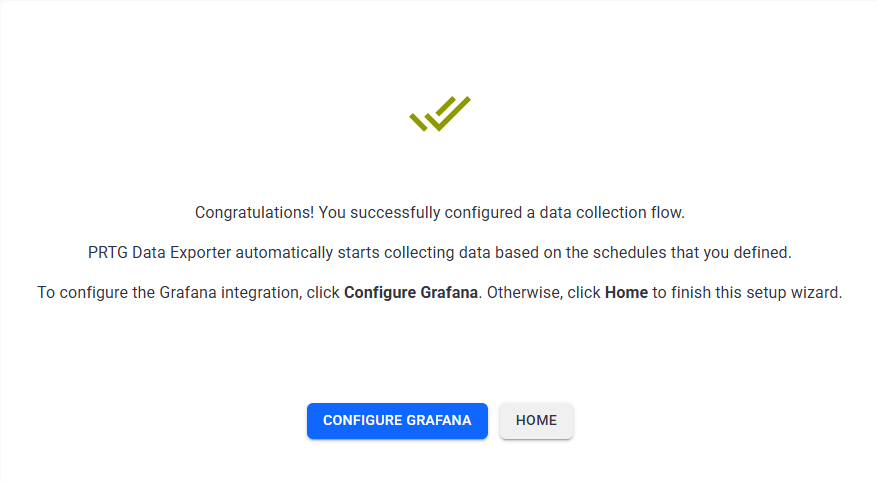
Finish the Data Collection Setup Wizard
Click Configure Grafana to proceed directly to the Grafana Integration Setup Wizard.
Click Home to go to the PRTG Data Exporter home page.
You can rerun the Data Collection Setup Wizard as many times as you like. All configured PRTG servers are available when you run through the setup wizard again.
