
PRTG Manual: Status Data Profiles
On the Status Data Profiles tab, you can manage or create status data profiles. Status data profiles create a flow from one or more PRTG servers into a target database. This type of data profile specifically exports data about the status of the PRTG tree.
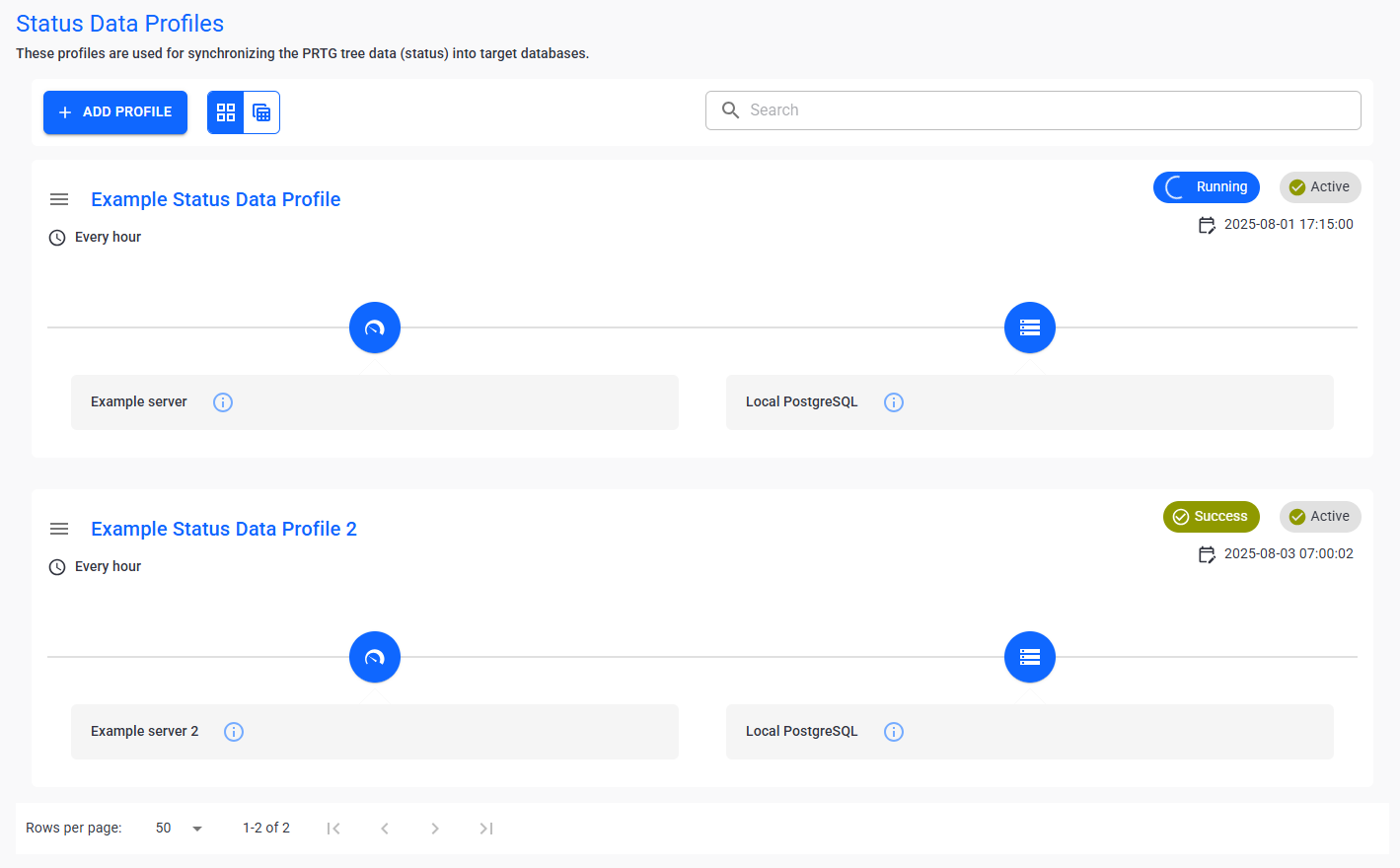
Status data profiles
In this section:
▪Manage existing status data profiles
1.Click  .
.
2.Enter the following information:
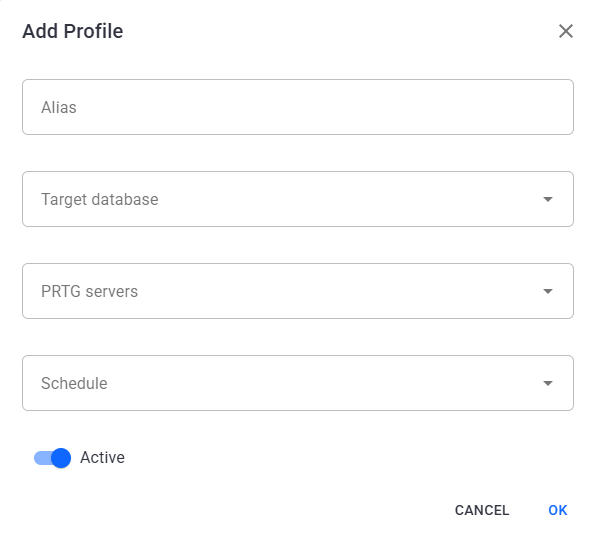
Create a status data profile
Setting |
Description |
Alias |
Enter the alias of the new database. This is a unique identifier specific to PRTG Data Exporter. |
Target database |
Select the target database that the data profile exports data to. |
PRTG servers |
Select one or more PRTG servers that the data profile exports data from. |
Schedule |
Define a schedule for the data collection: ▪Every minute ▪Every 5 minutes ▪Every 10 minutes ▪Every 30 minutes ▪Every hour ▪Every 5 hours ▪Every 10 hours ▪Every 20 hours
|
Active |
Disable the toggle if you want to set the data profile to Inactive upon creation. |

Manage existing status data profiles
The following actions are available to manage your configured status data profiles:
Setting |
Description |
|
Toggle between grid view and list view. |
Search |
Use the search bar to filter for a specific data profile. |
| Edit |
Edit the selected data profile. |
| Delete |
Delete the selected data profile. |
| Set as inactive/Set as active |
Set the selected data profile as inactive or active.
|
| Collect data |
Manually start a data collection for the selected profile. |


Click on the name of a data profile to open the profile dashboard.
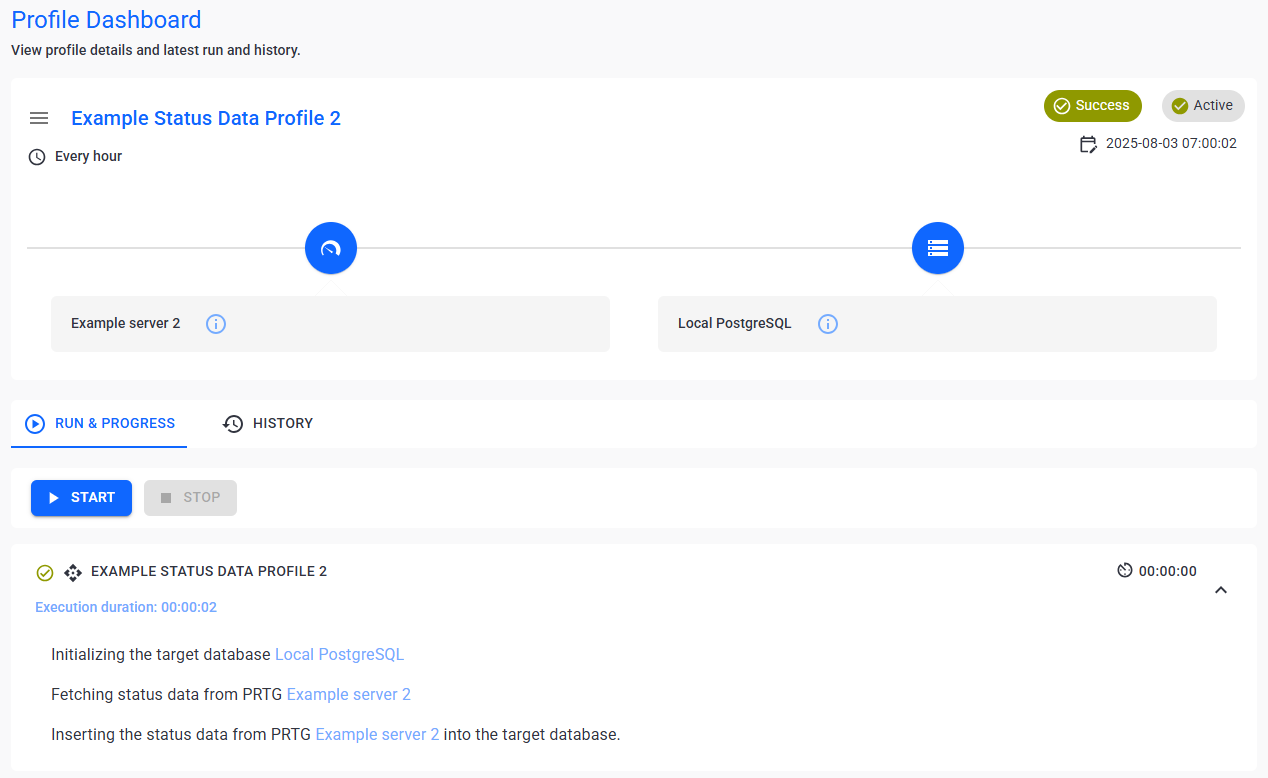
Status data profile dashboard
The following actions are available on the status data profile dashboard:
Tab |
Actions available |
Run & Progress |
▪View the current progress of a data collection. ▪Manually start or stop a data collection. |
History |
View the data collection history. This includes the date and duration of the data collection as well as the status. |
