PRTG Manual: Multi-Core Dashboards (Grafana)
On the Multi-Core Dashboards (Grafana) tab, you can manage your Grafana dashboards, data sources, and organizations.
 This overview is only available after you complete the Grafana Integration Setup Wizard.
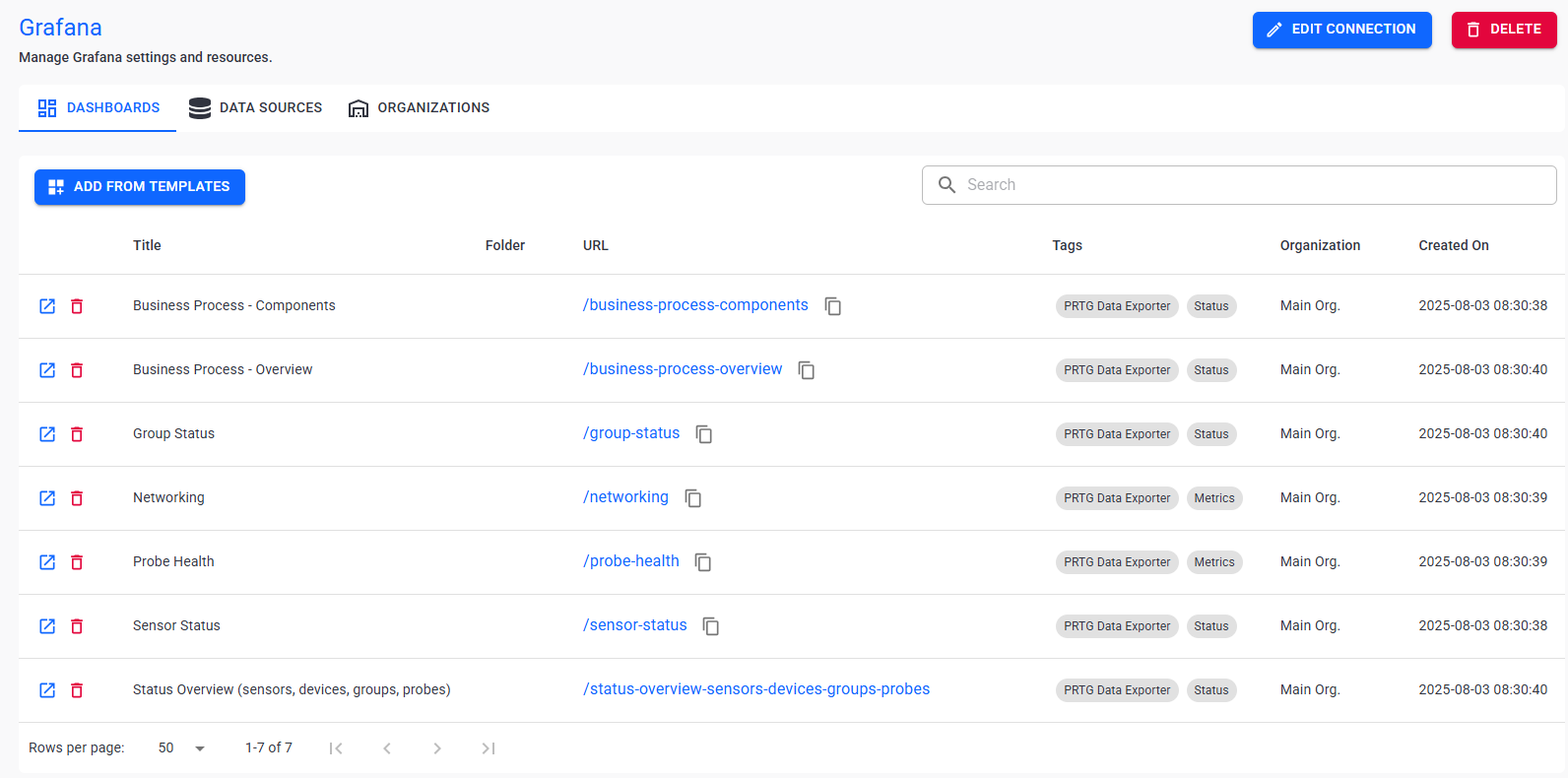
Grafana overview
In this section:
Grafana connection
Dashboards
▪Manage existing Grafana dashboards
▪Overview of the available dashboard templates
Data sources
Organizations
▪Manage existing organizations
1.Click  .
.
2.You can configure the following settings:
Setting |
Description |
Alias |
Edit the alias for the Grafana server. |
URL |
Edit the URL for the Grafana server connection. |
Authentication |
Change the authentication method. Select if you want to use Basic authentication or a Service account token.
|
Username |
Edit the username if you want to change the user account that you use to connect to your Grafana server. |
Password |
Edit the password if you want to change the user account that you use to connect to your Grafana server. |
Test connection |
Click to test the connection to the PRTG server. |
3.Click Ok to save your changes.
 PRTG Data Exporter can connect to only one Grafana instance. To set up a Grafana connection, you must use the Grafana Integration Setup Wizard.
Click  to remove the Grafana server connected to PRTG Data Exporter. This action does not delete your Grafana instance or resources created in Grafana.
3.Click  .
.
4.Configure the following settings:
Setting |
Description |
Organization |
Select an existing organization. PRTG Data Exporter creates the dashboards that you select within this organization in Grafana. |
Data source |
Select the data source for the dashboards. |
Folder |
Select an existing folder in Grafana or create a new one. After you create the dashboards, you can find them in this folder. |
Templates |
Select the dashboards that you want to create in Grafana from the available templates. Optionally, include an empty template that you can customize to your needs. |
4.Click Submit to save your settings and create the dashboards.
Manage existing Grafana dashboards
The following actions are available to manage your dashboards:
Setting |
Description |
Search |
Use the search bar to filter for a specific dashboard. |
Open |
Open the selected dashboard in Grafana. |
Delete |
Delete the selected dashboard. |


Overview of the available dashboard templates
Status Dashboards
Dashboards with the tag Status show only status information, for example, Up, Down, Paused. By default, they include all of the objects in your PRTG servers, regardless of what you selected in the filters in PRTG Data Exporter. If you want to see dashboards with only a selection of your objects, you can filter in Grafana, for example by group, tag, or status.
The following dashboard templates are available for status monitoring:
1.Status Overview (sensors, devices, groups, probes)
2.Group Status
3.Sensor Status
Metrics Dashboards
Dashboards with the Metrics tag show actual channel values. You must set up a Metrics Data Profile with a connected filter to display actual channel values. Otherwise, PRTG Data Exporter cannot access those values.
There are currently two out-of-the-box dashboard templates available for metrics monitoring:
1.Probe Health
Shows CPU usage, available memory, system health and free disk space for all probes that are included in the filters. The sensors relevant to this dashboard are included in the default selection in the Data Collection Setup Wizard.
2.Networking
Shows information related to networking. You must include the relevant sensors in the filter that is connected to the Metrics Data Profile that performs the collection to populate this dashboard. Sensors relevant to this dashboard are the Ping sensor, HTTP sensor, and the SNMP Traffic sensor.
Business Process Dashboards
Shows information related to business processes. You must set up one or more business processes in PRTG Data Exporter to populate this dashboard type.
The following dashboard templates are available for business process monitoring:
4.Business Process - Overview
5.Business Process - Components
1.Navigate to the Data sources page.
2.Click  .
.
3.Configure the following settings:
Setting |
Description |
Organization |
Select an existing organization. PRTG Data Exporter creates a data source within this organization in Grafana. |
Target database |
Select a target database. PRTG Data Exporter creates a data source in Grafana based on the selected target database. |
Name |
Enter the name that you want to use for the data source that PRTG Data Exporter creates in Grafana.
|
Username |
Enter the username of the account that you want to use for connection to the target database.
|
Password |
Enter the password of the account that you want to use for connection to the target database.
|
5.Click Ok.
The following actions are available to manage your dashboards:
Setting |
Description |
Search |
Use the search bar to filter for a specific data source. |
Delete |
Open the selected data source in Grafana. |
Test connection |
Delete the selected data source. This action also deletes the data source in Grafana. |
Open |
Open the selected data source in Grafana. |
Edit target database |
Edit the target database that this data source is based on. |


1.Navigate to the Organizations page.
5.Click .
6.Configure the following settings:
Setting |
Description |
Name |
Enter a name for the organization that you want to create in Grafana. |
Service account name |
Enter a name for a new service account. Grafana creates the new service account with a service account token for the organization. |
6.Click Ok.
The following actions are available to manage your dashboards:
Setting |
Description |
Sync |
Sync the organizations between PRTG Data Exporter and Grafana. |
Delete |
Delete the selected organization.
|
Create service account |
Create a new service account for an existing organization. |