
PRTG Manual: PRTG Servers
On the PRTG Servers tab, you can manage your connections to all your PRTG server instances and connect to more PRTG servers.
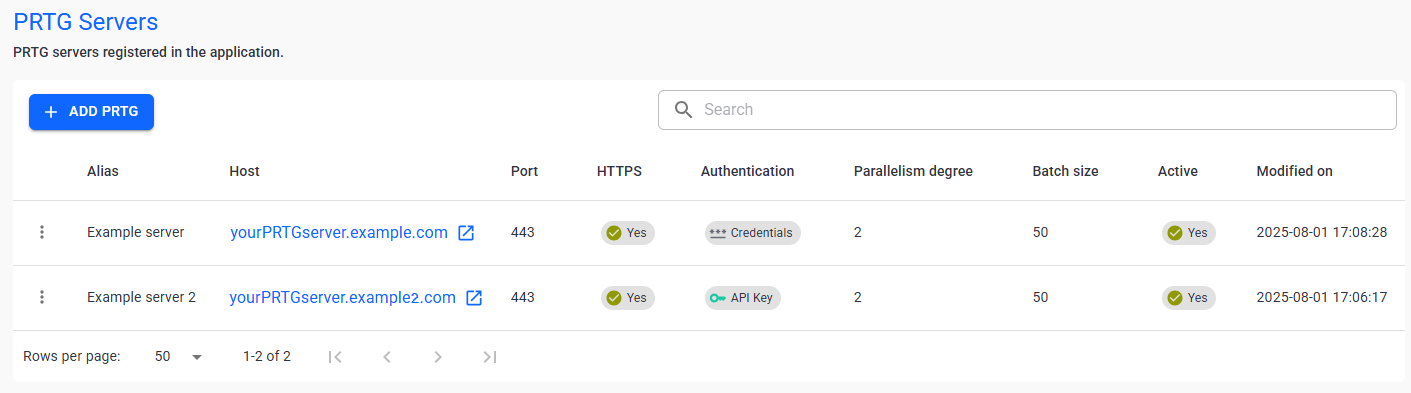
PRTG servers
In this section:
▪Manage existing PRTG server connections
1.Click  .
.
2.Enter the following information:
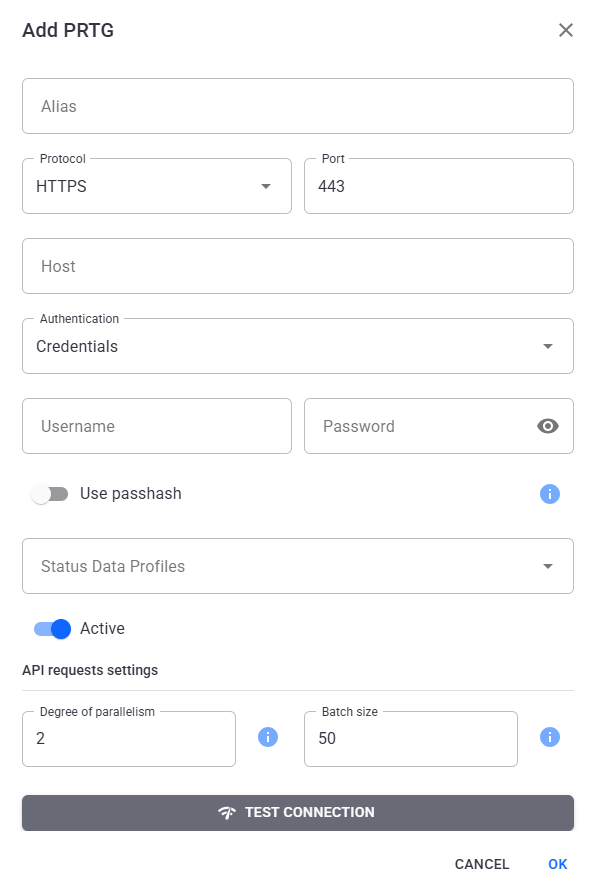
Configure PRTG server
Setting |
Description |
Alias |
Enter the alias used for the PRTG server. The alias is a unique identifier specific to PRTG Data Exporter. |
Protocol |
Select the type of protocol to use with the PRTG server: ▪HTTP ▪HTTPS |
Port |
Enter the TCP Port for the PRTG server. The default port for HTTP is 80. The default port for HTTPS is 443. |
Host |
Enter the hostname for your PRTG server, for example, yourPRTGserver.example.com.
|
Authentication |
Select the type of authentication: ▪Credentials: Use a username and password or passhash to authenticate your PRTG server. ▪API Key: Use a unique alphanumeric key to authenticate your PRTG server.
|
Username |
This setting is only visible if you select Credentials above. Enter the username associated with the PRTG server. |
Password |
This setting is only visible if you select Credentials above. Enter the password associated with the PRTG server. |
Use passhash |
Enable the toggle if you want to use a passhash instead of a password.
|
API Key |
This setting is only visible if you select API Key above. Enter a unique alphanumeric key associated with your PRTG instance. |
Status Data Profiles |
Select a status data profile to add the PRTG server to. PRTG Data Exporter includes this PRTG server in the flow of the status data profile you select.
|
Active |
Disable the toggle if you want to set the PRTG server to Inactive upon creation.
|
Degree of parallelism |
Enter the number of parallel data requests that can run simultaneously.
|
Batch size |
Enter the number of items that PRTG Data Exporter processes in one request.
|
Test connection |
Click to test the connection to the PRTG server. |


3.Click Ok to save your settings.
 The number of PRTG servers you can add depends on your license.
Manage existing PRTG server connections
The following actions are available to manage your configured PRTG servers:
Setting |
Description |
Search |
Use the search bar to filter for a specific PRTG server. |
| Edit |
Edit the selected PRTG server connection. |
| Delete |
Delete the selected PRTG server connection. |
| Set as inactive/ Set as active |
Set the connection to the PRTG server as inactive or active.
|
| Sync Tree |
Sync the PRTG server object tree with PRTG Data Exporter. |

