
PRTG Manual: Agents
On the Agents tab, you can manage and deploy agents for distributed data collection. Use agents to collect monitoring data from PRTG servers that are located on different networks or in remote locations where PRTG Data Exporter cannot connect to directly.
We recommend that you use agents in the following situations:
▪When your PRTG servers are located in different network segments that are not accessible from the PRTG Data Exporter system
▪When you want to distribute the data collection workload across multiple systems
▪When you have connections between cloud and on-premises systems
▪When your PRTG servers span different geographic locations or business units
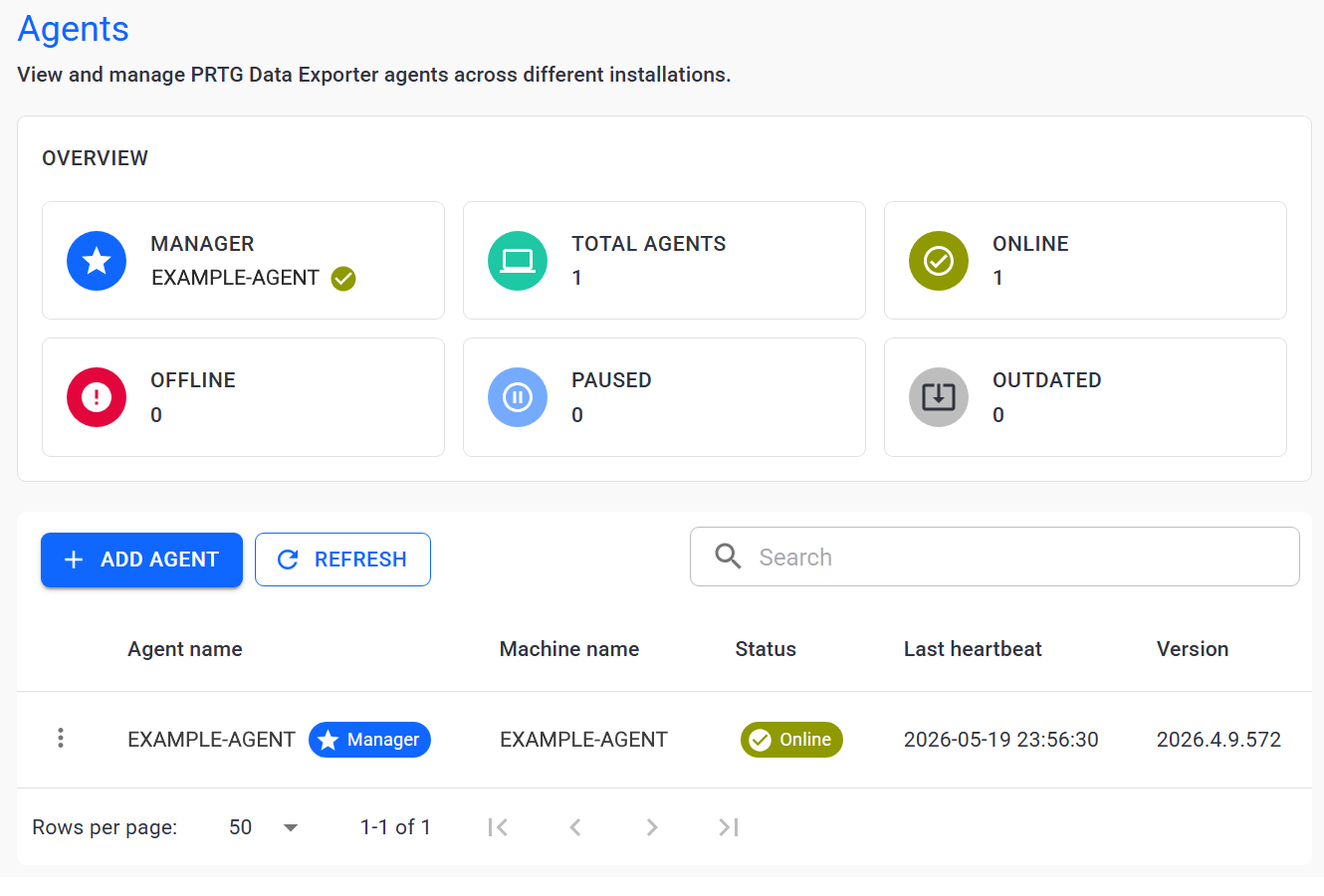
Agents
In this section:
PRTG Data Exporter supports a distributed architecture with one manager agent and multiple worker agents. PRTG Data Exporter creates the manager agent during installation. You can create additional worker agents with the Agent Setup Wizard.
See the main differences between the manager agent and worker agents in the following table.
Feature |
Manager Agent |
Worker Agent |
Location |
Always on PRTG Data Exporter system |
On any system of choice |
Interactive web interface |
Yes |
No |
Number |
Only 1 |
Multiple |
Data collection |
Manages data collection and data collection jobs across all agents |
Data collection only |
PRTG server connections |
All configured and reachable PRTG servers |
Only local PRTG servers within the same network segment |
Configuration updates |
Done manually by an administrator |
Updated automatically by the manager agent |
The manager agent is also exclusively responsible for the following:
▪Central database configuration
▪Status of all worker agents
▪Background services and job processing
All agents share a central configuration database and can export data to target databases via secure connections.
The following actions are available to manage your agents:
Setting |
Description |
Add agent |
Create a new worker agent. This button automatically opens the Agent Setup Wizard. |
Refresh |
Manually refresh the agent list. The agent list automatically refreshes every 30 seconds by default. |
Search |
Use the search bar to find a specific agent by name. |
| Edit agent |
Edit the agent name. |
| Agent details |
View more details about the agent: ▪Agent and system names ▪Agent type ▪PRTG Data Exporter version ▪Various timestamps ▪Agent installation path ▪Assigned profiles |
Disable Agent |
Temporarily take an agent offline. Offline agents do not run data collections.
|
Enable Agent |
Bring an offline agent online. Data collection resumes automatically. |
Delete Agent |
Delete the agent.
|


 For more information about offline and online agents, see section
 The agent table displays the status of each agent. Worker agents send a heartbeat signal to the manager agent to ensure connectivity. Every 5 minutes, the manager agent runs a background monitoring job to process the received heartbeats.
▪If the manager agent receives a heartbeat from a worker agent, it sets the status of the worker agent to online.
▪If the manager agent does not receive a heartbeat, it sets the status to offline.
If an agent is offline and you cannot manually bring it online, we recommend that you check network connectivity between agents, verify firewall rules, and check agent logs for connection errors.
An agent can also have the disconnected status if you deleted the agent from the remote system but not from PRTG Data Exporter.
