
PRTG Manual: Users
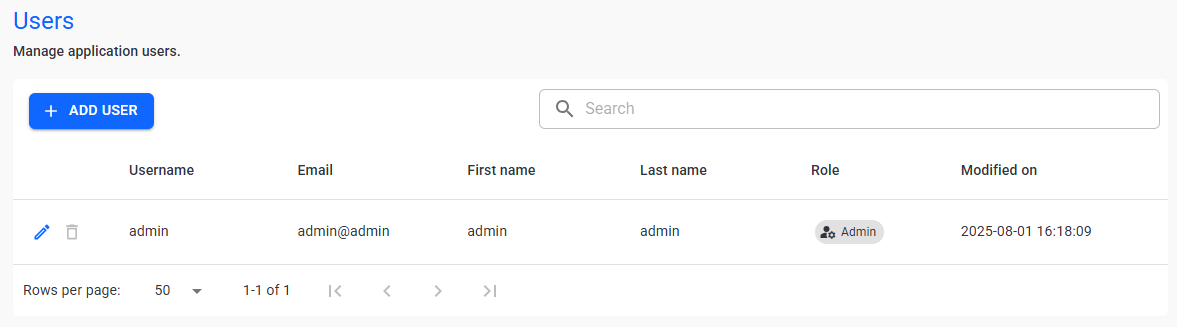
On the Users tab, you can manage or create users. Users can access PRTG Data Exporter and view or edit settings based on their access rights.
 PRTG Data Exporter creates the admin user upon installation. You cannot delete this user. We recommend that you edit the admin user and update the email, first name, and last name associated with this account.
Users
In this section:
3.Click  .
.
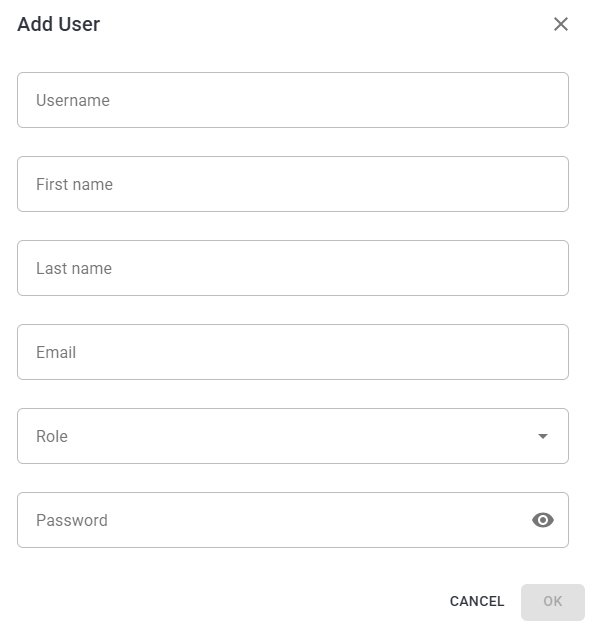
4.Enter the following information:
Add a new user
Setting |
Description |
Username |
Enter the unique username for the user. This is the username that this user uses to log into PRTG Data Exporter. |
First name |
Enter the first name of the user. |
Last name |
Enter the last name of the user. |
Enter an email for the user. This is the email PRTG Data Exporter sends notifications to. |
|
Role |
Define access rights that the user has: ▪Admin ▪User |
Password |
Enter a password for the user account. This is the password that this user uses to log into PRTG Data Exporter. |
5.Click Ok to save.
The following actions are available to manage your schedules:
Setting |
Description |
Search |
Use the search bar to filter for a specific user. |
Edit |
Edit the selected user. |
Delete |
Delete the selected user. |


For step-by-step instructions on how to reset the password for the administrator account as well as standard user accounts, see the Knowledge Base: How can I reset my PRTG Data Exporter administrator password?
