
PRTG Manual: Grafana Integration Setup Wizard
PRTG Data Exporter comes with a configuration wizard to help you set up your Grafana connection.
 You can only connect to one Grafana instance per PRTG Data Exporter license. If you need to connect to a different Grafana instance, delete the existing Grafana instance and go through the Grafana Integration Setup Wizard again.
The Grafana Integration Setup Wizard helps you to:
▪Set up your connection to the Grafana server.
▪Create a data source based on an existing target database connection.
▪Create dashboards from existing templates.
 You can adjust connection details and dashboards after the initial setup.
Step 1: Open Grafana Integration Setup Wizard
If you did not go directly to the setup wizard after you configured your data collection flow, you can access the Grafana integration Setup Wizard from the Multi-Core Dashboards (Grafana) tab.
Click Proceed to start the setup process.
You must have a Grafana instance to set up the Grafana integration.
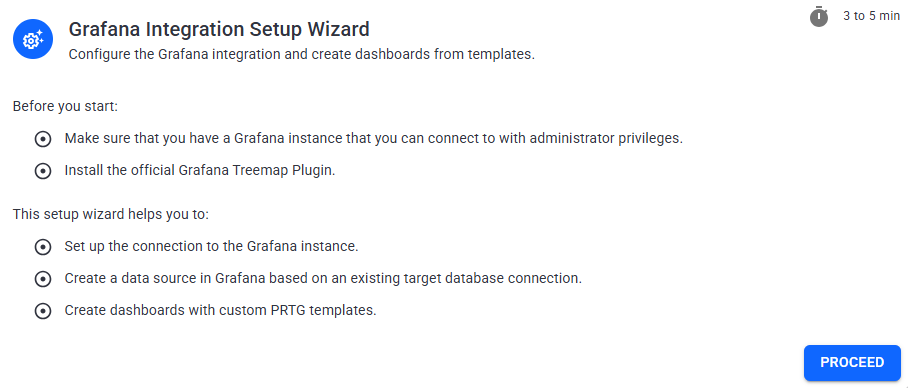
Start Grafana Integration Setup Wizard
Step 2: Add a Grafana server
Connect to a Grafana server. If PRTG Data Exporter finds an existing Grafana server on the system, it autofills the information in this step.
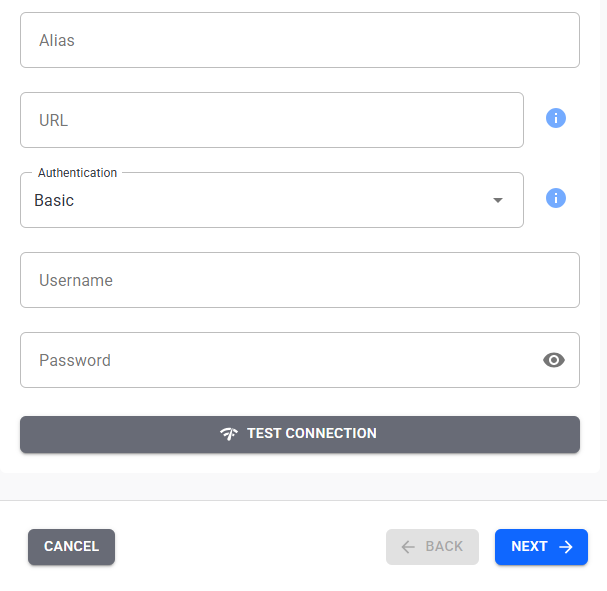
Connect to a Grafana instance
1.Enter an alias for the Grafana server.
2.Add the URL of your Grafana server. For example, https://my.grafana.com:3000.
If you plan to access Grafana from other hosts, enter the server hostname or FQDN instead of localhost.
3.Select if you want to use basic authentication or a service account token.
If you already have a Grafana organization that you want to use, select Service account token.
4.Enter the appropriate credentials.
PRTG Data Exporter detects if you have a local Grafana instance and autofills the information for you. For security reasons, if you connect to a local Grafana instance using the default password, you must enter and create a new password. Note this password down as you need it to access Grafana later.
5.Click Test Connection at the bottom to test the connection to the Grafana server.
6.Click Next.
Step 3: Select or add an organization
Select an existing organization or enter a name and service account name to create a new one in your Grafana instance.
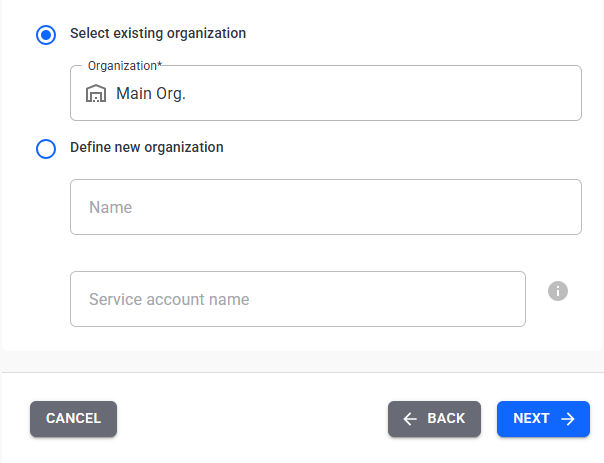
Add an organization
Step 4: Create a data source
Select a target database. PRTG Data Exporter creates a data source in Grafana based on the selected target database.
If you encounter connection issues, we recommend that you check your settings in Grafana, specifically your TLS/SSL settings.
PRTG Data Exporter autofills the data source name and the credentials based on the target database you select.
 For more information about data sources, see section Multi-Core Dashboards (Grafana).
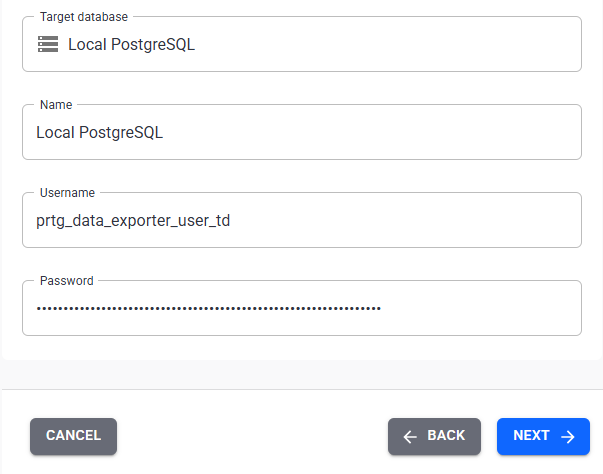
Create a data source
Step 5: Create dashboards
Select the dashboards that you want to create in Grafana from the available templates. Select a folder for the dashboards. You can select an existing folder in Grafana or select Create a new folder and add a folder name to create a new one. Optionally, include an empty template that you can customize to your needs.
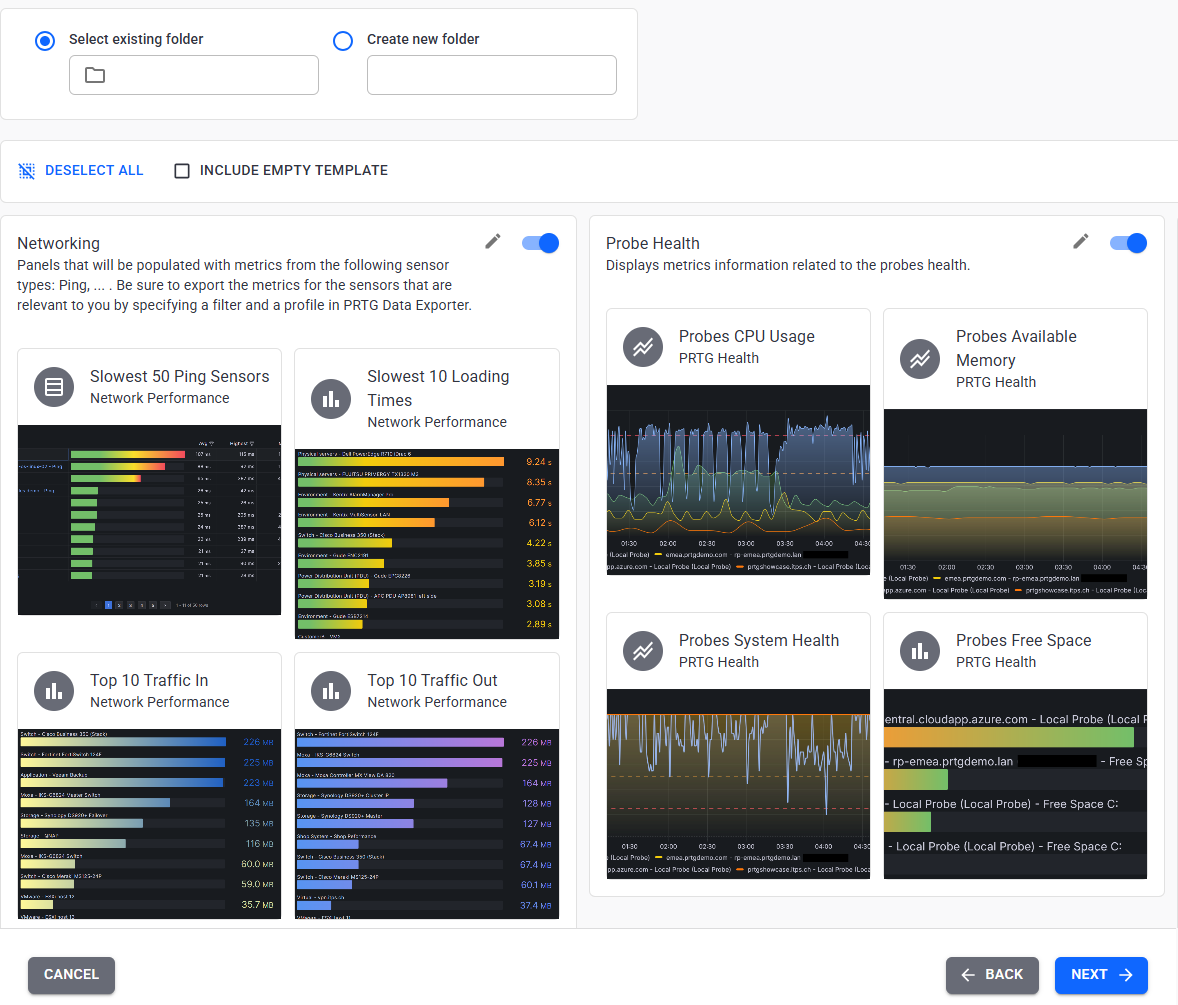
Select dashboards
Step 6: Successful configuration
Congratulations! You configured your Grafana connection.
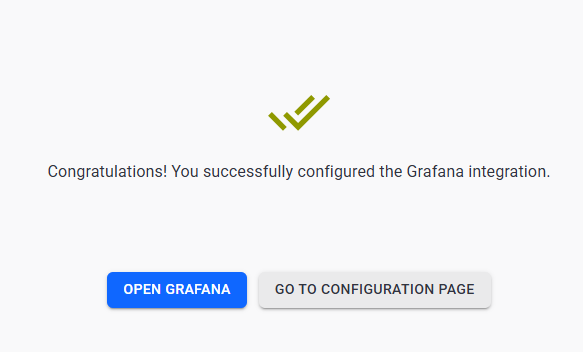
Successful configuration
Click Open Grafana to open your Grafana instance.
Click Go to Configuration Page to open the Multi-Core Dashboards (Grafana) tab in PRTG Data Exporter.
