
PRTG Manual: Target Databases
On the Target Databases tab, you can manage your connections to all your databases and add more database connections.
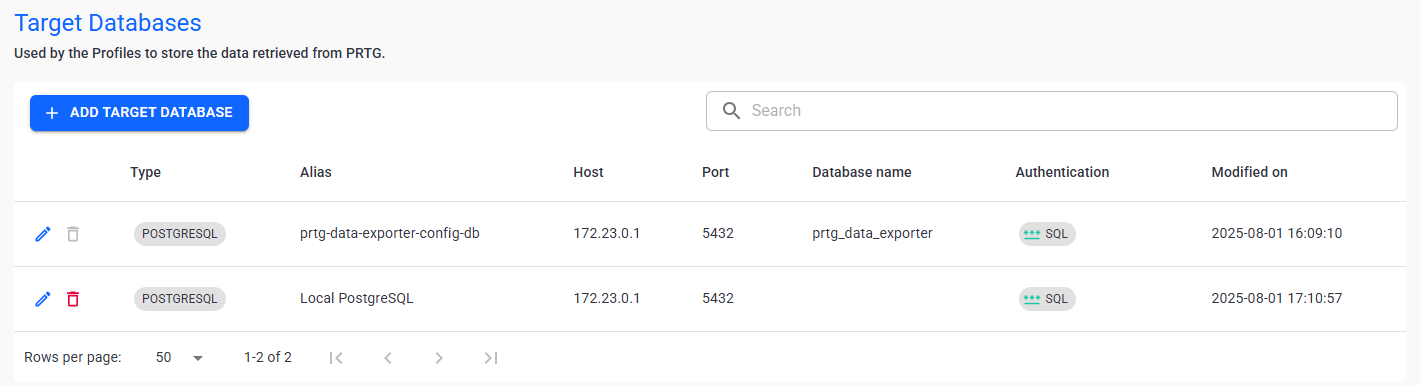
Target databases
In this section:
▪Manage existing database connections
1.Click  .
.
2.Enter the following information:
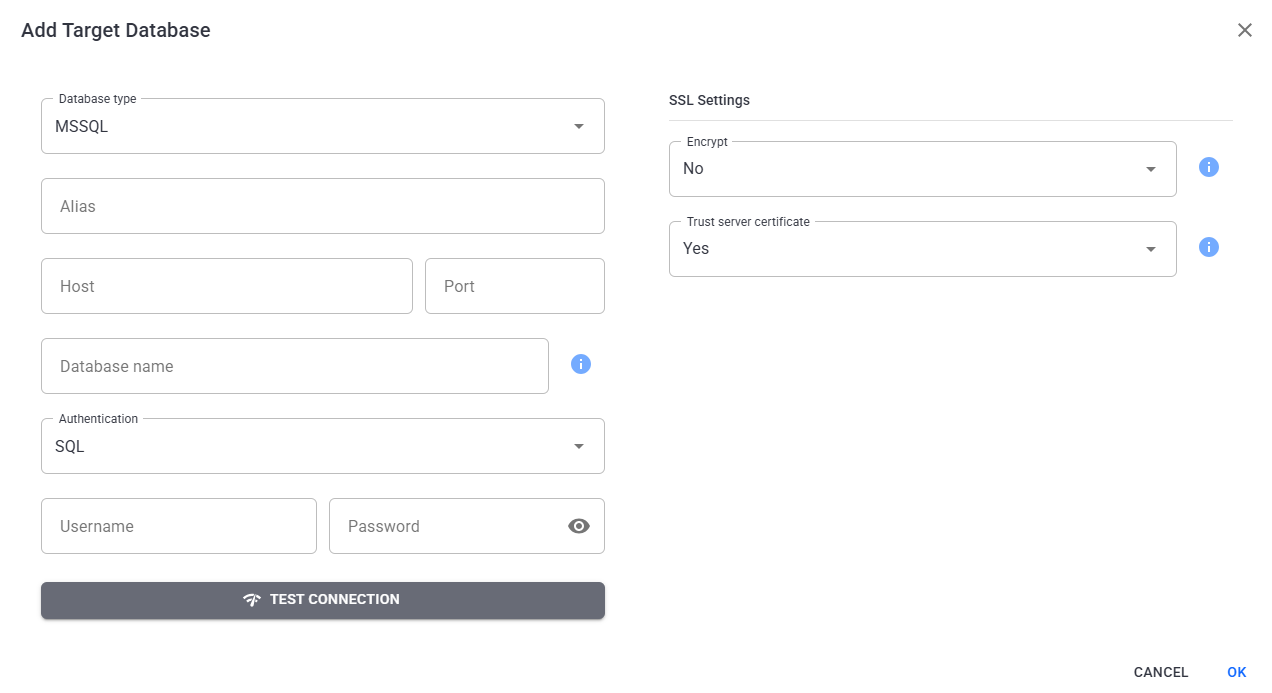
Add a database
Setting |
Description |
Database type |
Select the type of database: ▪MSSQL ▪MySQL ▪Oracle ▪PostgreSQL ▪MariaDB |
Alias |
Enter the alias of the new database. This is a unique identifier specific to PRTG Data Exporter. |
Host |
Enter the hostname that you will use to store the PRTG Data Exporter data.
|
Port |
Enter the port needed to connect to the host. |
Database name |
Enter the name of the database where the application stores the data.
|
Authentication |
Select the type of authentication: ▪SQL ▪Windows |
Username |
Enter the user name used for SQL Authentication. |
Password |
Enter the password used for SQL Authentication. |
SSL Settings | Encrypt |
Select if you want to encrypt the connection to the database with SSL: ▪No: Do not encrypt the connection. This is the default. ▪Yes: Encrypt the connection. |
SSL Settings | Trust server certificate |
Select if you want to trust the server certificate. ▪Yes ▪No |
Test connection |
Test the connection to the database. |

Manage existing database connections
The following actions are available to manage your configured databases:
Setting |
Description |
Search |
Use the search bar to filter for a specific database. |
Edit |
Edit the selected database. |
Delete |
Delete the selected database.
|


