
PRTG Manual: General Layout
This section provides a general overview of the structure of the PRTG Data Exporter web interface. PRTG Data Exporter always opens on the Home tab.
In this section:
•Home
Menu bar
In the top right corner, you can access the menu bar.
Menu bar |
Description |
Data collection status
|
Shows the status of the latest data collection. ▪Historic Data refers to the data collection of a metrics data profile. ▪Status Data refers to the data collection of a status data profile. |
Data Collection Setup Wizard |
Open the Data Collection Setup Wizard. |
Theme |
Switch between dark mode and light mode. |
Account settings |
See the username of the current user, go to the profile settings, or change your password. |
Logout |
Log out of PRTG Data Exporter. |



In the profile settings, you can update the first name, last name, and email of the user.
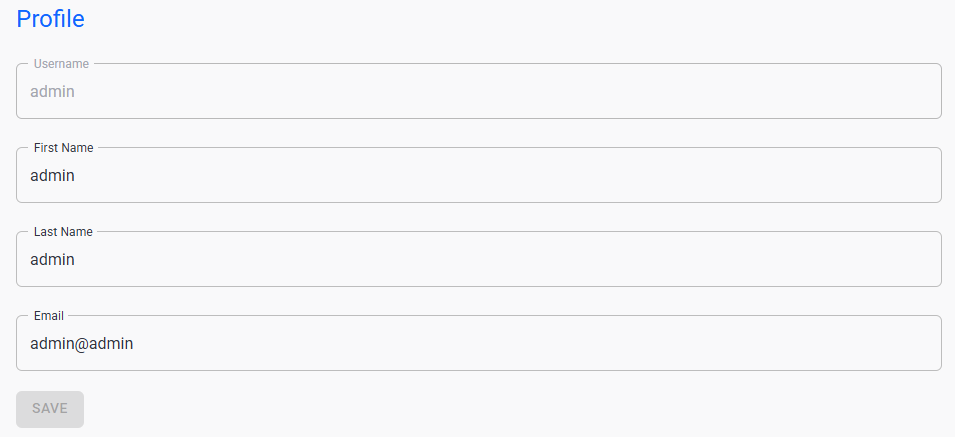
Edit your user settings
Enter your old password and new password to change your password.
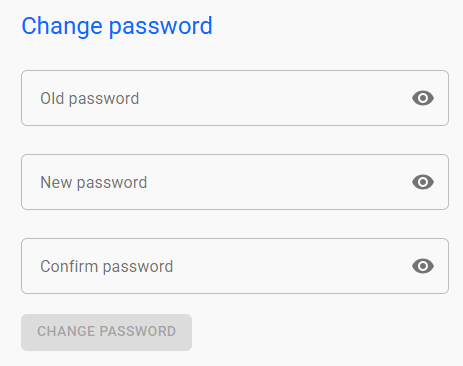
Change your password
Sidebar
On the left, you can find the sidebar where you can navigate between the home page and other tabs. Click  and to collapse and expand the sidebar, respectively.
 to collapse and expand the sidebar, respectively.
Tab |
Description |
View a summary of the data collections. |
Tab |
Description |
Create and manage connections to PRTG servers. |
|
Create and manage connections to databases. Databases are the specification of the target data storage. Each profile has exactly one target database. Multiple profiles can use the same database. |
|
Create and manage profiles. Profiles specify which database receives which data and for what time frame. You can run adhoc data collections manually or set up a continuous data collection process. |
Tab |
Description |
Create and manage filters to use with profiles. Filters specify the source of the data and identify what kind of data PRTG Data Exporter collects, such as PRTG server information, PRTG objects IDs, and PRTG tags. You can use the same filter in multiple profiles. |
|
Create and manage profiles. Profiles specify which database receives which data and for what time frame. You can run adhoc data collections manually or set up a continuous data collection process. |
|
Manually start the historic data collection and check the progress. |
|
Manage business processes. |
|
Manage PRTG Data Exporter agents. |
Tab |
Description |
Manage your Multi-Core dashboards as well as your Grafana settings and resources. |
Tab |
Description |
Manage application users. |
|
See information about and manage your PRTG Data Exporter license. |
