
PRTG Manual: Filters
On the Filters tabs, you can manage and add new filters. Use filters to determine which sensors you want to collect monitoring data from or to create business processes. This limits the amount and type of data that PRTG Data Exporter exports to the database.
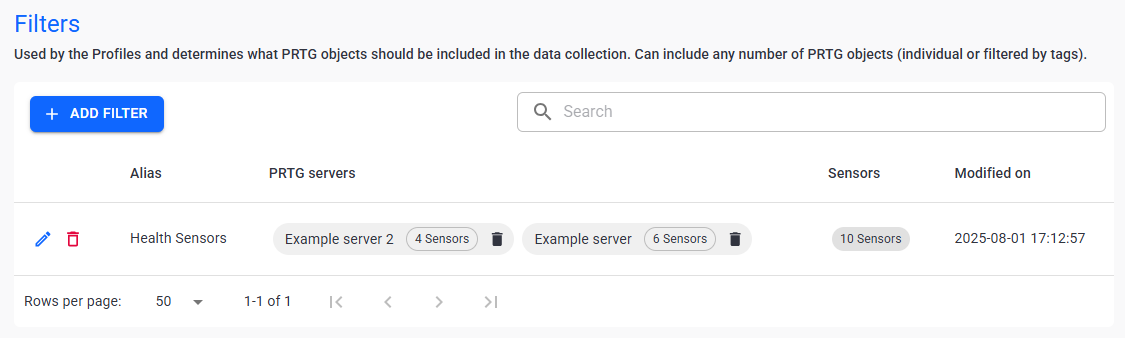
Filters
In this section:
▪Create filters using tags: When you create a filter using a combination of tags, the filter automatically includes all sensors with the selected tags. If you add a device or sensor in PRTG that matches the selected tags, PRTG Data Exporter automatically includes the data for that object in the filter.
▪Use multiple filters: Metrics data profiles can use multiple filters, so you do not need to create one filter that catches all the required sensors. Instead, create multiple filters that you can use in different profiles according to your needs.
1.Click  .
.
2.Configure your filter:
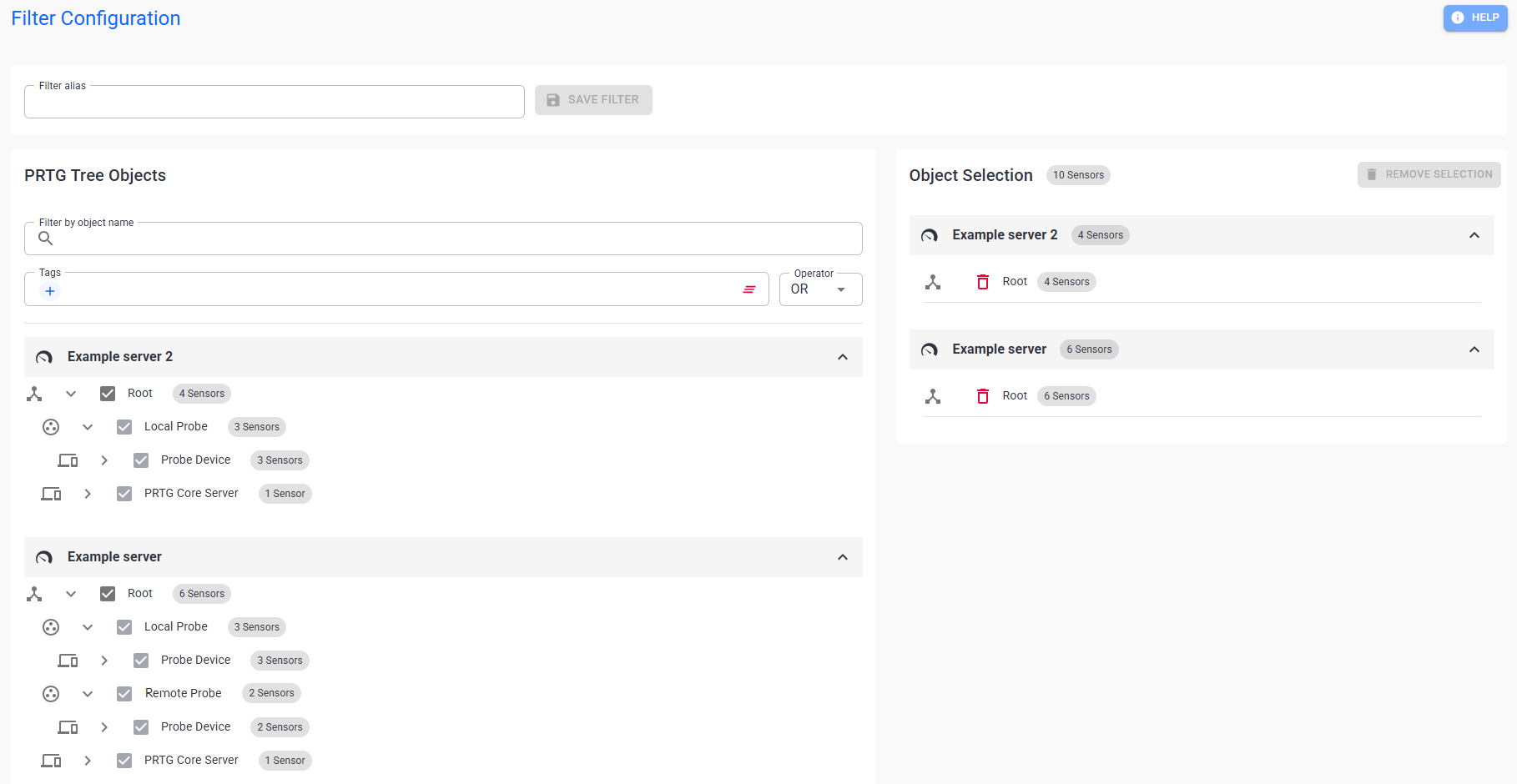
Create a filter
Setting |
Description |
Alias |
Enter a unique name for the filter. |
Filter by object name |
Type the name of an object that you want to include in the filter. The search returns all objects with names that contain the search text. |
Tags |
Select sensor tags to further limit the displayed and exported data. 1.Click 2.Select all the tags you want the filter to include. 3.Click Ok. |
Operator |
When you select more than one tag, use an operator to define how the filter processes the tags: ▪OR: Include sensors that have at least one of the selected tags. ▪AND: Include sensors that have all the selected tags. |
PRTG server |
Select objects in the PRTG device tree that the filter should include. |
Remove selection |
Remove any objects or PRTG servers from the filter. |
 to add a new tag.
3.Click Save Filter.
You want to extract the data from all the sensors that monitor ping and free disk space from the Customer15 branch in your device tree. 1.Click Add Filter and select the PRTG server with the Customer15 branch. 2.Name your filter: Customer15 - Ping and SNMP Disk Free. 3.In Filter by object name, enter "Customer15" and press Enter. 4.Select the Customer15 branch to select all objects within the branch. 5.In Tags, click 6.Select pingsensor, diskfree, and snmpdiskfreesensor from the list. You can also search for the tags in the search bar. 7.Click Ok to save the selected tags. 8.Set Operator to OR so that the filter catches both the Ping sensors and the SNMP Disk Free sensors. 9.Click Save to save the filter. You can now apply the filter to a profile. |

You want to extract data from all the sensors that monitor ping and free disk space from a data center. The data center is spread across multiple systems and the PRTG objects only have one tag in common: Dallas. One filter cannot catch all sensors as you can only use one operator at a time. In this case, you must make three individual filters. 1.Click Add Filter and select the PRTG server with the data center branches. 2.Name your filter: Pings to Dallas 3.Leave Filter by object name blank. 4.In Tags, click 5.Select pingsensor and Dallas from the list. You can also search for the tags in the search bar. 6.Click Ok to save the selected tags. 7.Set Operator to AND so that the filter catches all Ping sensors that also have the Dallas tag. 8.Click Save to save the filter. 9.Repeat steps 1 through 8 two more times, changing the alias and the tags so that you end up with the following filters:
10.Use all three filters in a profile to download the required sensor data. |
The following actions are available to manage your filters:
Setting |
Description |
Search |
Use the search bar to filter for a specific filter. |
Edit |
Edit the selected filter. |
Delete filter |
Delete the selected filter. |
Delete PRTG server |
Completely remove a PRTG server from the filter. |


