
PRTG Manual: Users
On this page:
The application supports three main user roles, with different access levels:
1.Administrator – Has full access to the entire application (settings, planned downtime, reports, configure monitoring, users, mailing, etc).
2.Reporting – Has access only to the Reports page and can mark any unplanned or unknown intervals as planned downtime.
3.Reporting readonly – Has access only to the Reports page and can only use the Export as PDF feature.
PRTG SLA Reporter offers three user types:
1.Application users - The administrator creates users and grants the appropriate roles.
2.PRTG users - Log in using PRTG credentials.
3.Domain users - Log in using a domain account and credentials. The username must be in domain\username format.
 To set up access rights for PRTG or domain users, users must first log in. This initial login registers the user in PRTG SLA Reporter. Then, the PRTG SLA Reporter administrator can assign the appropriate user group and access rights.
 Any PRTG or domain user can log in to the PRTG SLA Reporter, but without an assigned user group by default, they cannot view or modify any reports.
1.Click Add in the upper left corner of the page.
2.Enter the required information in the fields. Define the correct access role for the user under Access and click Submit.
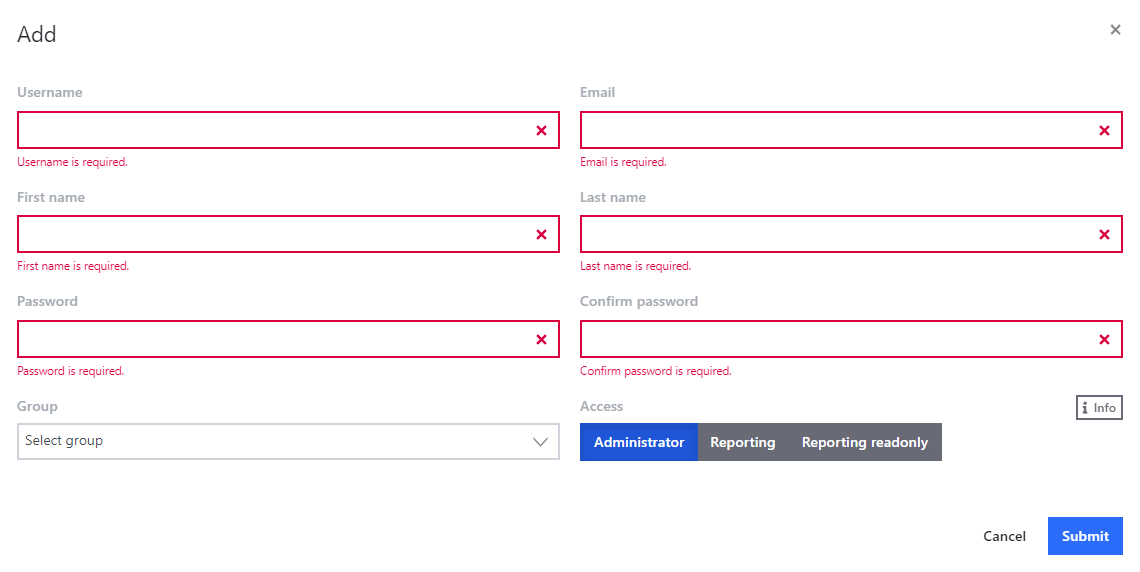
Add user
If you are logged in with an administrator account, you can modify any existing user:
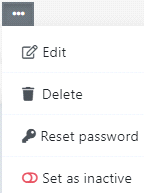
Modify user menu
Setting |
Description |
Edit |
Edit the user's information. |
Delete |
Permanently delete the user account. |
Reset password |
Generate and send a new password to the user via email.
|
Set as inactive |
Deactivate the user account. The account will still exist but will not be accessible until an administrator reactivates it. |
In the User Groups dialog, you can create user groups and assign members. Users can belong to multiple groups.
Create user groups to set up access to reports through the PRTG SLA Reporter GUI for non-administrative users. For more information, see section Reports.
From this menu, you can group together users, according to your needs.
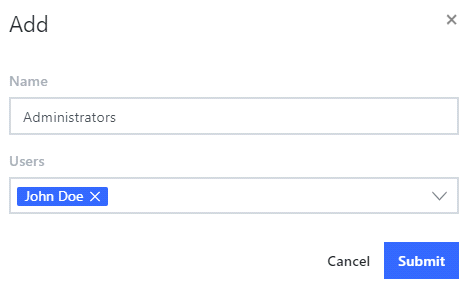
Add user group
