
PRTG Manual: Installation
1.After starting the PRTG SLA Reporter installation, the installer checks to make sure that the necessary prerequisites are installed. If any of the prerequisites are missing, the installer opens the Prerequisites Setup Wizard. Click Next.
 If all the prerequisites are present on the target system, the installer continues with step 3. You can skip steps 1 and 2.
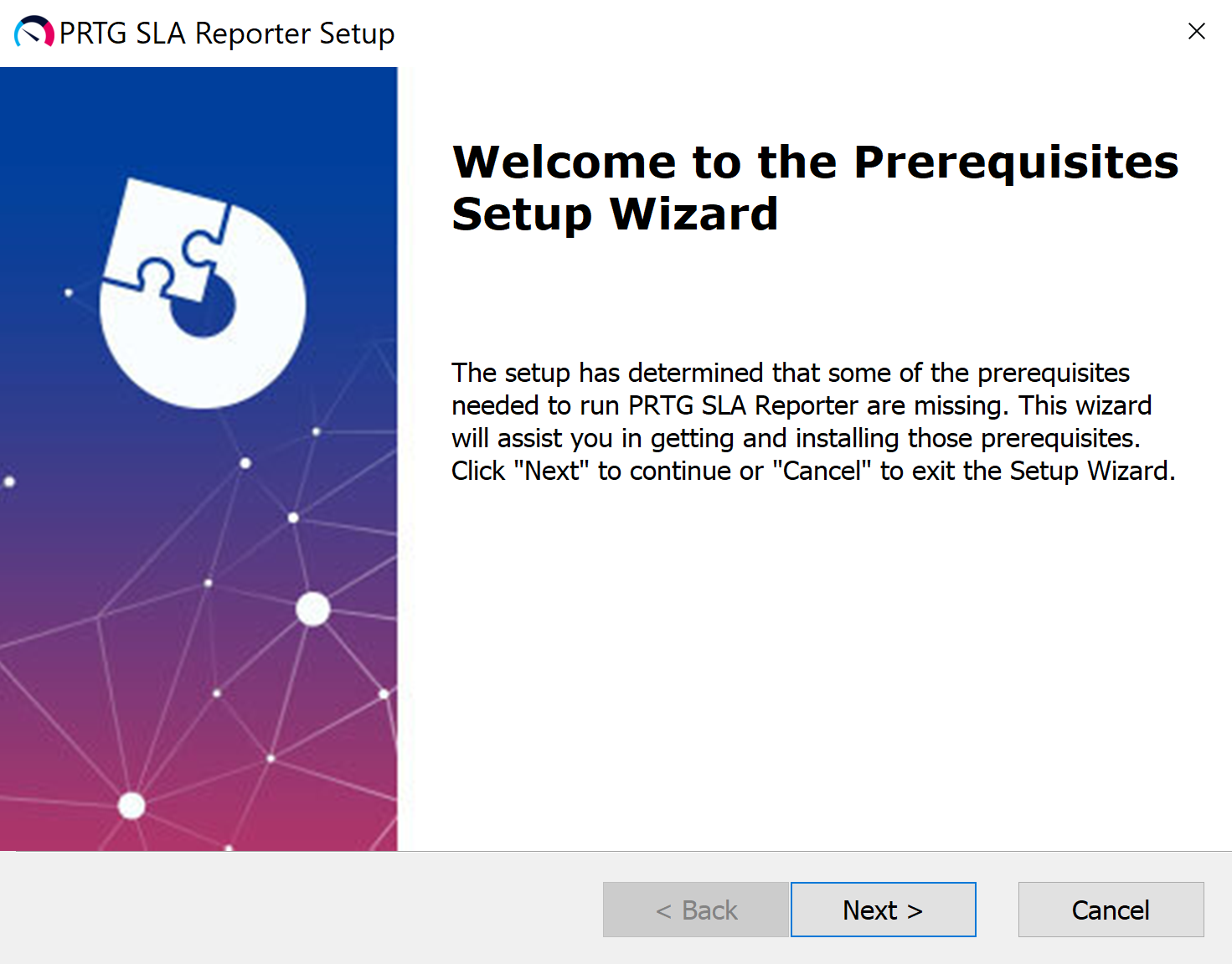
Prerequisites Setup Wizard
2.The installer automatically installs any missing prerequisites before continuing with the PRTG SLA Reporter installation. Review the list before you continue. Click Next.
 If you plan on using an SQL server that has already been configured on a different machine, clear the checkbox for SQL Server Express from the list and specify the existing SQL server later in the installation process. Otherwise, continue with the default selection.
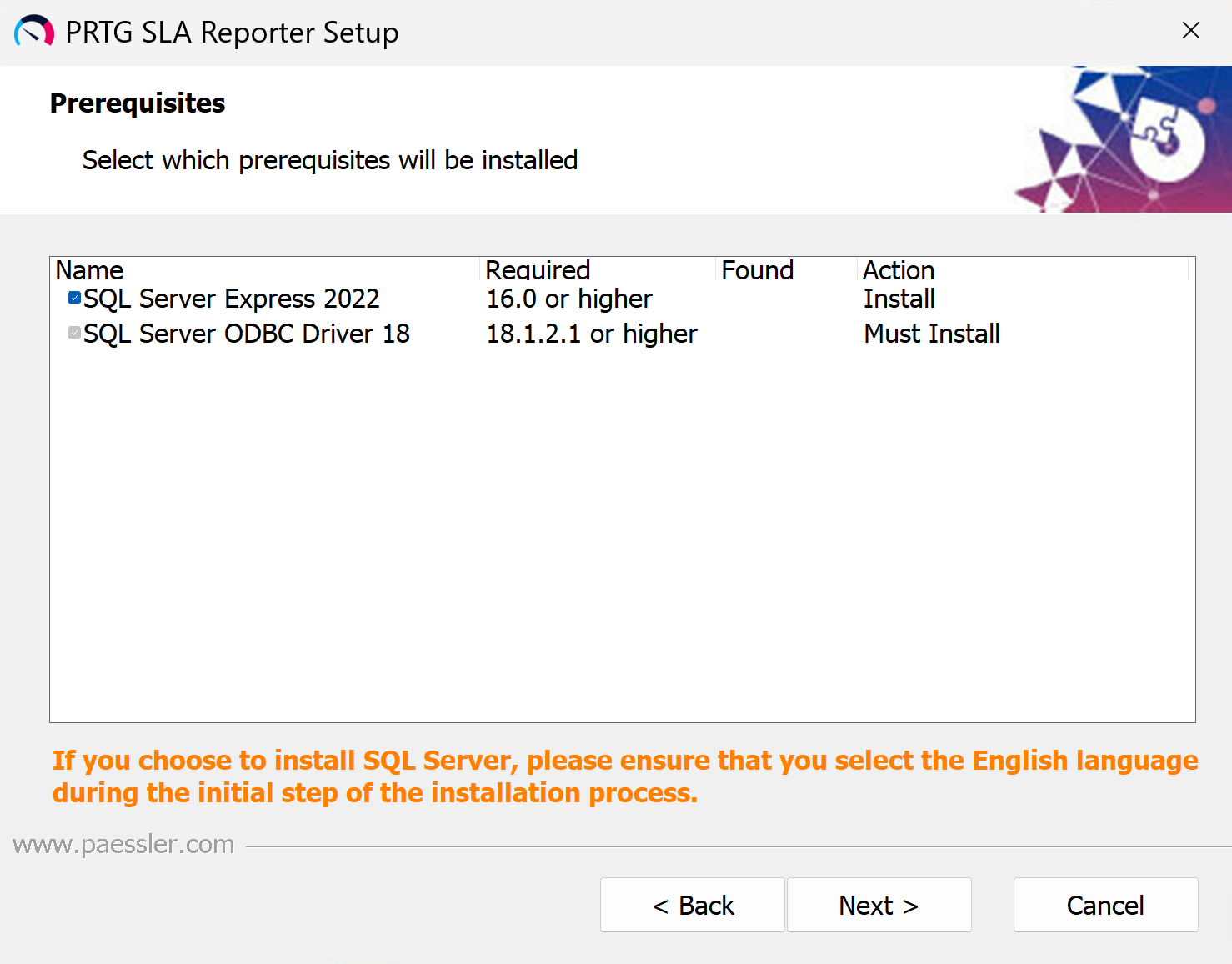
Prerequisites list
The installation of the prerequisites might take a few minutes. Please wait until the Prerequisites Setup Wizard finishes.
3.Once all the prerequisites are present on the target system, you can install PRTG SLA Reporter. Click Next.
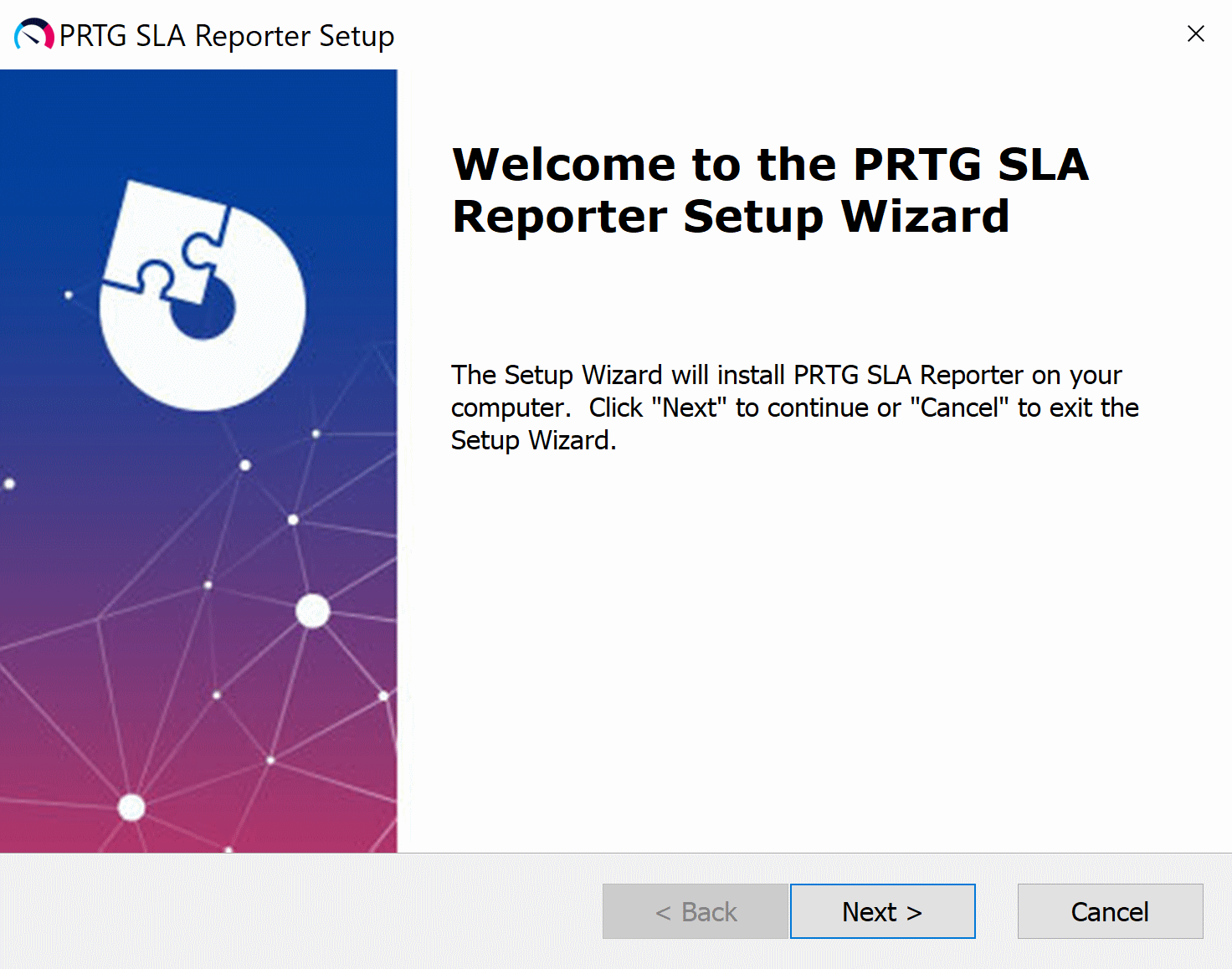
Welcome to PRTG SLA Reporter
4.Read and accept the terms and license agreement, then click Next.
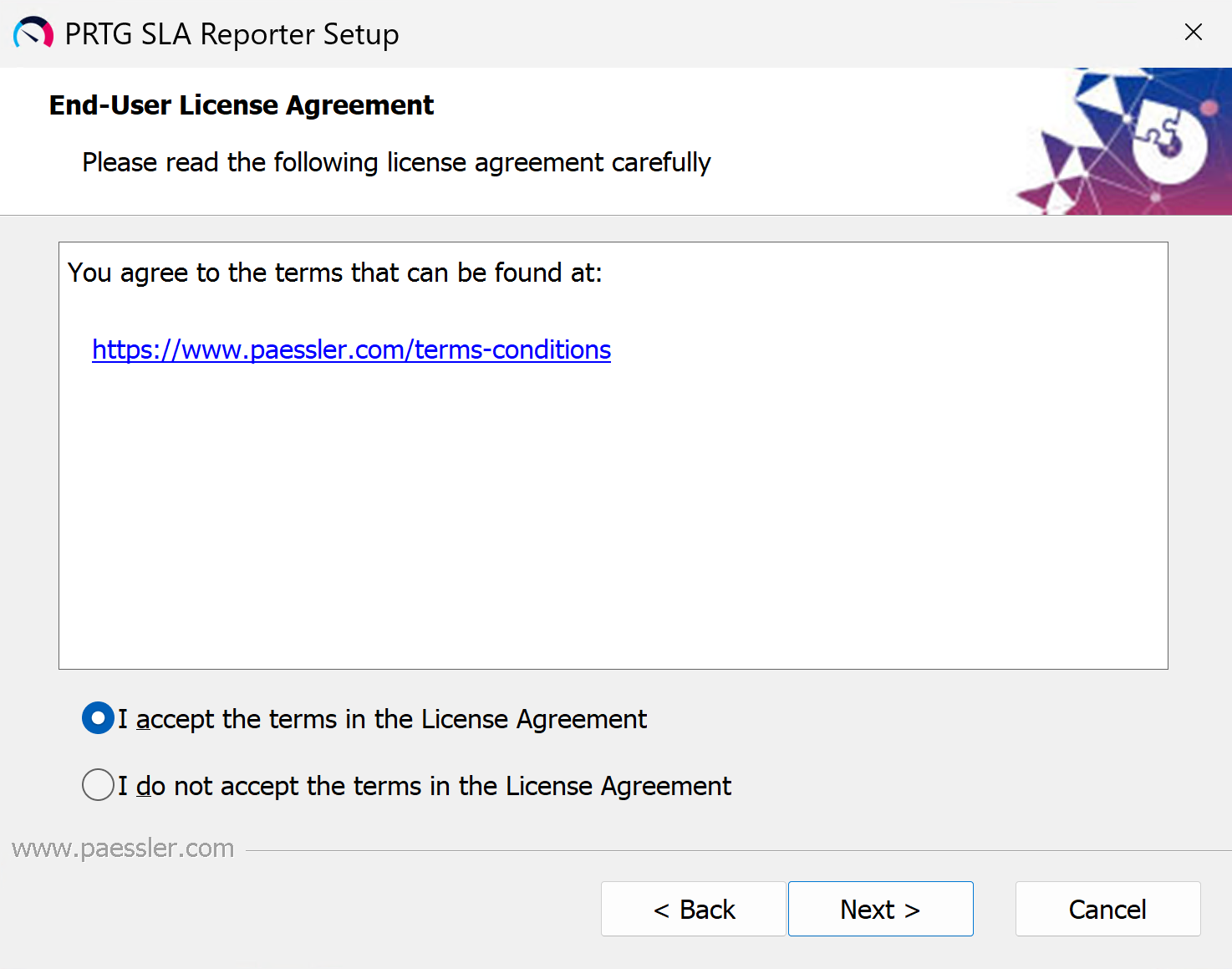
License Agreement
5.Configure your SQL server connection in the Settings Dialog. Select an SQL Server Express instance that you previously created or specify an existing SQL server from the local or a remote machine.
If you use an existing SQL instance, you must enter the path to it under Server.
By default, Trusted Connection (Windows Authentication) is enabled and PRTG SLA Reporter accesses the database instance with your current Windows credentials.
To run PRTG SLA Reporter with a different Windows user, you must set up access rights for that user. For more information, see section Additional configuration (Windows authentication).
If you want to use SQL Authentication to access your existing SQL server instance, disable Trusted Connection (Windows Authentication) and enter your credentials in the Username and Password fields. PRTG SLA Reporter creates a user with the username and password you enter, and uses that user to create the configuration database and the related login.
Make sure that the database login that you enter has either the sysadmin role or a combination of the securityadmin and dbcreator roles to allow the installer to create the configuration database and the related login.
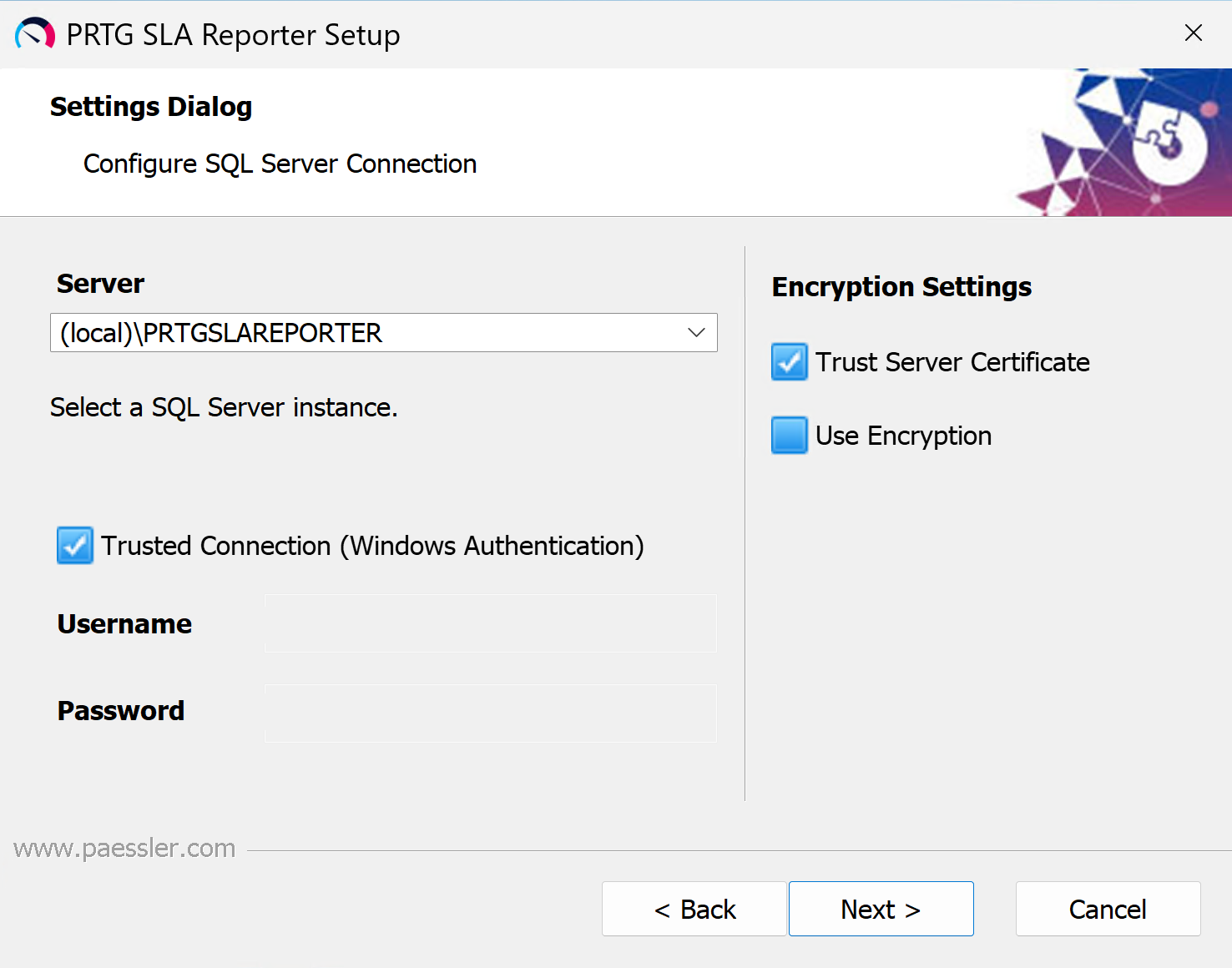
Configure SQL Server connection
6.Confirm your settings and click Install.
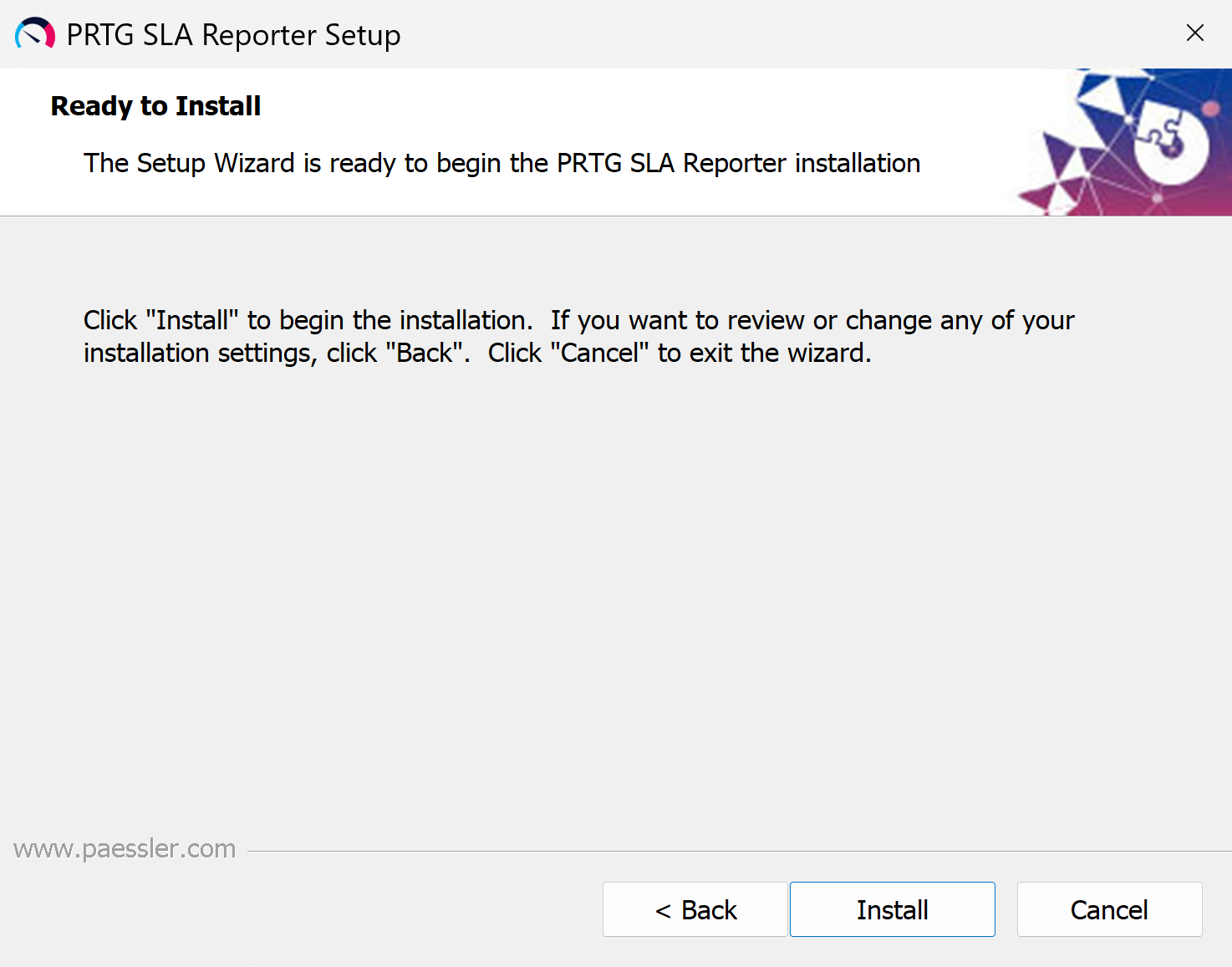
Ready to Install
7.Once the installation is complete, you see a confirmation message. Click Finish to close the window and to open the PRTG SLA Reporter configuration wizard in your default browser.
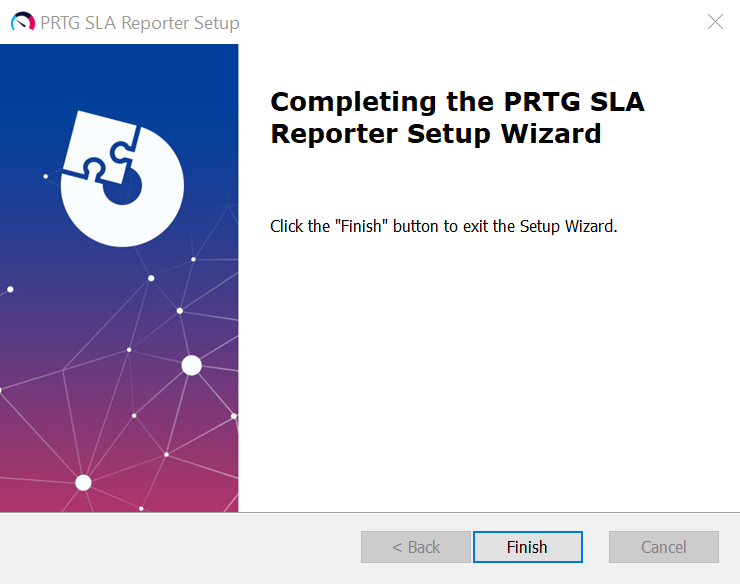
Installation complete
If you only allowed Windows authentication on the SQL instance, there are additional changes required in the system configuration to allow the components of PRTG SLA Reporter to access the configuration database. For more information, see section Additional configuration (Windows Authentication).
Update to a newer version
To update to the latest version of PRTG SLA Reporter, download the latest installation setup program from the product page, run the file, and go through the installation steps in the installation setup program.
When you enter the SQL server connection details, make sure that they point to the same SQL server instance that your existing PRTG SLA Reporter installation uses.
If the SQL server is on the same system as PRTG SLA Reporter, PRTG SLA Reporter automatically creates a backup of the database and stores it in C:\ProgramData\Paessler\PRTG SLA Reporter. For remote installations, we recommend that you manually create a backup of the database.
