
PRTG Manual: License information
You can find information related to your license on the About page.
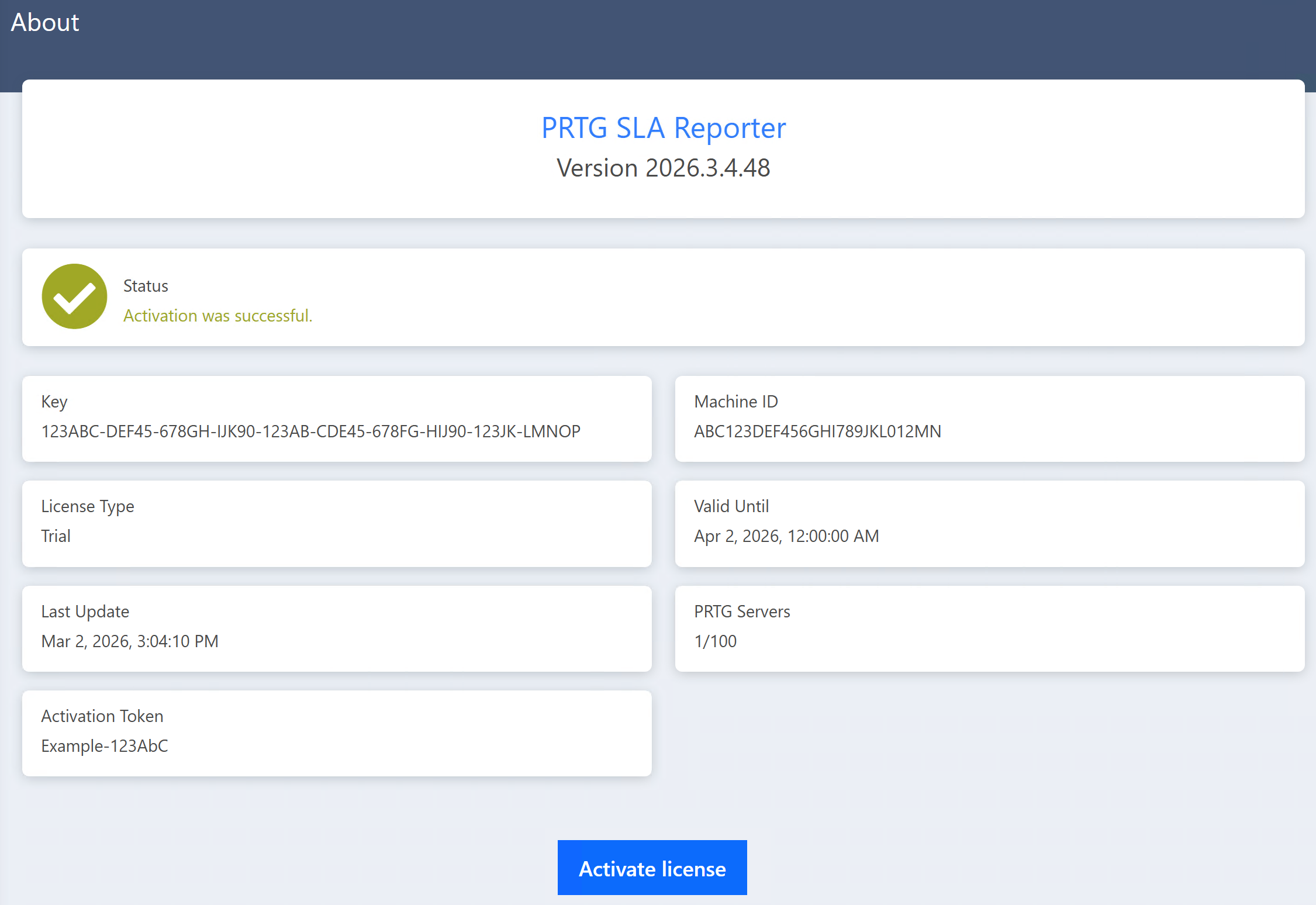
About page overview
Setting |
Description |
Key |
Shows the license key that you use for this PRTG SLA Reporter installation. |
License Type |
Shows the of license that you use for this PRTG SLA Reporter installation. |
Last Update |
Shows the date of the last license information update on this PRTG SLA Reporter installation. |
Activation Token |
Shows the identifier of the activated PRTG SLA Reporter instance. |
System ID / Machine ID |
Shows the system ID or machine ID. The system ID or machine ID is a fixed value that is automatically assigned to a PRTG SLA Reporter installation. |
Valid Until |
Shows the expiration date of the license that you use for this PRTG SLA Reporter installation. |
PRTG Servers |
Shows the number of PRTG servers currently connected to this PRTG SLA Reporter and the total number of PRTG servers that you can connect to with your license. |
Activate license |
Click Activate license to activate your license or to change your license key. |
Activate license
To activate your license or to change your license key, click Activate license.
 Upon installation, PRTG SLA Reporter automatically grants you a temporary 30-day trial license. This allows you to log in and change your license key. We recommend that you enter your license key as soon as you receive it in order to benefit from the features available.
Automatic (online activation)
1.Select Automatic (online activation) if your PRTG SLA Reporter installation is in an online environment. PRTG SLA Reporter automatically fills in the system ID and the activation token.
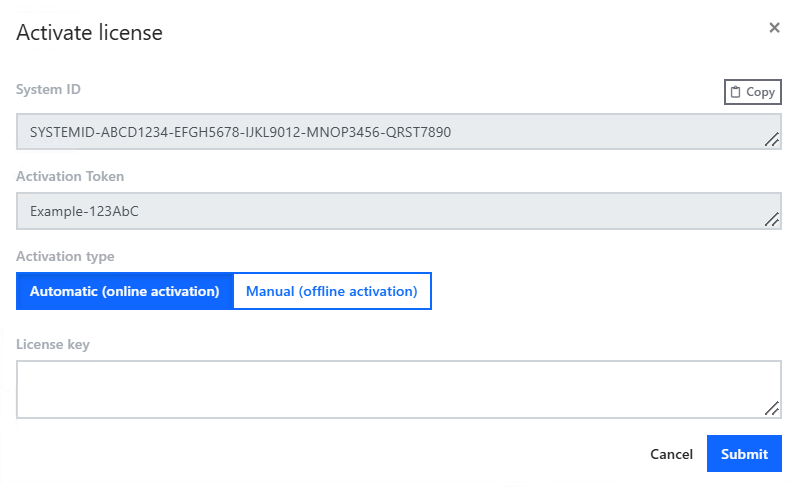
Automatic (online activation)
2.Enter your license key.
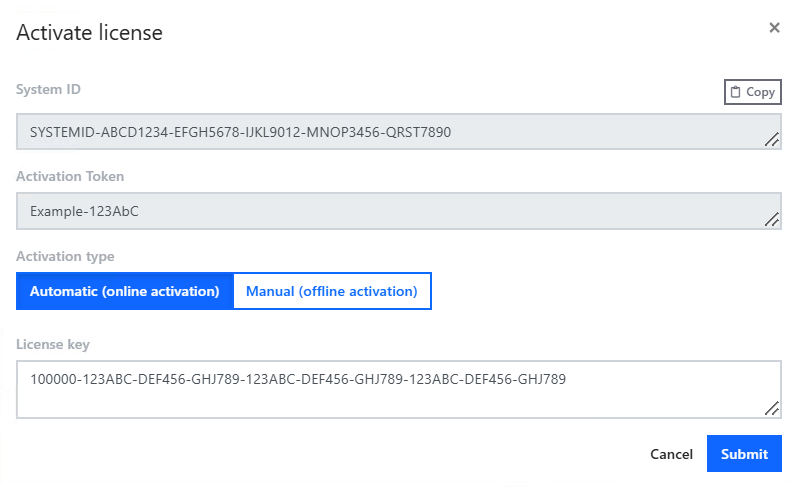
Enter your license key
3.Click Submit.
Manual (offline activation)
1.If no internet connection is available, select Manual (offline activation). PRTG SLA Reporter automatically fills in the system ID and the activation token.
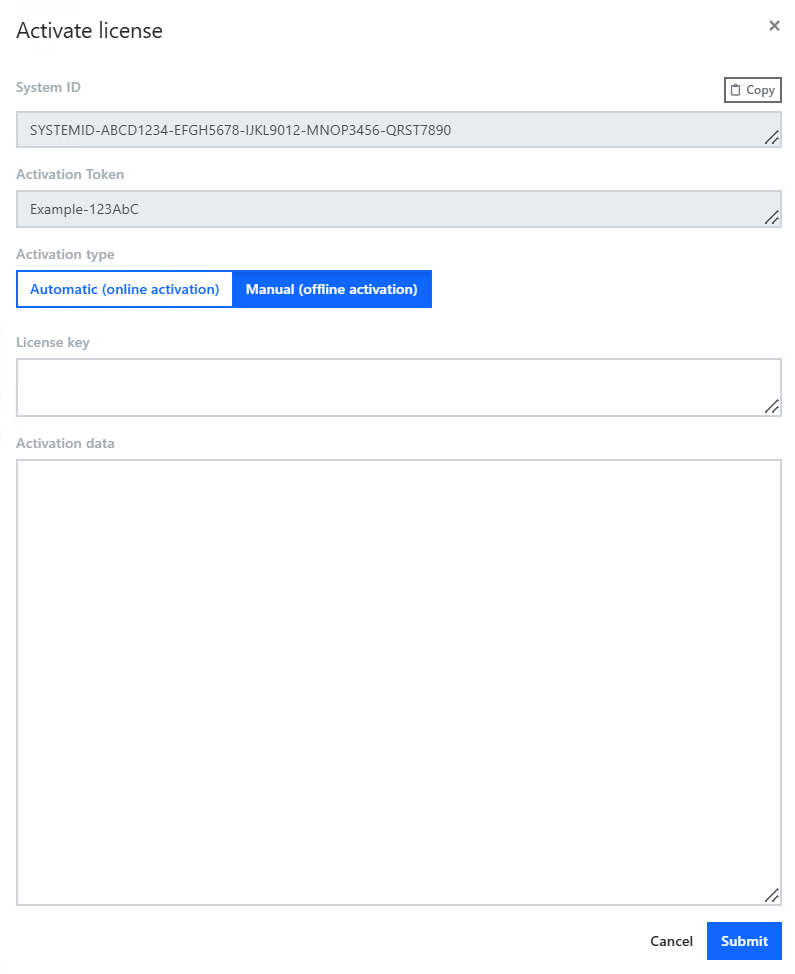
Manual (offline activation)
2.Copy your system ID and activation token.
3.Go to the Paessler website and enter the necessary data to request the activation file. Once you receive the activation file, return to PRTG SLA Reporter.
4.Enter your license key.
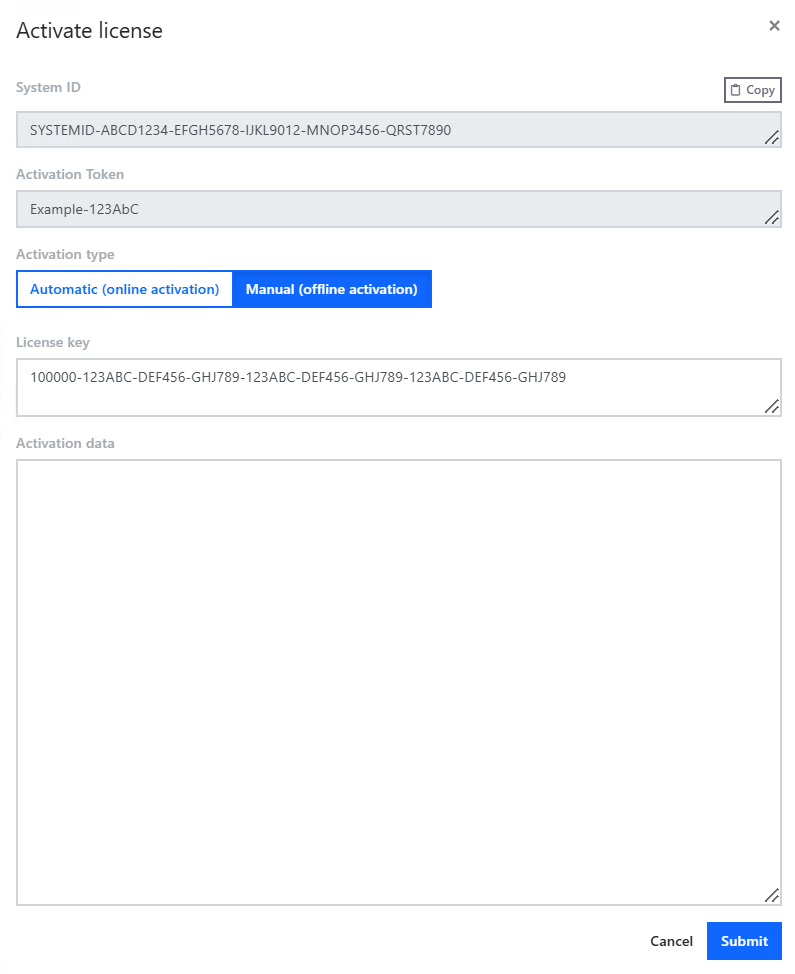
Enter your license key
5.Copy the activation data from the activation file.
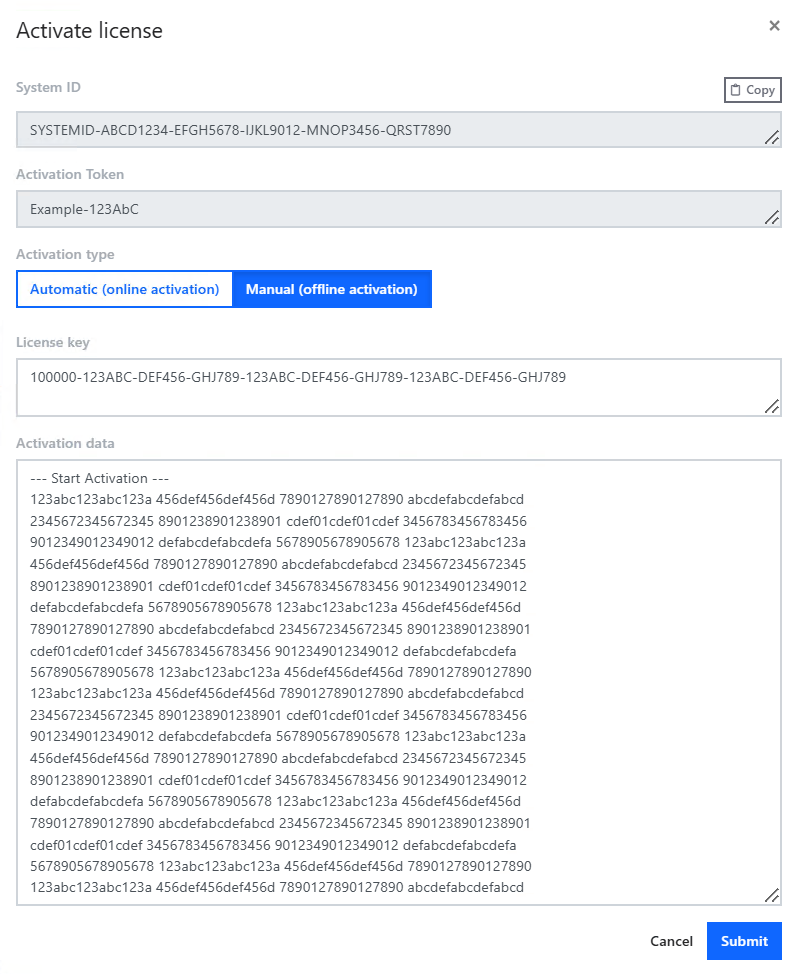
Enter the activation data
6.Click Submit.
