
PRTG Manual: Configuration wizard
The configuration wizard for PRTG SLA Reporter automatically starts after a successful installation of PRTG SLA Reporter. Configure PRTG SLA Reporter in four steps:
Provide the necessary information to create the administrator account for PRTG SLA Reporter with which you can log in initially.
Enter the following:
▪Username
▪Email address
▪First name / Last name
▪Password
Click Submit.
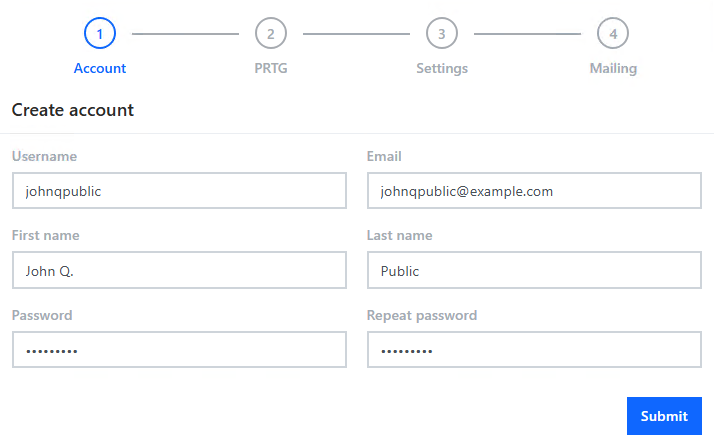
Create a user account
To show monitoring data from PRTG, PRTG SLA Reporter must be able to establish a connection to a PRTG server. Add a PRTG server: Click Add. Depending on your license, you can add multiple PRTG servers.
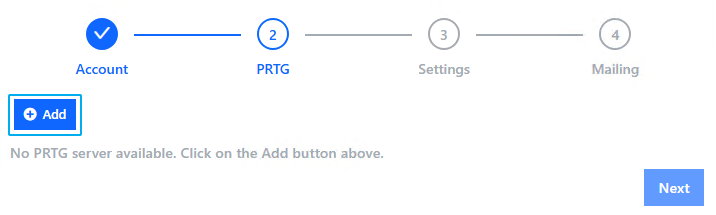
Add PRTG server
Enter the server details.
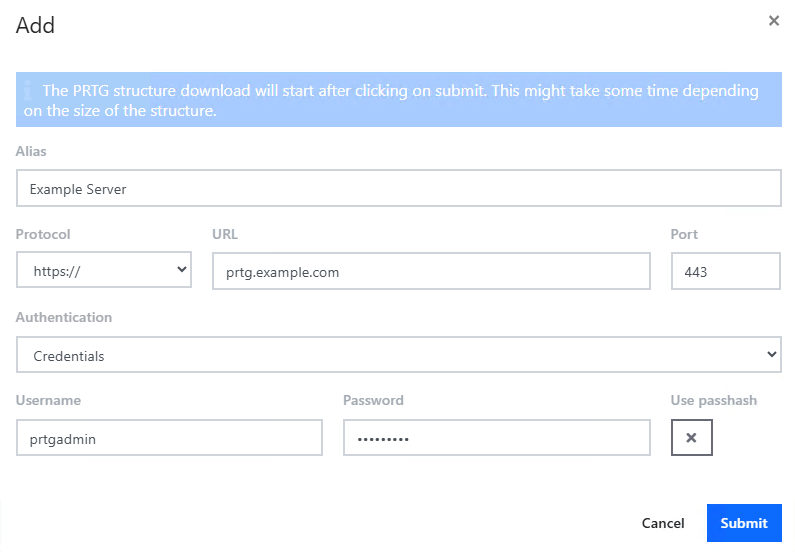
PRTG server settings
Setting |
Description |
Alias |
Enter the display name that you want to use in PRTG SLA Reporter for this PRTG server. |
Protocol |
Select the protocol for the connection to the PRTG server. |
URL |
Enter the IP address or DNS name of the PRTG server.
|
Port |
Enter the TCP port for the PRTG server.
|
Authentication |
Select a method of authentication for the connection to the PRTG server: ▪Credentials: Use a username, along with a password or passhash. ▪API Key: Use an API key.
|
Username |
This setting is only visible if you select Credentials above. Enter the PRTG username for the connection to the PRTG server. |
Password |
This setting is only visible if you select Credentials above. Enter the PRTG password or passhash for the connection to the PRTG server.
|
Use passhash |
This setting is only visible if you select Credentials above. Enable this checkbox to use a passhash instead of a password.
|
API Key |
This setting is only visible if you select API Key above. Enter the API key for the connection to the PRTG server. |


 PRTG switches to port 8080 as a fallback when port 80 is in use, and to port 8443 if port 443 is not available. PRTG maintains the SSL connection in this case. If port 8080 or 8443 is also not available, PRTG tries to find an available port, starting from 32000. Because PRTG SLA Reporter cannot recognize these ports (8080, 8443, 32000+) automatically, enter the port currently in use in the Port field. If you do not get a connection to the PRTG web server, check the port settings in PRTG under Setup | System Administration | User Interface | PRTG Web Server.
Also, make sure that:
▪No local software firewall blocks the connection.
▪No local antivirus program blocks the connection.
▪The specified port is not used by another application.
▪No (hardware) firewall blocks the connection when connecting through a network (LAN or WAN).
You can find the passhash in the PRTG web interface under Setup | Account Settings | My Account | User Account Settings. For more information, see the PRTG Manual: User Accounts.
Click Submit to confirm the details and connect to the PRTG server.
Step 3: Define general settings
Define the general settings of PRTG SLA Reporter.
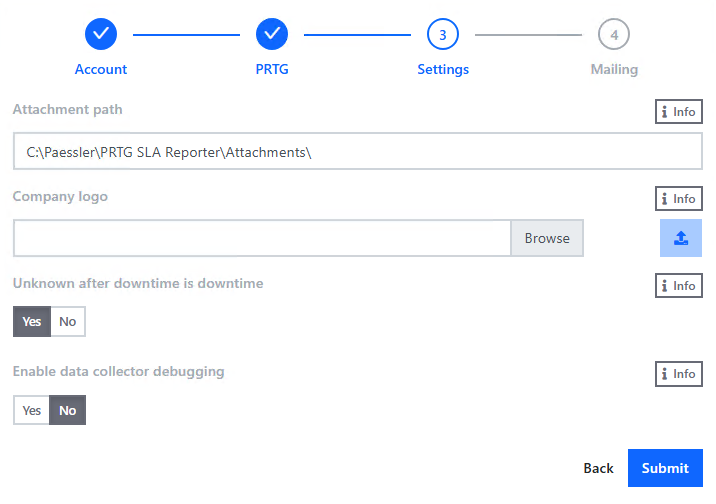
General settings
Setting |
Description |
Attachment path |
Enter the path where PRTG SLA Reporter stores the generated PDF reports. PRTG SLA Reporter attaches the PDF reports to the report emails that it sends. |
Company logo |
Select an image to use in the PDF reports header. |
Unknown after downtime is downtime |
Select whether unknown periods after downtime should be considered downtime as well: ▪Yes: Unknown values after downtime display as downtime. ▪No: Unknown values after downtime are not considered downtime. |
Enable data collector debugging |
Select whether PRTG SLA Reporter collects data for debugging purposes: ▪Yes: Allow the collection of data for debugging. ▪No: Do not allow PRTG SLA Reporter to collect data for debugging. |
Step 4: Define SMTP mail address
Configure the mailing server that PRTG SLA Reporter uses to send emails. You can skip this step if you do not want PRTG SLA Reporter to send emails.
Configure the Simple Mail Transfer Protocol (SMTP) mail address settings:
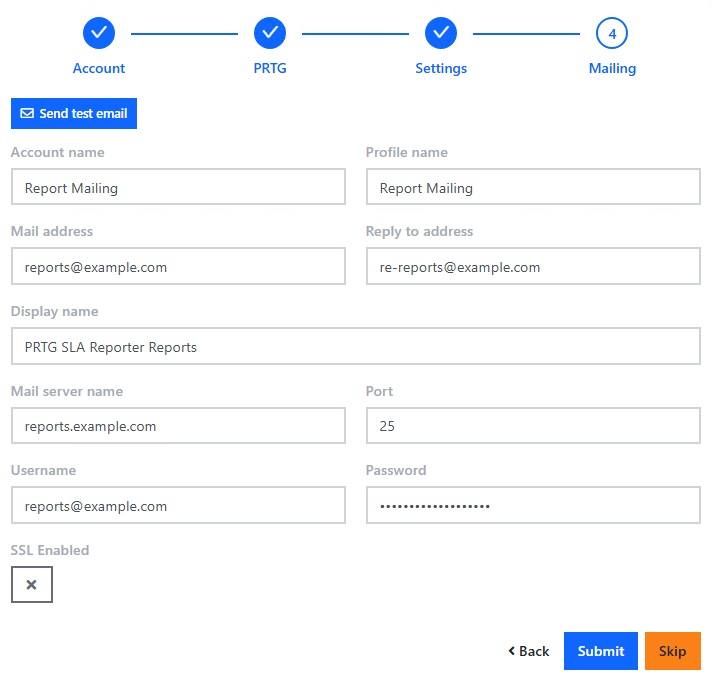
Mailing configuration
Setting |
Description |
Account name |
Enter the alias for the account. |
Profile name |
Enter the alias for the profile. |
Mail address |
Enter the email address that PRTG SLA Reporter uses to send the report email. |
Reply to address |
Enter the email address that you want to use for replies to emails received from PRTG SLA Reporter. |
Display name |
Enter the display name to use for the report emails. |
Mail server name |
Enter the SMTP server address that PRTG SLA Reporter uses to send emails. |
Port |
Enter the port for the SMTP address (often port 25). |
Username |
The username that is used to access the SMTP server. It is usually the same as the Mail address. |
Password |
The password that is used to access the SMTP server. |
SSL Enabled |
Toggle the button depending on whether you want the SMTP server to require secure connection. |
Click Submit.
After you specify the necessary details, you can send a test email to make sure the configuration was successful:
1.Click Send test email.
2.In the new window, enter the email address where you want to send the test email and click Submit.
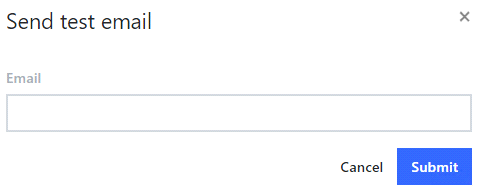
Specify test email address
