
PRTG Manual: Additional configuration (Windows authentication)
In order for PRTG SLA Reporter to work properly in cases where Windows authentication is required, you must configure Internet Information Services (IIS) to use a service account when running PRTG SLA Reporter.
Set up IIS
1.Open the IIS Management Console (INETMGR.MSC).
2.Select Application Pools from the Connections tree.
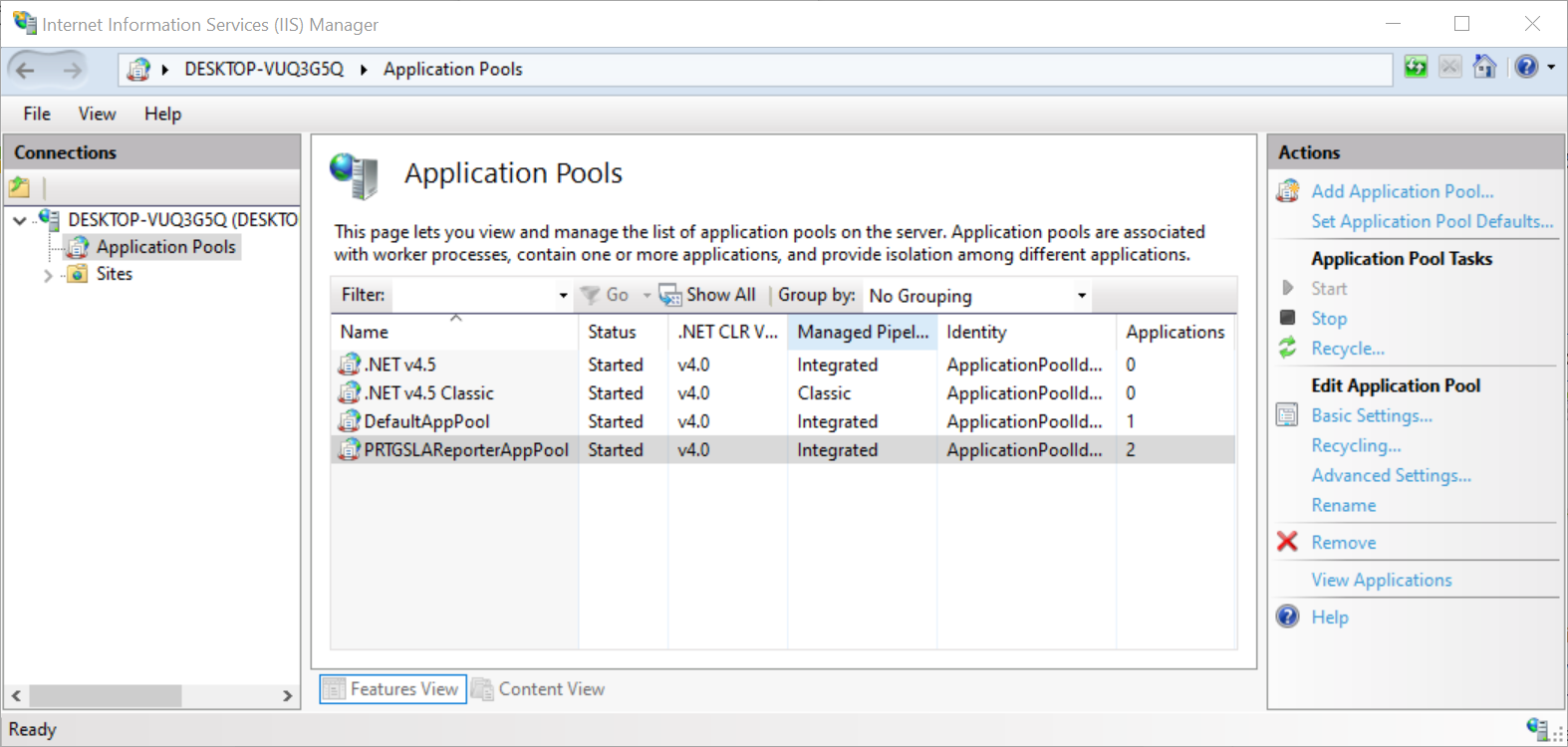
Application Pools
3. Select PRTGSLAReporterAppPool in the Name list. Click on Advanced Settings... from the Actions menu on the right-hand side.
4.Select Identity under Process Model. Click  to configure the setting.
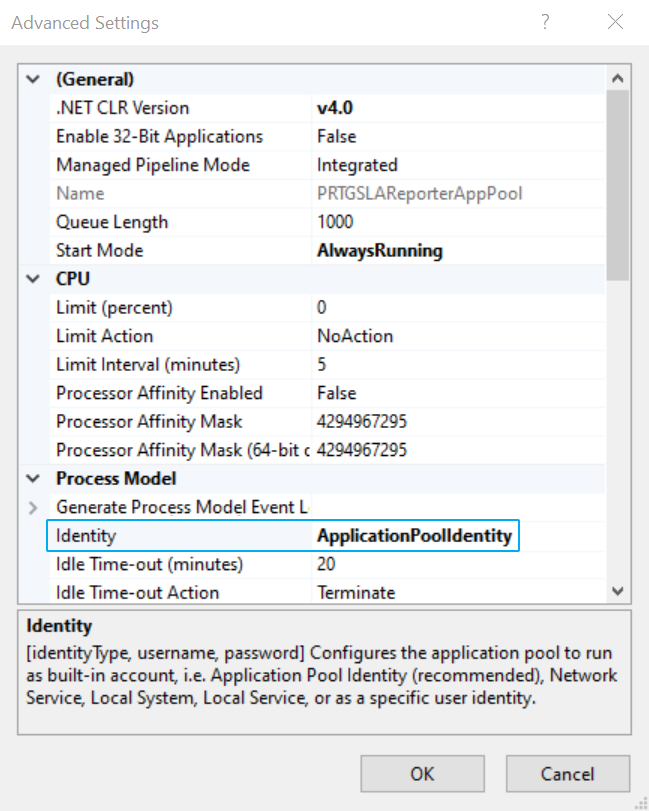
Identity process
5.Select Custom account: and click Set.... Enter a service account username and password that you want to use to connect to the PRTG SLA Reporter configuration database. Click OK.
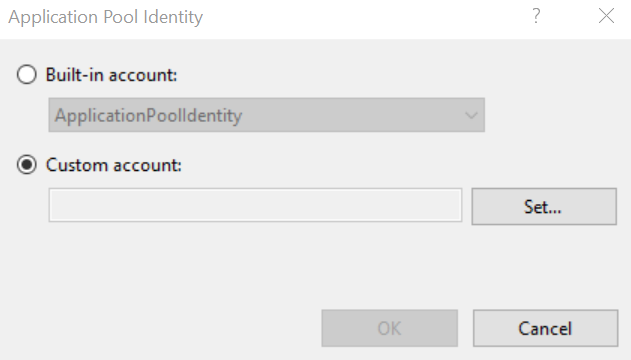
Custom account
6.Click OK to save and close the Advanced Settings.
Set up rights for the scheduled tasks
1.Open Task Scheduler and navigate to the Task Scheduler Library. Locate the PRTG SLA Reporter tasks and repeat steps 2-7 of the following process for all four of them.
2.Select Properties from the Actions menu.
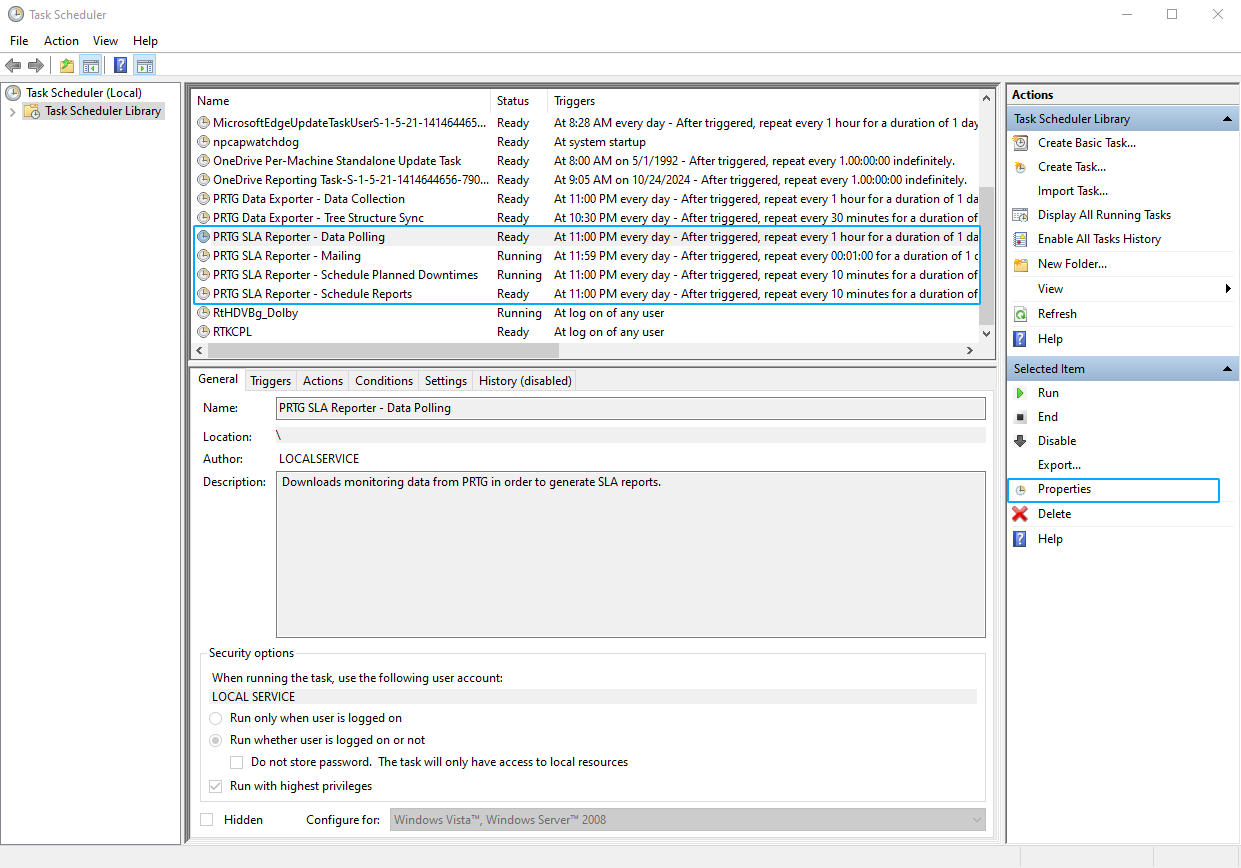
Task Scheduler
3.In the Properties window, click Change User or Group....
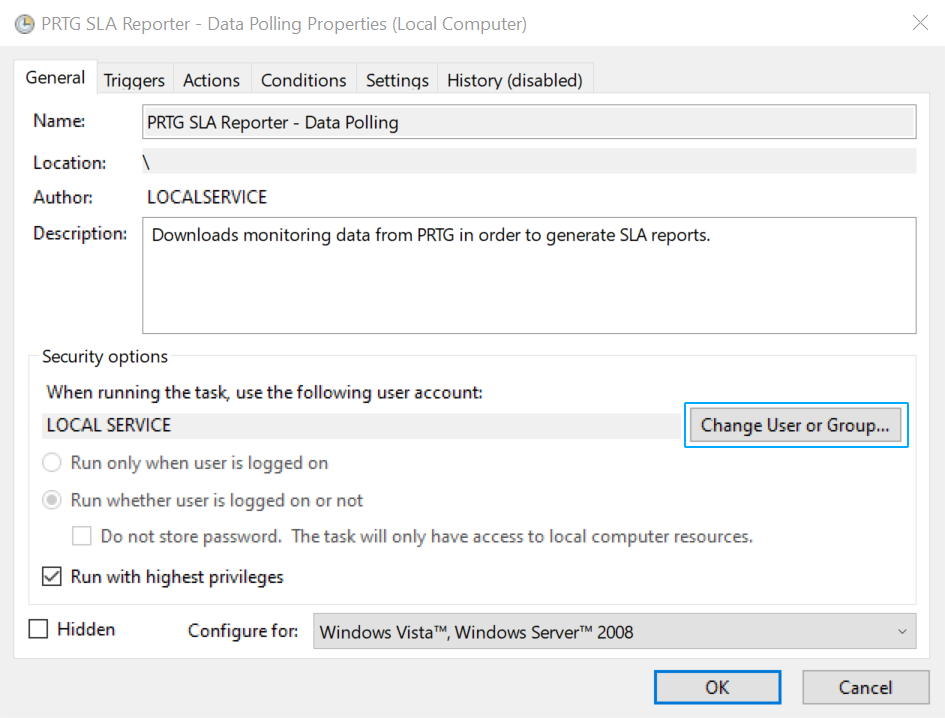
Task properties
4. Enter the service account name that is used for the database connection.
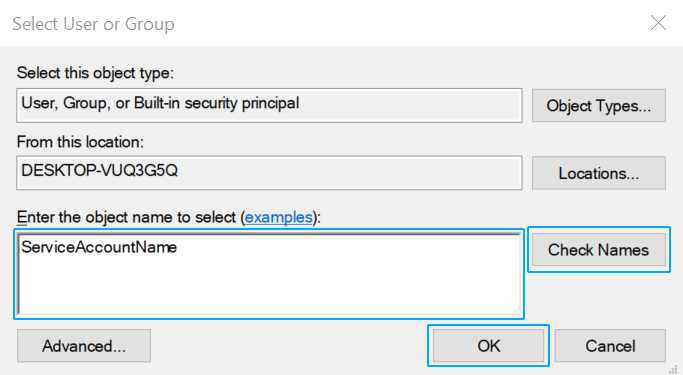
Select User or Group
5. Click Check Names, then click OK.
6.In the Schedule Properties window, click OK to confirm the changes.
7. Enter the password for the selected service account.
Set up login user rights in the database
1.Open MS SQL Server Management Studio. In Object Explorer, expand the Security folder under your SQL instance, right-click Logins and choose New Login....
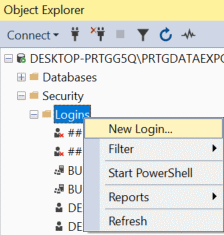
New login
2.Enter the login name you want to use or use the search function to find an existing one.
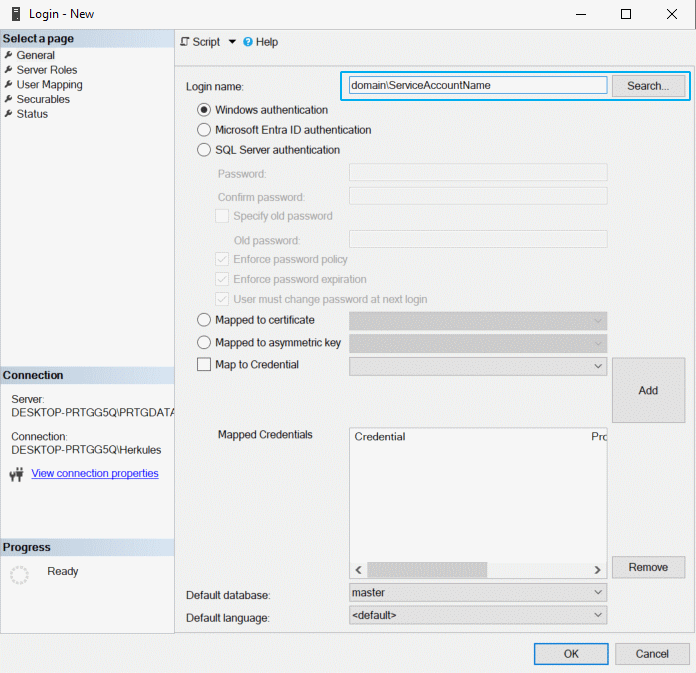
Add login name
3.Go to the User Mapping tab. Select the user PRTG_SLA_Reporter from the list of Users mapped to this login and db_owner from the list of Database role membership for: PRTG_SLA_Reporter. Click OK to save the settings.
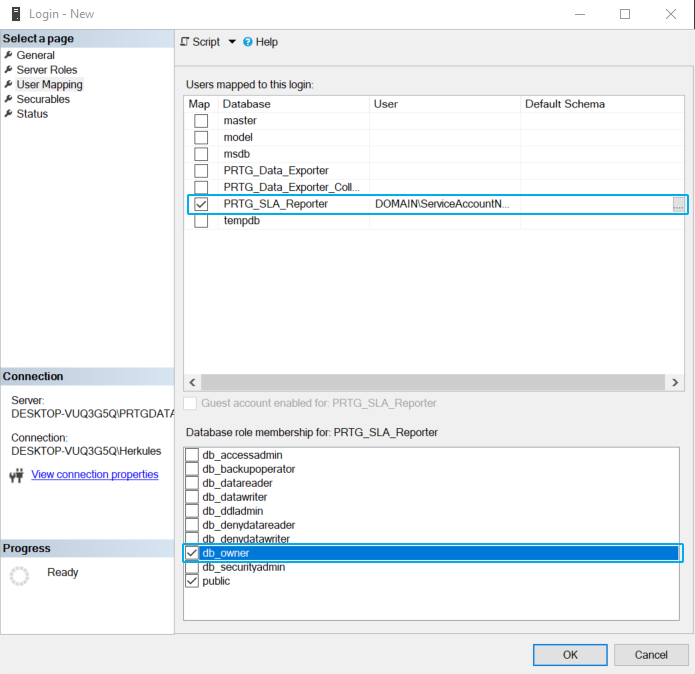
User Mapping
