
PRTG Manual: Reports
Use the Reports page to access a monthly overview of your service level agreements (SLAs).
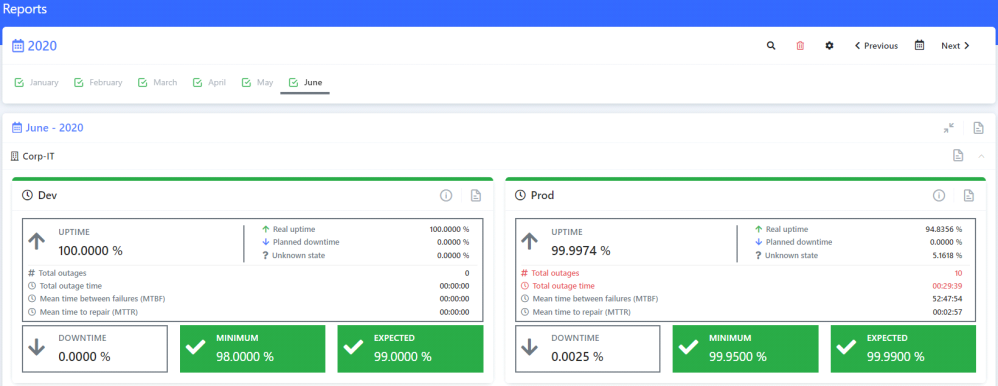
Monthly SLA report page
After creating an SLA, the reports page will be blank as it starts generating the first reports at a specific hour and will generate one every hour after that.
You can manually generate the reports. Click  next to your username in the upper right corner to start the polling task.

Start PRTG polling task

Generating reports
You can select the year of the report you want to see. Click  in the upper right corner of the page to change the year.

SLA Report - Change year
Reports are grouped based on a company. Click on the company bar to expand and collapse each Company section for easier navigation.
 For more information on adding a company to an SLA, see section Service level agreements.
Each SLA is represented in a container that can have two colors:
▪RED
▫If the unplanned downtime is higher than the Minimum downtime per month as defined in the SLA agreement.
▫If the unplanned downtime is below the Expected downtime defined in the SLA but higher than the Expected downtime breach limit.
▪GREEN
Export to PDF
You can also use the Export to PDF feature to create custom report packets:
•By Month - All SLAs from that month are exported to PDF.

Export PDF by month
•By Company - All SLAs from one company are exported to PDF.

Export PDF by company
•By Service Level Agreement - All selected SLAs are exported to PDF.

Export PDF by SLA
Reports summary
To see the detailed report for an SLA, click next to the SLA's name.
For each individual SLA, you can see the following details:
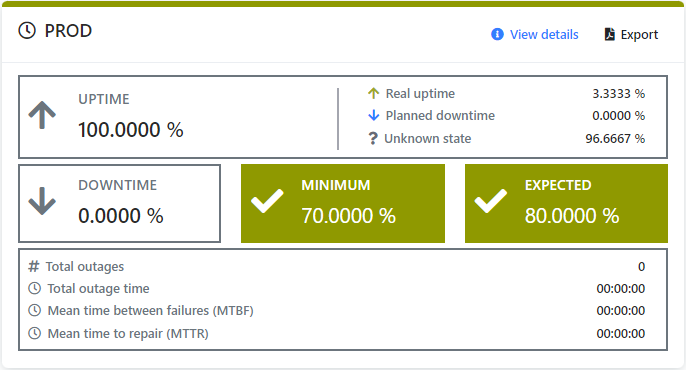
SLA details
Setting |
Description |
Total outages |
The total number of outages. |
Total outage time |
The cumulative time for the total number of outages. |
Mean time between failures (MTBF) |
The average uptime between two downtime occurrences for the given SLA. |
Mean time to repair (MTTR) |
The average amount of time for a downtime occurrence for the given SLA. |
Click  in the upper right to open the Filter Menu to filter the report results.

Reports filter
In this filter menu, you can select specific periods of time to view the data of.
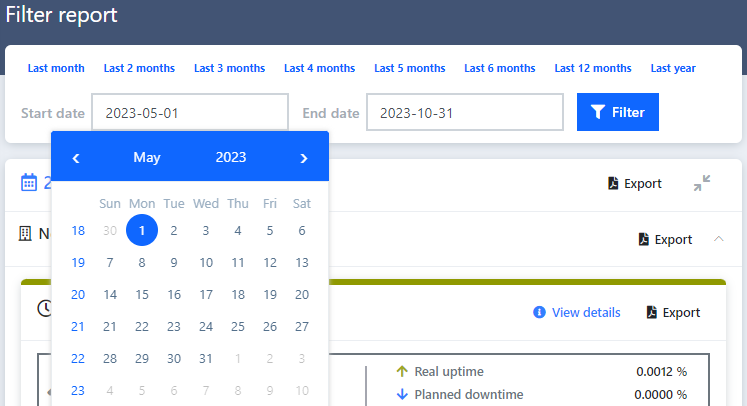
Filter interval
Report details
When accessing a Service Level Agreement report details you will have access to information of all devices and sensors which are part of the selected Service Level Agreement.
The Details page shows detailed information on the currently selected SLA by month and year, as well as its devices and sensors.
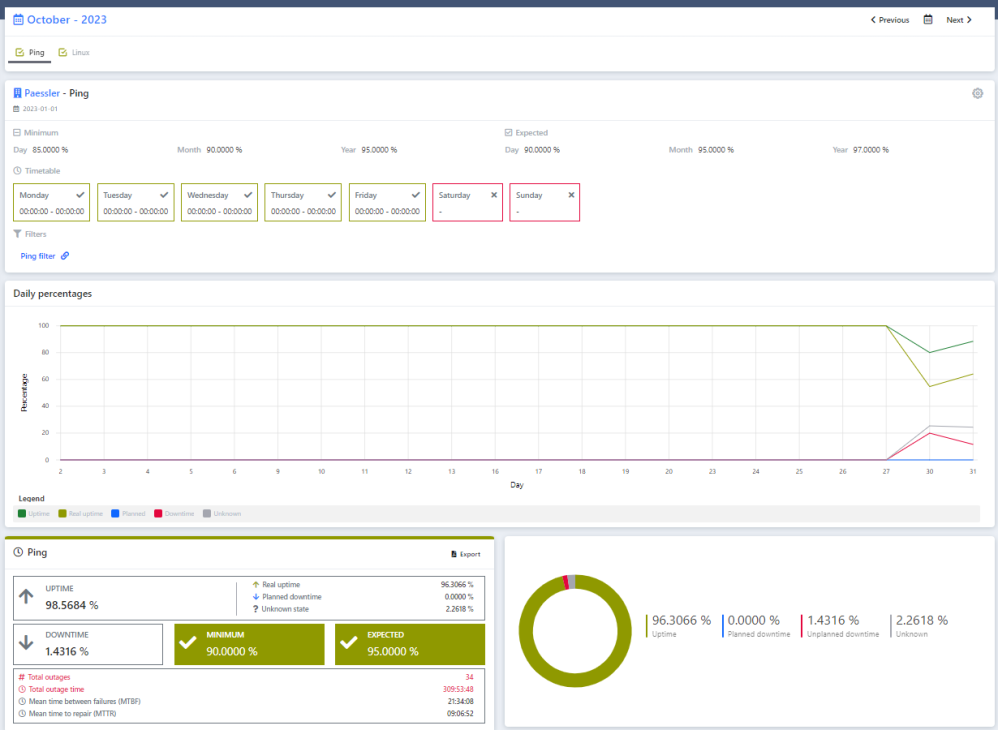
Report details
The Details page for each SLA offers fast navigation between different months. The navigation options can be found on the top part of the page.
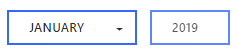
Select report month
The devices that have downtime can be expanded to see extra information.

Sensor downtime
You can expand any sensor to see more details:
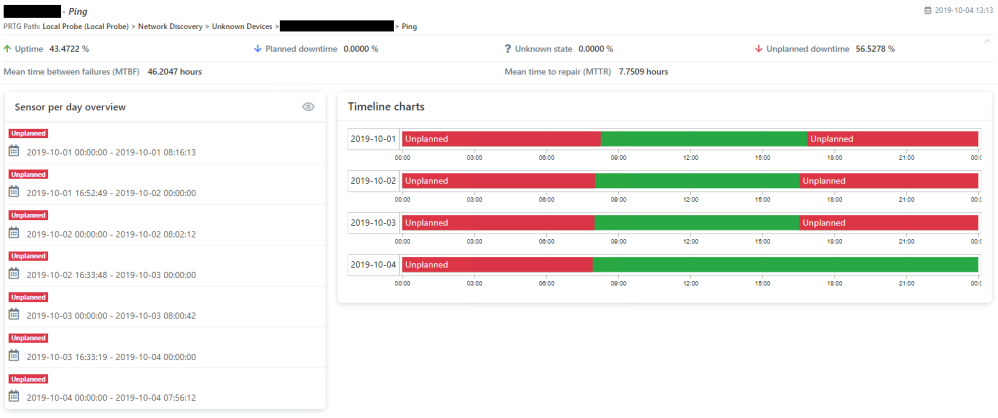
Sensor downtime details
Expand sensors to view all the downtime recorded during the monitored SLA time interval.
You can manage a sensor's downtime through the View downtimes feature, where you can mark any unplanned or unknown intervals as planned downtime.

View downtimes
In the Sensor downtimes page, there are three options for each downtime period in the downtime options menu:
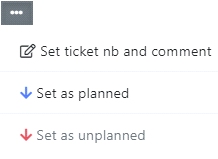
Downtime options menu
▪Set ticket number and comment
▪Set as planned
▪Set as unplanned
Reports cleanup
You can delete existing reports and their related data if necessary, for example, when the number of reported sensors changes, or any time you need to reload data from a PRTG server for a previously reported period.
Click  in the upper-right corner of the Reports page to open the Cleanup reports dialog. Select the corresponding SLA and the time period for the reports and data that you want to delete.

Reports cleanup
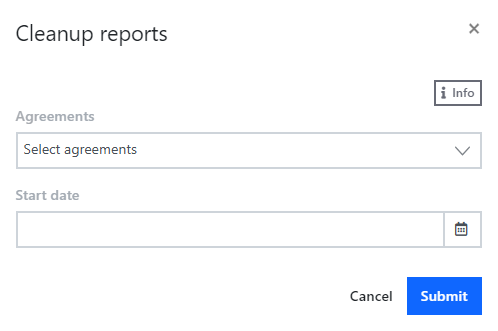
Cleanup dialog
Setting |
Description |
Agreements |
The SLA for which you want to delete reports. |
Start date |
The first day of the time period for which you want to delete the SLA reports. |
Click  in the upper-right corner of the Reports page to access the reports' settings.

Reports settings
Group reports
Use group reports to assign specific user groups the rights to access reports. You must do this for non-administrative users to be able to read and access reports. Assign access by Agreements or Companies to allow all members of the selected group to view reports for the specified SLA or all reports associated with the selected company.
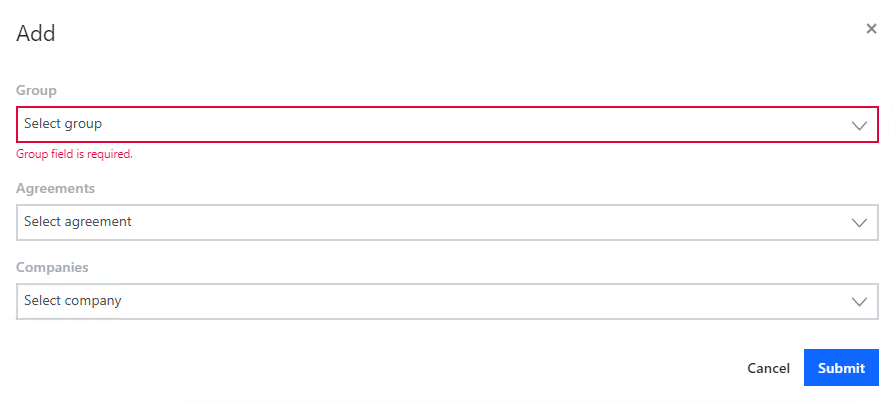
Add group report
Setting |
Description |
Group |
The user group. |
Agreements |
The SLAs that you want to make accessible to the selected user group members. |
Companies |
The companies whose reports you want to make accessible to the selected user group members. |
 For more information on how to create and configure user groups, see section Users.
Public reports
You can also create public reports to share with third parties. If you create a public report, PRTG SLA Reporter generates a permanent link that allows access to all reports of the associated SLAs until you delete the public report. It is possible to create multiple public reports from one SLA to maintain access control for various parties over the same report.
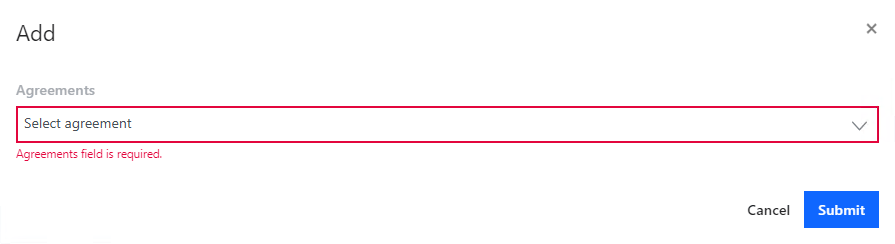
Add public report
Setting |
Description |
Agreements |
The SLAs for which you want to generate the public access link. |
Go to the list of public reports and find the public report that you want to share the link to with third parties. Click  next to its name to copy the link to the clipboard.
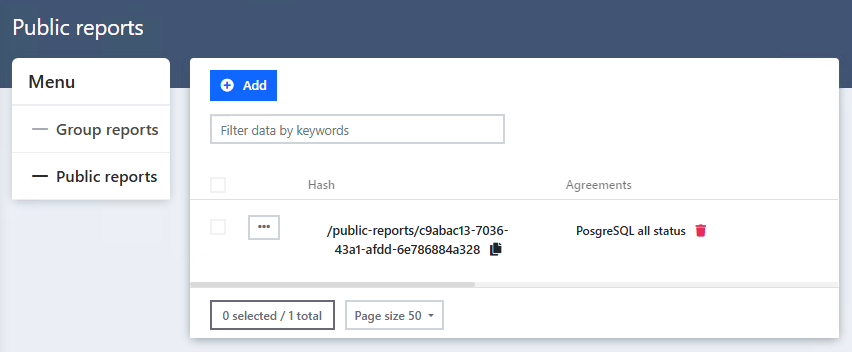
Public reports list
The link provides access to all reports of the associated SLAs. An example of a public report:
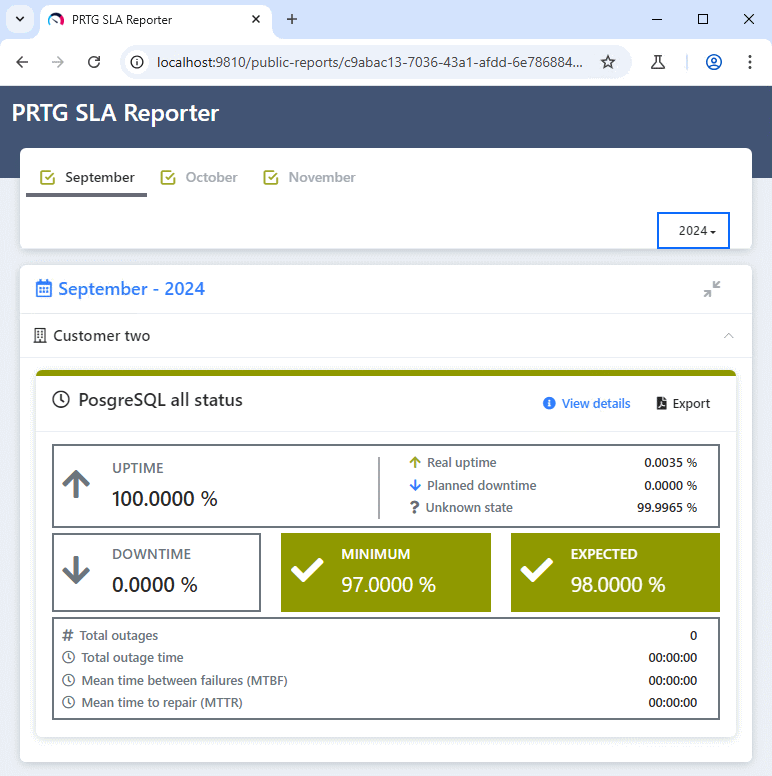
Webpage with public report example
