
PRTG Manual: Filters
Using the Filters page, you can create lists of sensors to monitor. These lists can be assigned to one or more SLAs.
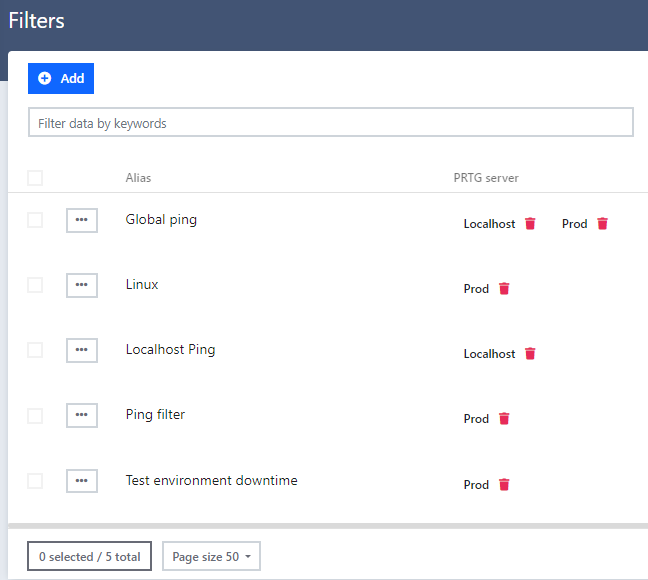
Filters page
1.To create a new filter, click  .
.
 If you are using multiple PRTG core servers, you must first select the correct server at the top.
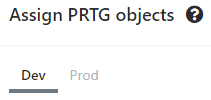
Select PRTG server
2.Filter the sensors either by tag or by name to find the sensors you want to include in the filter and click Submit.
When filtering by tag, you can select all the required sensors by selecting the Server, Device, Group, or the entire Tree.
 After creating a filter based on a tag, any new sensor created in PRTG with the same tag in the group that you selected will be automatically included in the SLA.

Filter by tag
3.Enter a name for the filter and review the sensor selection. Click Yes.
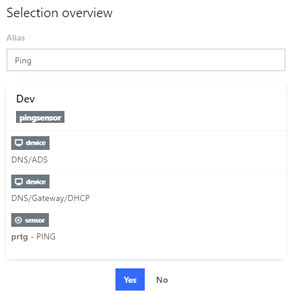
Selection overview
The Assigned sensors will now show up on the right side of the page. From this section, you can also delete any sensors that you no longer want to be included in the report by marking them and using the Delete option.
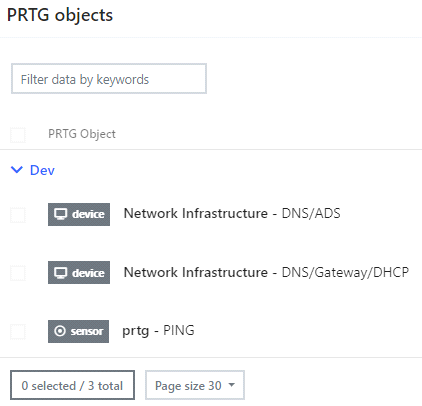
Assigned sensors
